<!DOCTYPE html><html lang="en-US"> <head><meta charset="utf-8"><meta http-equiv="x-ua-compatible" content="ie=edge"><meta name="viewport" content="width=device-width, initial-scale=1, shrink-to-fit=no"><title>AWS S3-Triggered Ingestion via Klaviyo’s SFTP - Klaviyo</title><meta name="description" content="This solution recipe explains how to connect AWS S3 to Klaviyo’s SFTP to trigger profile ingestion when a new file is added to an S3 bucket."><link rel="icon" href="https://www.klaviyo.com/icons/icon-32x32.png" type="image/png"><link rel="manifest" href="/manifest.webmanifest" crossorigin="anonymous"><link rel="apple-touch-icon" sizes="48x48" href="https://www.klaviyo.com/icons/icon-48x48.png"><link rel="apple-touch-icon" sizes="72x72" href="https://www.klaviyo.com/icons/icon-72x72.png"><link rel="apple-touch-icon" sizes="96x96" href="https://www.klaviyo.com/icons/icon-96x96.png"><link rel="apple-touch-icon" sizes="144x144" href="https://www.klaviyo.com/icons/icon-144x144.png"><link rel="apple-touch-icon" sizes="192x192" href="https://www.klaviyo.com/icons/icon-192x192.png"><link rel="apple-touch-icon" sizes="256x256" href="https://www.klaviyo.com/icons/icon-256x256.png"><link rel="apple-touch-icon" sizes="384x384" href="https://www.klaviyo.com/icons/icon-384x384.png"><link rel="apple-touch-icon" sizes="512x512" href="https://www.klaviyo.com/icons/icon-512x512.png"><script id="klaviyo-contentsquare">window._uxa = window._uxa || [];</script><script id="transcend-airgap-script" src="https://transcend-cdn.com/cm/f3c1005b-8270-469c-85a4-81fe6c9b70e7/airgap.js?cacheBust=1773173412492" data-cfasync="false" data-prompt="auto" data-site="klaviyo.com" data-locale="en-US" data-languages="en,de-DE,es-ES,fr-FR,it-IT,ko-KR,nl-NL,pl-PL,pt-BR,sv-SE" onload="window._airgapLoadEvent = event;" data-report-only="on"></script> <script type="module" src="/blog/_astro/ConsentManager.astro_astro_type_script_index_0_lang.BETS19jy.js"></script><script id="klaviyo-experimentation">
window._kvyo_mkt_exp_provider = window._kvyo_mkt_exp_provider || {};
</script><script id="klaviyo-datalayer">window.dataLayer = window.dataLayer || [];</script> <script id="klaviyo-google-tag-manager">(function(){const gtmId = "GTM-M28G2G";
(function(w,d,s,l,i){w[l]=w[l]||[];w[l].push({'gtm.start':
new Date().getTime(),event:'gtm.js'});var f=d.getElementsByTagName(s)[0],
j=d.createElement(s),dl=l!='dataLayer'?'&l='+l:'';j.async=true;j.src=
'https://www.googletagmanager.com/gtm.js?id='+i+dl;f.parentNode.insertBefore(j,f);
})(window,document,'script','dataLayer', gtmId);
window['optimizely'] = window['optimizely'] || [];
window['optimizely'].push({
type:"event",
eventName:"gtmLoaded"
});
})();</script><script id="hs-script-loader" src="//js.hs-scripts.com/48163345.js"></script><script src="https://js.hsforms.net/forms/embed/v2.js"></script><script>window.hubspotTrackingId = window.hubspotTrackingId || '48163345';</script><script id="klaviyo-klaviyoCompanyId">(function(){const companyId = "9BX3wh";
window.klaviyoCompanyId = window.klaviyoCompanyId || companyId;
})();</script><script id="klaviyo-klaviyo-object">
!function(){if(!window.klaviyo){window._klOnsite=window._klOnsite||[];try{window.klaviyo=new Proxy({},{get:function(n,i){return"push"===i?function(){var n;(n=window._klOnsite).push.apply(n,arguments)}:function(){for(var n=arguments.length,o=new Array(n),w=0;w<n;w++)o[w]=arguments[w];var t="function"==typeof o[o.length-1]?o.pop():void 0,e=new Promise((function(n){window._klOnsite.push([i].concat(o,[function(i){t&&t(i),n(i)}]))}));return e}}})}catch(n){window.klaviyo=window.klaviyo||[],window.klaviyo.push=function(){var n;(n=window._klOnsite).push.apply(n,arguments)}}}}();
</script><script id="klaviyo-onsite-js" src="https://static.klaviyo.com/onsite/js/klaviyo.js?company_id=9BX3wh"></script><meta property="og:locale" content="en_US"><meta property="og:type" content="website"><meta name="og:title" property="og:title" content="AWS S3-Triggered Ingestion via Klaviyo’s SFTP - Klaviyo"><meta name="og:description" content="This solution recipe explains how to connect AWS S3 to Klaviyo’s SFTP to trigger profile ingestion when a new file is added to an S3 bucket."><meta property="og:url" content="https://www.klaviyo.com/blog/solution-recipe-24-aws-s3-triggered-ingestion-via-klaviyos-sftp"><meta property="og:site_name" content="Klaviyo"><meta property="article:publisher" content="https://www.facebook.com/Klaviyo/"><meta property="article:modified_time" content="2023-10-06T18:29:39.000Z"><meta property="og:image" content="https://www.klaviyo.com/static/klaviyo-social-share-image.jpg"><meta property="og:image:width" content="1200"><meta property="og:image:height" content="630"><meta property="og:image:type" content="image/jpeg"><meta name="twitter:card" content="summary_large_image"><meta name="twitter:title" content="AWS S3-Triggered Ingestion via Klaviyo’s SFTP - Klaviyo"><meta name="twitter:description" content="This solution recipe explains how to connect AWS S3 to Klaviyo’s SFTP to trigger profile ingestion when a new file is added to an S3 bucket."><meta name="twitter:image" content="https://www.klaviyo.com/static/klaviyo-social-share-image.jpg"><meta name="twitter:site" content="@klaviyo"><script type="module" src="/blog/_astro/OnLoad.astro_astro_type_script_index_0_lang.fZxyOZOV.js"></script><meta id="meta-robots-tag" name="robots" content="index, follow"><link id="link-rel-canonical" rel="canonical" href="https://www.klaviyo.com/blog/solution-recipe-24-aws-s3-triggered-ingestion-via-klaviyos-sftp"><script type="module" src="/blog/_astro/Statsig.astro_astro_type_script_index_0_lang.RqUG-5gM.js"></script><meta name="msvalidate.01" content="49A84271BDDA383603410B783428A45B"><meta name="google-site-verification" content="gZoutuKyaBAseITF5HFxs7502vdgSyDlGFVcrM-3_68"><meta name="facebook-domain-verification" content="jso33gutz25cozarhntdl864k8xtnf"><link rel="preconnect" href="https://static.klaviyo.com"><script defer id="recaptcha-script" src="https://www.google.com/recaptcha/api.js?render=6Lc-vxErAAAAAKq79hQ2CEfaUCBld0hVMtRboXtB&hl=en-US"></script><script type="application/ld+json">{"@context":"https://schema.org","@type":"BreadcrumbList","itemListElement":[{"@type":"ListItem","position":1,"name":"Home","item":"https://www.klaviyo.com/"},{"@type":"ListItem","position":2,"name":"Blog","item":"https://www.klaviyo.com/blog"},{"@type":"ListItem","position":3,"name":"AWS S3-Triggered Ingestion via Klaviyo’s SFTP","item":"https://www.klaviyo.com/blog/solution-recipe-24-aws-s3-triggered-ingestion-via-klaviyos-sftp"}]}</script><link rel="stylesheet" href="/blog/_astro/_slug_.DTGkCYLd.css">
<style>._breadcrumbsComponent_1ilbl_1{background-color:var(--color-breadcrumbs-background);padding-top:32px}._charcoal_1ilbl_6{--color-breadcrumbs-background: var(--color-charcoal)}._lightSand_1ilbl_10{--color-breadcrumbs-background: var(--color-light-sand)}._container_1ilbl_14{display:block;padding-top:2rem;padding-bottom:1.2rem;font-size:1.2rem}._breadcrumbs_1ilbl_1{background-color:transparent;color:var(--color-storm-tint);display:inline-block;max-width:29.1rem;position:relative;width:69rem;z-index:3}._light_1ilbl_10,._breadcrumbs_1ilbl_1._light_1ilbl_10{color:var(--color-gray-90);._lastBreadcrumb_1ilbl_35{color:var(--color-charcoal)}}._dark_1ilbl_40,._breadcrumbs_1ilbl_1._dark_1ilbl_40{color:var(--color-storm-tint);._lastBreadcrumb_1ilbl_35{color:var(--color-white)}}._breadcrumb_1ilbl_1{cursor:pointer;display:inline-block;margin-right:.6rem;overflow:hidden;text-decoration:none;text-overflow:ellipsis;&:hover,&:focus,&:focus-visible{text-decoration:underline}}._lastBreadcrumb_1ilbl_35{cursor:default;display:inline-block;text-decoration:none;margin-right:.6rem;font-weight:500;overflow:hidden;text-overflow:ellipsis;max-width:100%;white-space:nowrap}._spacer_1ilbl_77{display:inline-block;text-align:center;width:20px;margin-right:.6rem;overflow:hidden}@media screen and (min-width: 576px){._breadcrumbs_1ilbl_1{max-width:41.6rem}}@media screen and (min-width: 768px){._breadcrumbs_1ilbl_1{max-width:45.6rem}}@media screen and (min-width: 916px){._breadcrumbs_1ilbl_1{max-width:61.6rem}}@media screen and (min-width: 1366px){._breadcrumbs_1ilbl_1{max-width:69rem}}
</style>
<link rel="stylesheet" href="/blog/_astro/_slug_.DO0KeWEb.css">
<link rel="stylesheet" href="/blog/_astro/_page_.BXi5blp5.css">
<style>._buttonContainer_1ir94_1{font-family:var(--font-family-sans-serif);display:inline-flex;align-items:center;flex-wrap:wrap;gap:1.5rem}.klaviyoForm{padding-top:var(--spacing-global-vertical-padding);padding-bottom:var(--spacing-global-vertical-padding)}.klaviyoForm.charcoal,.klaviyoForm.dark{background-color:var(--color-charcoal);color:var(--color-white)}.klaviyoForm.light,.klaviyoForm.lightSand,.klaviyoForm.white{background-color:var(--color-light-sand);color:var(--color-charcoal)}.klaviyoForm .text{display:flex;flex-direction:column;gap:1.6rem;grid-column:1/-1;margin-bottom:1.6rem}@media screen and (min-width: 768px){.klaviyoForm .text{grid-column:2/-2}}@media screen and (min-width: 1024px){.klaviyoForm .text{grid-column:3/-3}}.klaviyoForm .form{grid-column:1/-1}@media screen and (min-width: 768px){.klaviyoForm .form{grid-column:2/-2}}@media screen and (min-width: 1024px){.klaviyoForm .form{grid-column:3/-3}}
</style>
<link rel="stylesheet" href="/blog/_astro/_slug_.yZlDm-Wi.css">
<style>._badge_lflca_1{background-color:var(--badge-background-color, var(--color-core-charcoal));border-radius:.4rem;color:var(--badge-text-color, var(--color-core-white));font-family:var(--font-family-sohne);font-size:.8rem;font-weight:500;line-height:.8rem;padding:.4rem;position:relative;text-transform:uppercase;z-index:0;display:inline-block}._mediumBadge_lflca_16{font-size:1.4rem;font-weight:400;line-height:2rem;padding:.4rem .8rem;text-transform:unset}
</style>
<link rel="stylesheet" href="/blog/_astro/_slug_.BZHNbNSM.css"><script type="module" src="/blog/_astro/page.Cay1dNxt.js"></script></head><body> <style>astro-island,astro-slot,astro-static-slot{display:contents}</style><script>(()=>{var e=async t=>{await(await t())()};(self.Astro||(self.Astro={})).load=e;window.dispatchEvent(new Event("astro:load"));})();</script><script>(()=>{var A=Object.defineProperty;var g=(i,o,a)=>o in i?A(i,o,{enumerable:!0,configurable:!0,writable:!0,value:a}):i[o]=a;var d=(i,o,a)=>g(i,typeof o!="symbol"?o+"":o,a);{let i={0:t=>m(t),1:t=>a(t),2:t=>new RegExp(t),3:t=>new Date(t),4:t=>new Map(a(t)),5:t=>new Set(a(t)),6:t=>BigInt(t),7:t=>new URL(t),8:t=>new Uint8Array(t),9:t=>new Uint16Array(t),10:t=>new Uint32Array(t),11:t=>1/0*t},o=t=>{let[l,e]=t;return l in i?i[l](e):void 0},a=t=>t.map(o),m=t=>typeof t!="object"||t===null?t:Object.fromEntries(Object.entries(t).map(([l,e])=>[l,o(e)]));class y extends HTMLElement{constructor(){super(...arguments);d(this,"Component");d(this,"hydrator");d(this,"hydrate",async()=>{var b;if(!this.hydrator||!this.isConnected)return;let e=(b=this.parentElement)==null?void 0:b.closest("astro-island[ssr]");if(e){e.addEventListener("astro:hydrate",this.hydrate,{once:!0});return}let c=this.querySelectorAll("astro-slot"),n={},h=this.querySelectorAll("template[data-astro-template]");for(let r of h){let s=r.closest(this.tagName);s!=null&&s.isSameNode(this)&&(n[r.getAttribute("data-astro-template")||"default"]=r.innerHTML,r.remove())}for(let r of c){let s=r.closest(this.tagName);s!=null&&s.isSameNode(this)&&(n[r.getAttribute("name")||"default"]=r.innerHTML)}let p;try{p=this.hasAttribute("props")?m(JSON.parse(this.getAttribute("props"))):{}}catch(r){let s=this.getAttribute("component-url")||"<unknown>",v=this.getAttribute("component-export");throw v&&(s+=` (export ${v})`),console.error(`[hydrate] Error parsing props for component ${s}`,this.getAttribute("props"),r),r}let u;await this.hydrator(this)(this.Component,p,n,{client:this.getAttribute("client")}),this.removeAttribute("ssr"),this.dispatchEvent(new CustomEvent("astro:hydrate"))});d(this,"unmount",()=>{this.isConnected||this.dispatchEvent(new CustomEvent("astro:unmount"))})}disconnectedCallback(){document.removeEventListener("astro:after-swap",this.unmount),document.addEventListener("astro:after-swap",this.unmount,{once:!0})}connectedCallback(){if(!this.hasAttribute("await-children")||document.readyState==="interactive"||document.readyState==="complete")this.childrenConnectedCallback();else{let e=()=>{document.removeEventListener("DOMContentLoaded",e),c.disconnect(),this.childrenConnectedCallback()},c=new MutationObserver(()=>{var n;((n=this.lastChild)==null?void 0:n.nodeType)===Node.COMMENT_NODE&&this.lastChild.nodeValue==="astro:end"&&(this.lastChild.remove(),e())});c.observe(this,{childList:!0}),document.addEventListener("DOMContentLoaded",e)}}async childrenConnectedCallback(){let e=this.getAttribute("before-hydration-url");e&&await import(e),this.start()}async start(){let e=JSON.parse(this.getAttribute("opts")),c=this.getAttribute("client");if(Astro[c]===void 0){window.addEventListener(`astro:${c}`,()=>this.start(),{once:!0});return}try{await Astro[c](async()=>{let n=this.getAttribute("renderer-url"),[h,{default:p}]=await Promise.all([import(this.getAttribute("component-url")),n?import(n):()=>()=>{}]),u=this.getAttribute("component-export")||"default";if(!u.includes("."))this.Component=h[u];else{this.Component=h;for(let f of u.split("."))this.Component=this.Component[f]}return this.hydrator=p,this.hydrate},e,this)}catch(n){console.error(`[astro-island] Error hydrating ${this.getAttribute("component-url")}`,n)}}attributeChangedCallback(){this.hydrate()}}d(y,"observedAttributes",["props"]),customElements.get("astro-island")||customElements.define("astro-island",y)}})();</script><astro-island uid="VabMG" prefix="r13" component-url="/blog/_astro/header.BNeumPB1.js" component-export="Header" renderer-url="/blog/_astro/client.IaDn9qiQ.js" props="{"slot":[0,"header"],"alertBar":[0,{"_createdAt":[0,"2026-03-03T20:03:33Z"],"_id":[0,"dfe625ba-d9a6-47a7-9ce6-e4dca8457be9"],"_rev":[0,"3Zd6FO235bqucTEKLizzgE"],"_type":[0,"alertBar"],"_updatedAt":[0,"2026-03-03T20:06:28Z"],"backgroundColor":[0,"violet"],"backgroundImage":[0,null],"endDate":[0,"2026-03-31T19:03:00.000Z"],"excludedPaths":[1,[[0,"/grow/*"],[0,"/sign-up"],[0,"/demo-request"],[0,"/pricing"],[0,"/careers/*"],[0,"/marketing-resources"]]],"icon":[0,""],"language":[0,"en-US"],"link":[0,{"href":[0,"https://www.klaviyo.com/whats-new"],"openInNewTab":[0,true]}],"locale":[0,"en-US"],"message":[1,[[0,{"_key":[0,"77e2379f89e2"],"_type":[0,"block"],"children":[1,[[0,{"_key":[0,"18d120899018"],"_type":[0,"span"],"marks":[1,[]],"text":[0,"Explore 50+ new features designed to help you grow big in 2026"]}]]],"markDefs":[1,[]],"style":[0,"normal"]}]]],"startDate":[0,"2026-03-03T20:03:28.934Z"],"textColor":[0,"white"],"title":[0,"What's new"]}],"basePathType":[0,"path"],"homeLink":[0,"/"],"langCode":[0,"en-US"],"path":[0,"/blog/solution-recipe-24-aws-s3-triggered-ingestion-via-klaviyos-sftp"],"sites":[1,[[0,{"_createdAt":[0,"2025-12-17T21:33:47Z"],"_id":[0,"siteSettings-de-DE"],"_rev":[0,"YJdfQsb7RbX76Tb8OaItHV"],"_type":[0,"siteSettings"],"_updatedAt":[0,"2025-12-17T21:33:47Z"],"description":[0,"Klaviyo vereint Marketing und Kundenservice in einem KI-basierten B2C-CRM. Testen Sie unsere Omnichannel-Marketingsoftware, unterstützt von K:AI-Agents, um personalisierte Erlebnisse über E-Mail-Marketing, WhatsApp und weitere Kanäle bereitzustellen."],"generateSitemap":[0,true],"includeInHreflangTags":[0,true],"indexSite":[0,true],"localeOverride":[0,"de"],"separator":[0,"-"],"title":[0,"Klaviyo DE"],"isoCode":[0,"de"],"isoName":[0,"German"],"locale":[0,"de-DE"],"marketingSitePath":[0,"de"],"name":[0,"German (Germany)"],"nativeName":[0,"Deutsch (Deutschland)"]}],[0,{"_createdAt":[0,"2025-12-17T21:33:47Z"],"_id":[0,"siteSettings-en-AU"],"_rev":[0,"YJdfQsb7RbX76Tb8OaItHV"],"_type":[0,"siteSettings"],"_updatedAt":[0,"2025-12-17T21:33:47Z"],"description":[0,"Klaviyo unifies marketing and service with its AI-first B2C CRM. Try out our omnichannel marketing software, powered by K:AI agents to deliver personalised experiences across email marketing, WhatsApp, and more."],"generateSitemap":[0,true],"includeInHreflangTags":[0,true],"indexSite":[0,true],"separator":[0,"-"],"title":[0,"Klaviyo AU"],"isoCode":[0,"en"],"isoName":[0,"English"],"locale":[0,"en-AU"],"marketingSitePath":[0,"au"],"name":[0,"English (Australia)"],"nativeName":[0,"English (Australia)"]}],[0,{"_createdAt":[0,"2025-12-17T21:33:47Z"],"_id":[0,"siteSettings-en-GB"],"_rev":[0,"YJdfQsb7RbX76Tb8OaItHV"],"_type":[0,"siteSettings"],"_updatedAt":[0,"2025-12-17T21:33:47Z"],"description":[0,"Klaviyo unifies marketing and service with its AI-first B2C CRM. Try out omnichannel marketing software, powered by K:AI agents to deliver personalised experiences across email marketing, WhatsApp, and more."],"generateSitemap":[0,true],"includeInHreflangTags":[0,true],"indexSite":[0,true],"separator":[0,"-"],"title":[0,"Klaviyo UK"],"isoCode":[0,"en"],"isoName":[0,"English"],"locale":[0,"en-GB"],"marketingSitePath":[0,"uk"],"name":[0,"English (United Kingdom)"],"nativeName":[0,"English (United Kingdom)"]}],[0,{"_createdAt":[0,"2025-12-17T21:33:47Z"],"_id":[0,"siteSettings-en-SG"],"_rev":[0,"YJdfQsb7RbX76Tb8OaItHV"],"_type":[0,"siteSettings"],"_updatedAt":[0,"2025-12-17T21:33:47Z"],"description":[0,"Klaviyo unifies marketing and service with its AI-first B2C CRM. Try out our omnichannel marketing software, powered by K:AI agents to deliver personalised experiences across email marketing, WhatsApp, and more."],"generateSitemap":[0,true],"includeInHreflangTags":[0,true],"indexSite":[0,true],"separator":[0,"-"],"title":[0,"Klaviyo SG"],"isoCode":[0,"en"],"isoName":[0,"English"],"locale":[0,"en-SG"],"marketingSitePath":[0,"sg"],"name":[0,"English (Singapore)"],"nativeName":[0,"English (Singapore)"]}],[0,{"_createdAt":[0,"2025-12-17T21:33:47Z"],"_id":[0,"siteSettings-en-US"],"_rev":[0,"YJdfQsb7RbX76Tb8OaItHV"],"_type":[0,"siteSettings"],"_updatedAt":[0,"2025-12-17T21:33:47Z"],"description":[0,"Klaviyo unifies AI-powered email marketing and SMS to drive growth, retention, and measurable results. Build personalized, omnichannel experiences across WhatsApp, ecommerce, and more with K:AI Agents."],"generateSitemap":[0,true],"includeInHreflangTags":[0,true],"indexSite":[0,true],"separator":[0,"-"],"title":[0,"Klaviyo"],"isoCode":[0,"en"],"isoName":[0,"English"],"locale":[0,"en-US"],"marketingSitePath":[0,""],"name":[0,"English (United States)"],"nativeName":[0,"English (United States)"]}],[0,{"_createdAt":[0,"2025-12-17T21:33:47Z"],"_id":[0,"siteSettings-es-ES"],"_rev":[0,"YJdfQsb7RbX76Tb8OaItHV"],"_type":[0,"siteSettings"],"_updatedAt":[0,"2025-12-17T21:33:47Z"],"description":[0,"Klaviyo unifica el marketing y la atención al cliente con su CRM B2C basado en IA. Prueba el software de marketing omnicanal, impulsado por agentes K:AI para ofrecer experiencias personalizadas a través de email marketing, WhatsApp y más."],"generateSitemap":[0,true],"includeInHreflangTags":[0,true],"indexSite":[0,true],"separator":[0,"-"],"title":[0,"Klaviyo ES"],"isoCode":[0,"es"],"isoName":[0,"Spanish"],"locale":[0,"es-ES"],"marketingSitePath":[0,"es"],"name":[0,"Spanish (Spain)"],"nativeName":[0,"Español (España)"]}],[0,{"_createdAt":[0,"2025-12-17T21:33:47Z"],"_id":[0,"siteSettings-fr-FR"],"_rev":[0,"YJdfQsb7RbX76Tb8OaItHV"],"_type":[0,"siteSettings"],"_updatedAt":[0,"2025-12-17T21:33:47Z"],"description":[0,"Klaviyo unifie le marketing et le service client avec son CRM B2C axé sur l'IA. Essayez le logiciel de marketing omnicanal, optimisé par des agents K:AI pour offrir des expériences personnalisées via l'email marketing, WhatsApp et plus encore."],"generateSitemap":[0,true],"includeInHreflangTags":[0,true],"indexSite":[0,true],"separator":[0,"-"],"title":[0,"Klaviyo FR"],"isoCode":[0,"fr"],"isoName":[0,"French"],"locale":[0,"fr-FR"],"marketingSitePath":[0,"fr"],"name":[0,"French (France)"],"nativeName":[0,"Français (France)"]}],[0,{"_createdAt":[0,"2025-12-17T21:33:47Z"],"_id":[0,"siteSettings-it-IT"],"_rev":[0,"YJdfQsb7RbX76Tb8OaItHV"],"_type":[0,"siteSettings"],"_updatedAt":[0,"2025-12-17T21:33:47Z"],"description":[0,"Klaviyo unifica marketing e assistenza clienti con il suo CRM B2C basato sull'IA. Prova il software di marketing omnichannel, potenziato da agenti K:AI per offrire esperienze personalizzate su email marketing, WhatsApp e altro ancora."],"generateSitemap":[0,true],"includeInHreflangTags":[0,true],"indexSite":[0,true],"separator":[0,"-"],"title":[0,"Klaviyo IT"],"isoCode":[0,"it"],"isoName":[0,"Italian"],"locale":[0,"it-IT"],"marketingSitePath":[0,"it"],"name":[0,"Italian (Italy)"],"nativeName":[0,"Italiano (Italia)"]}]]],"translations":[1,[]],"universalCtas":[1,[[0,{"_key":[0,"e8173938-1b36-4bf6-8d27-dd3a04d78c64"],"_type":[0,"ctaMenuItem"],"image":[0,null],"label":[0,"Sign up"],"url":[0,"https://www.klaviyo.com/sign-up"],"variant":[0,"primary"]}],[0,{"_key":[0,"8a703dce-fa78-4326-84dc-8310e3bef4ef"],"_type":[0,"ctaMenuItem"],"image":[0,null],"label":[0,"Get a demo"],"url":[0,"https://www.klaviyo.com/demo-request"],"variant":[0,"secondary"]}]]],"universalCtasLoggedIn":[1,[[0,{"_key":[0,"10831777-650c-4e92-981a-8c290e09e9b9"],"_type":[0,"ctaMenuItem"],"image":[0,null],"label":[0,"Get a demo"],"url":[0,"https://www.klaviyo.com/demo-request"],"variant":[0,"secondary"]}]]],"universalNavigationItems":[1,[[0,{"_key":[0,"84dd4e17-2935-489c-9f57-216420a30831"],"_type":[0,"navbarItem"],"drawer":[0,{"columns":[1,[[0,{"_key":[0,"4a2c0ac4-2941-4195-a6eb-2bd50c87347b"],"_type":[0,"link_list"],"childItems":[1,[[0,{"_key":[0,"b4318b8b-da8f-4077-91ae-62715a3c9e2d"],"description":[0,"Discover how the Klaviyo CRM, built for your business, can help you create lasting customer relationships."],"featured":[0,true],"image":[0,null],"label":[0,"The B2C CRM"],"trailingMark":[0,true],"url":[0,"/platform"]}]]],"eyebrow":[0,"Overview"],"width":[0,"standard"]}],[0,{"_key":[0,"507e3a96-bd88-47d7-9ea4-bea493a850b9"],"_type":[0,"link_list"],"childItems":[1,[[0,{"_key":[0,"38b9e0fb-0bdf-418e-91e0-18545036bb33"],"badge":[0,{"color":[0,"poppy"],"text":[0,"New"]}],"description":[0,"AI agents, Image Remix, insights &amp; more"],"featured":[0,true],"image":[0,null],"label":[0,"Klaviyo AI (K:AI)"],"trailingMark":[0,true],"url":[0,"/solutions/ai"]}],[0,{"_key":[0,"0edbfd50-8b0b-4e5a-9674-e79ee3267abb"],"description":[0,"Marketing automation across all channels"],"featured":[0,true],"image":[0,null],"label":[0,"Klaviyo Marketing"],"trailingMark":[0,true],"url":[0,"/solutions/marketing-automation"]}],[0,{"_key":[0,"bfdf517d-21d9-426f-82aa-78fc82fd61be"],"badge":[0,{"color":[0,"poppy"],"text":[0,"NEW"]}],"description":[0,"Happier customers, more sales"],"featured":[0,true],"image":[0,null],"label":[0,"Klaviyo Service"],"trailingMark":[0,true],"url":[0,"/solutions/customer-service"]}],[0,{"_key":[0,"d41a4f1a-83be-4175-8e95-3ce24185deb0"],"description":[0,"What’s working, what’s next, zero noise"],"featured":[0,true],"image":[0,null],"label":[0,"Klaviyo Analytics"],"trailingMark":[0,true],"url":[0,"/solutions/analytics"]}],[0,{"_key":[0,"266b7e03-258a-4920-98b1-8e9171762e4d"],"description":[0,"The smarter, simpler CDP to unify and activate your data in real time"],"featured":[0,true],"image":[0,null],"label":[0,"Klaviyo Data Platform"],"trailingMark":[0,true],"url":[0,"/solutions/customer-data-platform"]}]]],"eyebrow":[0,"SOLUTIONS"],"width":[0,"standard"]}],[0,{"_key":[0,"383cedba-87a6-4456-9a84-a77fa6efbd2c"],"_type":[0,"link_list"],"childItems":[1,[[0,{"_key":[0,"7c4f9217-d2f0-4ddf-8355-2118bc26340f"],"badge":[0,{"color":[0,"poppy"],"text":[0,"NEW"]}],"description":[0,"AI, data, and channels working as one"],"featured":[0,true],"image":[0,null],"label":[0,"Omnichannel marketing"],"trailingMark":[0,true],"url":[0,"/solutions/omnichannel"]}],[0,{"_key":[0,"5101ac9e-e028-4f2e-bce7-960346f845c4"],"icon":[0,"NavigationEmail"],"image":[0,null],"label":[0,"Email marketing"],"url":[0,"/products/email-marketing"]}],[0,{"_key":[0,"cd2d1f66-d14b-4541-95dc-408768e438ac"],"icon":[0,"NavigationSms"],"image":[0,null],"label":[0,"SMS marketing"],"url":[0,"/products/sms-marketing"]}],[0,{"_key":[0,"5399e0c9-30c0-40f3-8f3e-f39e964940c3"],"badge":[0,{"color":[0,"poppy"],"text":[0,"NEW"]}],"icon":[0,"NavigationRcs"],"image":[0,null],"label":[0,"RCS for Business"],"url":[0,"/products/sms-marketing/rcs"]}],[0,{"_key":[0,"80460413-ff5e-4003-af84-37a7cc722868"],"icon":[0,"NavigationMobilePush"],"image":[0,null],"label":[0,"Mobile app marketing"],"url":[0,"/products/mobile-push"]}],[0,{"_key":[0,"3ddd68b4-685d-4b27-af73-dbee33994088"],"badge":[0,{"color":[0,"poppy"],"text":[0,"NEW"]}],"icon":[0,"NavigationWhatsapp"],"image":[0,null],"label":[0,"WhatsApp marketing"],"url":[0,"/products/whatsapp"]}],[0,{"_key":[0,"6fe88d21-2120-4096-878b-1ee3415caeb4"],"badge":[0,{"color":[0,"poppy"],"text":[0,"NEW"]}],"icon":[0,"NavigationSocialMarketing"],"image":[0,null],"label":[0,"Social marketing"],"url":[0,"/products/social"]}]]],"eyebrow":[0,"CHANNELS"],"width":[0,"standard"]}],[0,{"_key":[0,"0a1e99b1-094a-452d-b854-d9faafd6b52d"],"_type":[0,"link_list"],"childItems":[1,[[0,{"_key":[0,"3430b730-c6ed-4f2d-8863-19e89c7c623f"],"badge":[0,{"color":[0,"poppy"],"text":[0,"New"]}],"image":[0,null],"label":[0,"Marketing Agent"],"url":[0,"/solutions/ai/marketing-agent"]}],[0,{"_key":[0,"1a8a343a-6d3d-40d8-bb74-39c81bf96d96"],"badge":[0,{"color":[0,"poppy"],"text":[0,"NEW"]}],"image":[0,null],"label":[0,"Customer Agent"],"url":[0,"/solutions/ai/customer-agent"]}],[0,{"_key":[0,"9f23aa5d-57d6-49e6-a92f-1a83a4983151"],"badge":[0,{"color":[0,"poppy"],"text":[0,"NEW"]}],"image":[0,null],"label":[0,"Customer Hub"],"url":[0,"/products/customer-experience-hub"]}],[0,{"_key":[0,"3e148ab1-dbef-42cf-845a-968f90c4aee5"],"badge":[0,{"color":[0,"poppy"],"text":[0,"NEW"]}],"image":[0,null],"label":[0,"Helpdesk"],"url":[0,"/products/helpdesk"]}],[0,{"_key":[0,"e94c998d-bf12-43b3-bd2d-f0e2458cfd93"],"image":[0,null],"label":[0,"Marketing Analytics"],"url":[0,"/products/marketing-analytics"]}],[0,{"_key":[0,"a5baece7-1035-48cf-92c8-b42678a44576"],"image":[0,null],"label":[0,"Advanced Klaviyo Data Platform"],"url":[0,"/products/advanced-cdp"]}],[0,{"_key":[0,"cc7c3cd1-cd26-430b-9895-706d3d402838"],"image":[0,null],"label":[0,"Segmentation"],"url":[0,"/features/segmentation"]}],[0,{"_key":[0,"05046cd0-01f6-478e-bc98-840087d4b133"],"image":[0,null],"label":[0,"Reviews"],"url":[0,"/products/review-management"]}],[0,{"_key":[0,"99ef50fd-3c75-4043-ac96-7f30f0c0c88f"],"image":[0,null],"label":[0,"Templates"],"url":[0,"/features/templates"]}]]],"eyebrow":[0,"TOP PRODUCTS + FEATURES"],"width":[0,"standard"]}]]],"lowerItems":[1,[[0,{"_key":[0,"b3f02059-8234-4c99-8d25-5f289e0672b5"],"_type":[0,"six_column"],"childItems":[1,[[0,{"_key":[0,"904cc5cb-d64d-4de7-8294-a940eb1f158e"],"description":[0,"One platform. Every channel. Real results."],"image":[0,{"_type":[0,"image"],"asset":[0,{"url":[0,"https://cdn.sanity.io/images/6ct6b26e/marketing-prod/baeb51700705ac37ed422f09fff04a0bf9900422-668x400.webp"]}]}],"label":[0,"The Klaviyo omniverse"],"url":[0,"/solutions/omnichannel"]}],[0,{"_key":[0,"ceadcb91-1d33-474c-bf3e-6111f7fe45cb"],"description":[0,"AI strategist and assistant for marketers."],"image":[0,{"_type":[0,"image"],"asset":[0,{"url":[0,"https://cdn.sanity.io/images/6ct6b26e/marketing-prod/ae936bd6b977ede47a47817389f3f4c88af83bf3-502x300.webp"]}]}],"label":[0,"Marketing Agent"],"url":[0,"/solutions/ai/marketing-agent"]}],[0,{"_key":[0,"770b06a2-4ddd-41b1-97fe-ade42329cfa2"],"description":[0,"AI support and sales rep for shoppers."],"image":[0,{"_type":[0,"image"],"asset":[0,{"url":[0,"https://cdn.sanity.io/images/6ct6b26e/marketing-prod/9de21910b9048ec6cb4ef0826d2a072d0cb02af0-502x300.webp"]}]}],"label":[0,"Customer Agent"],"url":[0,"/solutions/ai/customer-agent"]}],[0,{"_key":[0,"cdfbdf3e-722d-47e4-964d-f4c6b516e227"],"description":[0,"Get more personal on more channels."],"image":[0,{"_type":[0,"image"],"asset":[0,{"url":[0,"https://cdn.sanity.io/images/6ct6b26e/marketing-prod/ce5b07ba71d2f4ad7dda0ced439c6b20c954e263-669x400.webp"]}]}],"label":[0,"New features"],"url":[0,"/whats-new"]}],[0,{"_key":[0,"f150ad5a-2da8-4c06-9a15-97db69238c70"],"description":[0,"Watch the replay of our livestream sessions."],"image":[0,{"_type":[0,"image"],"asset":[0,{"url":[0,"https://cdn.sanity.io/images/6ct6b26e/marketing-prod/5f35a8bf57394c93ee3d334660e938e206268dc0-669x400.webp"]}]}],"label":[0,"K:BOS 2025"],"url":[0,"/events/kbos-2025-recap"]}]]],"eyebrow":[0,"SPOTLIGHT"]}]]]}],"label":[0,"Platform"]}],[0,{"_key":[0,"3be61f3e-7478-499d-b827-c66a1794f5c7"],"_type":[0,"navbarItem"],"drawer":[0,{"columns":[1,[[0,{"_key":[0,"d3f40407-1eee-45ab-80b4-843a0ac12001"],"_type":[0,"link_list"],"childItems":[1,[[0,{"_key":[0,"wbUf74AzsTIPJWAPCWqz8d"],"description":[0,"Integrate with 350+ apps to seamlessly connect all of your data to Klaviyo"],"featured":[0,true],"image":[0,null],"label":[0,"Explore apps"],"trailingMark":[0,true],"url":[0,"https://marketplace.klaviyo.com/en-us/"]}]]],"eyebrow":[0,"KLAVIYO APP MARKETPLACE"],"width":[0,"standard"]}],[0,{"_key":[0,"5656a308-3c23-4d4d-acd3-78064908119f"],"_type":[0,"visual_list"],"childItems":[1,[[0,{"_key":[0,"7b81717c-90eb-4a62-a013-885ab9452690"],"image":[0,{"_type":[0,"image"],"asset":[0,{"url":[0,"https://cdn.sanity.io/images/6ct6b26e/marketing-prod/ebac5b0bbbfad81c1d7784c51c525832e7700a38-262x120.webp"]}]}],"label":[0,"Shopify"],"url":[0,"https://www.klaviyo.com/ecommerce-integrations/shopify"]}],[0,{"_key":[0,"0dc6a025-e20a-4ef2-8999-da7f0b889162"],"image":[0,{"_type":[0,"image"],"asset":[0,{"url":[0,"https://cdn.sanity.io/images/6ct6b26e/marketing-prod/cbe11091b91c8f140bf47b6656218b19b0bd9fac-262x120.webp"]}]}],"label":[0,"Salesforce"],"url":[0,"https://www.klaviyo.com/ecommerce-integrations/commerce-cloud"]}],[0,{"_key":[0,"7e20c66c-989d-4a48-ab56-c868ad4431ac"],"image":[0,{"_type":[0,"image"],"asset":[0,{"url":[0,"https://cdn.sanity.io/images/6ct6b26e/marketing-prod/7c3c7232e4d426b133fb7a1458ee5a6faa371eaf-262x120.webp"]}]}],"label":[0,"Wix"],"url":[0,"https://www.klaviyo.com/ecommerce-integrations//wix"]}],[0,{"_key":[0,"53746f10-87e7-4cb1-94ef-a156c5a3a855"],"image":[0,{"_type":[0,"image"],"asset":[0,{"url":[0,"https://cdn.sanity.io/images/6ct6b26e/marketing-prod/810a806fe9ab3d05f9e2bfc701aba0774b1866b5-262x120.webp"]}]}],"label":[0,"WooCommerce"],"url":[0,"https://www.klaviyo.com/ecommerce-integrations/woocommerce"]}],[0,{"_key":[0,"4d091608-407e-490a-b5d3-a20cf466ba29"],"image":[0,{"_type":[0,"image"],"asset":[0,{"url":[0,"https://cdn.sanity.io/images/6ct6b26e/marketing-prod/ea92879e13620ad4c849c1d0322334fb409ed111-262x120.webp"]}]}],"label":[0,"Adobe Commerce (Magento)"],"url":[0,"https://www.klaviyo.com/ecommerce-integrations/magento"]}],[0,{"_key":[0,"64c947b4-19e1-4efb-9a19-04221c32af64"],"image":[0,{"_type":[0,"image"],"asset":[0,{"url":[0,"https://cdn.sanity.io/images/6ct6b26e/marketing-prod/43f28b304c058503374e25edfb214b7eed123afc-262x120.webp"]}]}],"label":[0,"BigCommerce"],"url":[0,"https://www.klaviyo.com/ecommerce-integrations/bigcommerce"]}]]]}],[0,{"_key":[0,"fbd53d6b-a9c3-4921-9da9-c8b83c6bc4ce"],"_type":[0,"link_list"],"childItems":[1,[[0,{"_key":[0,"wbUf74AzsTIPJWAPCWqz9p"],"description":[0,"Our apps make it simple to integrate your entire tech stack"],"featured":[0,true],"image":[0,null],"label":[0,"Integration benefits"],"trailingMark":[0,true],"url":[0,"/platform-integrations"]}],[0,{"_key":[0,"a98d517b-7e35-422f-b8d8-5d5d6345a14e"],"image":[0,null],"label":[0,"Advertising"],"url":[0,"https://marketplace.klaviyo.com/en-us/browse/?categoryId=15"]}],[0,{"_key":[0,"de9877f0-ce75-4209-905c-f198c9ecca9a"],"image":[0,null],"label":[0,"Shipping"],"url":[0,"https://marketplace.klaviyo.com/en-us/browse/?categoryId=9"]}],[0,{"_key":[0,"8d7e8362-7a41-48c3-a461-c387bc41814e"],"image":[0,null],"label":[0,"Point of sale"],"url":[0,"https://marketplace.klaviyo.com/en-us/browse/?categoryId=18"]}],[0,{"_key":[0,"d5370cd1-6217-4e72-93d1-db524e753fec"],"image":[0,null],"label":[0,"Loyalty"],"url":[0,"https://marketplace.klaviyo.com/en-us/browse/?categoryId=8"]}],[0,{"_key":[0,"a8f2ec03-f70a-4b0e-b218-42fc32ba9385"],"image":[0,null],"label":[0,"Subscription"],"url":[0,"https://marketplace.klaviyo.com/en-us/browse/?categoryId=25"]}],[0,{"_key":[0,"d2a09935-16cc-4002-934d-71edf209dc07"],"image":[0,null],"label":[0,"View top apps and integrations"],"url":[0,"http://marketplace.klaviyo.com/en-us"]}]]],"width":[0,"standard"]}],[0,{"_key":[0,"324ea7dd-4872-4aba-aabb-73255dc76bae"],"_type":[0,"link_list"],"childItems":[1,[[0,{"_key":[0,"wbUf74AzsTIPJWAPCWqzB1"],"description":[0,"Create apps and integrations to grow your business using Klaviyo’s APIs"],"featured":[0,true],"image":[0,null],"label":[0,"Developers"],"trailingMark":[0,true],"url":[0,"https://developers.klaviyo.com/en"]}],[0,{"_key":[0,"e4b44df3-0c9c-4cb3-b3b5-da4d0f61db5a"],"image":[0,null],"label":[0,"Getting started"],"url":[0,"https://developers.klaviyo.com/en/docs/get_started"]}],[0,{"_key":[0,"4dec07a2-8fe9-43b6-b82a-8a1f9ab615eb"],"image":[0,null],"label":[0,"Developer guides"],"url":[0,"https://developers.klaviyo.com/en/docs"]}],[0,{"_key":[0,"18b67899-915d-4ba6-80e1-19958df06522"],"image":[0,null],"label":[0,"API docs"],"url":[0,"https://developers.klaviyo.com/en/reference/api_overview"]}]]],"width":[0,"standard"]}]]],"lowerItems":[1,[]]}],"label":[0,"Apps & Integrations"]}],[0,{"_key":[0,"988826b9-1c96-4588-a7df-37ffc8b4e2bc"],"_type":[0,"navbarItem"],"drawer":[0,{"columns":[1,[[0,{"_key":[0,"3265d531-6c7b-4395-8fc1-025445a3ea08"],"_type":[0,"link_list"],"childItems":[1,[[0,{"_key":[0,"wbUf74AzsTIPJWAPCWqzCD"],"description":[0,"Your all-in-one success center with answers, resources, and community to keep you growing"],"featured":[0,true],"image":[0,null],"label":[0,"The Klaviyo Power Up"],"trailingMark":[0,true],"url":[0,"/customer-resources"]}],[0,{"_key":[0,"0e8727cc-95ba-4ab4-b6d6-09fc6fdcaaad"],"image":[0,null],"label":[0,"Help center"],"url":[0,"https://help.klaviyo.com/hc/en-us"]}],[0,{"_key":[0,"9cf7755a-cb70-49b5-9870-e182b3f79474"],"image":[0,null],"label":[0,"Academy"],"url":[0,"https://academy.klaviyo.com/en-us"]}],[0,{"_key":[0,"4bd71f9b-bf87-4516-a282-60957d5d38aa"],"image":[0,null],"label":[0,"Community"],"url":[0,"https://community.klaviyo.com"]}],[0,{"_key":[0,"53fddffe-ad6c-48a7-b14c-3108fc6cea21"],"image":[0,null],"label":[0,"Developers"],"url":[0,"https://developers.klaviyo.com/en"]}]]],"width":[0,"standard"]}],[0,{"_key":[0,"9656fd92-6c1a-401d-bd81-a4f1887651c6"],"_type":[0,"link_list"],"childItems":[1,[[0,{"_key":[0,"9fbd3f2f-0158-429d-8cb3-d271f8a46476"],"description":[0,"Onboarding and support resources to get the most out of Klaviyo"],"image":[0,null],"label":[0,"Support overview"],"url":[0,"/success"]}],[0,{"_key":[0,"8777684f-502e-43a0-852d-1b2dcd03c0fd"],"description":[0,"Enterprise and professional support packages and services"],"image":[0,null],"label":[0,"Professional services"],"url":[0,"https://www.klaviyo.com/success/premium-support"]}],[0,{"_key":[0,"4356244b-9343-4f5b-a01f-19226f5e6942"],"description":[0,"Explore partners to work with"],"image":[0,null],"label":[0,"Partner directory"],"url":[0,"https://connect.klaviyo.com"]}]]],"eyebrow":[0,"Support"],"width":[0,"standard"]}],[0,{"_key":[0,"5f3d7ba0-d40f-4fd1-89a3-b6d8edd75bd0"],"_type":[0,"link_list"],"childItems":[1,[[0,{"_key":[0,"42107eb4-0274-4fed-a35f-be46a99dc18c"],"description":[0,"Learn from customers who have grown with Klaviyo"],"image":[0,null],"label":[0,"Case studies"],"url":[0,"/customers"]}],[0,{"_key":[0,"94290652-2605-4498-b2bd-5c4c423a2e93"],"description":[0,"Industry news and growth strategies"],"image":[0,null],"label":[0,"Blog"],"url":[0,"/blog"]}],[0,{"_key":[0,"c2f699bb-0624-4f1c-afe7-19609f339588"],"description":[0,"Best practices, strategic guidance, and benchmark reports"],"image":[0,null],"label":[0,"Guides and reports"],"url":[0,"/marketing-resources"]}],[0,{"_key":[0,"6bfd749a-cfed-482f-a149-dd70b5cd4eb7"],"description":[0,"Join us at our flagship conference K:BOS and other events throughout the year"],"image":[0,null],"label":[0,"Events"],"url":[0,"/events"]}],[0,{"_key":[0,"8633d8a5-eeaf-4926-8eb5-bdc4e3908c60"],"description":[0,"Trust and security information"],"image":[0,null],"label":[0,"Trust center"],"url":[0,"https://www.klaviyo.com/trust"]}]]],"eyebrow":[0,"Discover more"],"width":[0,"standard"]}],[0,{"_key":[0,"bff9133b2b81"],"_type":[0,"link_list"],"childItems":[1,[[0,{"_key":[0,"ea5d3a6bebd9"],"_type":[0,"menuItem"],"badge":[0,{"color":[0,"cotton"]}],"featured":[0,false],"icon":[0,""],"image":[0,null],"label":[0,"Email marketing templates"],"trailingMark":[0,false],"url":[0,"https://www.klaviyo.com/features/email-templates"]}],[0,{"_key":[0,"6d2ed23fdedc"],"_type":[0,"menuItem"],"badge":[0,{"color":[0,"cotton"]}],"featured":[0,false],"icon":[0,""],"image":[0,null],"label":[0,"2026 Marketing calendar"],"trailingMark":[0,false],"url":[0,"https://www.klaviyo.com/marketing-resources/marketing-campaign-calendar"]}],[0,{"_key":[0,"7dd4a3b1c312"],"_type":[0,"menuItem"],"badge":[0,{"color":[0,"cotton"]}],"featured":[0,false],"icon":[0,""],"image":[0,null],"label":[0,"Email subject line generator"],"trailingMark":[0,false],"url":[0,"https://www.klaviyo.com/tools/email-subject-line-generator"]}],[0,{"_key":[0,"23d8b1d1f8bd"],"_type":[0,"menuItem"],"badge":[0,{"color":[0,"cotton"]}],"featured":[0,false],"icon":[0,""],"image":[0,null],"label":[0,"Email & SMS ROI calculator"],"trailingMark":[0,false],"url":[0,"https://www.klaviyo.com/tools/roi-calculator"]}]]],"eyebrow":[0,"Free Tools"],"width":[0,"standard"]}]]],"lowerItems":[1,[[0,{"_key":[0,"6a8efdcd0b86"],"_type":[0,"inline_list"],"childItems":[1,[[0,{"_key":[0,"a0472d3e1761"],"_type":[0,"menuItem"],"badge":[0,{"color":[0,"cotton"]}],"featured":[0,false],"icon":[0,""],"image":[0,null],"label":[0,"Check out the data that defined Black Friday & Cyber Monday"],"trailingMark":[0,false],"url":[0,"https://www.klaviyo.com/bfcm/holiday-shopping-trends"]}]]],"eyebrow":[0,"2025 BFCM RECAP"]}]]]}],"label":[0,"Resources"]}],[0,{"_key":[0,"83527c00-fc9f-499f-a038-d20bf43632b9"],"_type":[0,"navbarItem"],"drawer":[0,{"columns":[1,[]],"lowerItems":[1,[]]}],"label":[0,"How it works"],"url":[0,"/platform-demo"]}],[0,{"_key":[0,"fc85f13a-8eb9-41e5-bc49-024d7a62bdc8"],"_type":[0,"navbarItem"],"drawer":[0,{"columns":[1,[]],"lowerItems":[1,[]]}],"label":[0,"Pricing"],"url":[0,"/pricing"]}]]],"utilityNavigationItems":[1,[[0,{"_key":[0,"3d30106f-92de-4ca1-b353-cecc1b350c6b"],"_type":[0,"basicMenuItem"],"image":[0,null],"label":[0,"Home"],"url":[0,"https://www.klaviyo.com"]}],[0,{"_key":[0,"29a010c3-5bd1-4a6c-a471-8e1a9aa05f9d"],"_type":[0,"basicMenuItem"],"image":[0,null],"label":[0,"Help center"],"url":[0,"https://help.klaviyo.com/hc/en-us"]}],[0,{"_key":[0,"e853f65b-e035-49da-b841-41b0f199fb2a"],"_type":[0,"basicMenuItem"],"image":[0,null],"label":[0,"Enterprise"],"url":[0,"https://www.klaviyo.com/enterprise"]}],[0,{"_key":[0,"7f42967c-8016-4e6d-800f-a1e210da2890"],"_type":[0,"basicMenuItem"],"image":[0,null],"label":[0,"Partners"],"url":[0,"https://www.klaviyo.com/partners"]}],[0,{"_key":[0,"11ab15ee-8496-4d48-a008-0864e8351484"],"_type":[0,"basicMenuItem"],"image":[0,null],"label":[0,"Careers"],"url":[0,"https://www.klaviyo.com/careers"]}]]],"showSubnav":[0,false]}" ssr client="load" before-hydration-url="/blog/_astro/astro_scripts/before-hydration.js.BWsVurST.js" opts="{"name":"ReactHeader","value":true}" await-children><header id="primary-navigation-header" class="_header_1vldn_1" slot="header"><a data-variant="ghost" aria-label="Skip to main content" class="_dark_1dvtu_112 _skipButton_1jt0p_1 _button_1dvtu_1 _ghost_1dvtu_52" href="#site-content" role="link" tabindex="0" target="_self" id="skip-button">Skip to main content</a><div class="_utilityNavigation_1e8p0_1"><div class="grid _grid_1e8p0_18"><div class="_container_1e8p0_30"><nav class="_utility_1e8p0_1"><ul class="_linkList_1e8p0_100"><li class="_listItem_1e8p0_108"><a class="_link_1e8p0_83 _universalMenuItem_s73z6_1" href="https://www.klaviyo.com" aria-current="false">Home</a></li><li class="_listItem_1e8p0_108"><a class="_link_1e8p0_83 _universalMenuItem_s73z6_1" href="https://help.klaviyo.com/hc/en-us" aria-current="false">Help center</a></li><li class="_listItem_1e8p0_108"><a class="_link_1e8p0_83 _universalMenuItem_s73z6_1" href="https://www.klaviyo.com/enterprise" aria-current="false">Enterprise</a></li><li class="_listItem_1e8p0_108"><a class="_link_1e8p0_83 _universalMenuItem_s73z6_1" href="https://www.klaviyo.com/partners" aria-current="false">Partners</a></li><li class="_listItem_1e8p0_108"><a class="_link_1e8p0_83 _universalMenuItem_s73z6_1" href="https://www.klaviyo.com/careers" aria-current="false">Careers</a></li></ul></nav><div class="_children_1e8p0_57"></div><div class="_actions_1e8p0_72"><div class="_languageSelectorContainer_1e8p0_154"></div><div class="_siteActions_1e8p0_79 visuallyHidden"><ul class="_linkList_1e8p0_100"><li><a class="_link_1e8p0_83 _universalMenuItem_s73z6_1" href="https://www.klaviyo.com/search-all" aria-label="Search"><svg xmlns="http://www.w3.org/2000/svg" fill="none" viewBox="0 0 16 16" color="currentColor" style="height:1.6rem"><path fill="currentColor" fill-rule="evenodd" d="M7.434 2.084a4.907 4.907 0 1 0 0 9.813 4.907 4.907 0 0 0 0-9.813M1.027 6.991a6.407 6.407 0 1 1 12.813 0 6.407 6.407 0 0 1-12.813 0" clip-rule="evenodd"></path><path fill="currentColor" fill-rule="evenodd" d="M10.944 10.5a.75.75 0 0 1 1.06 0l3.637 3.637a.75.75 0 0 1-1.06 1.061l-3.637-3.636a.75.75 0 0 1 0-1.061" clip-rule="evenodd"></path></svg></a></li></ul></div><nav class="_platformActions_1e8p0_87 visuallyHidden"><ul class="_linkList_1e8p0_100"><li><a class="_accountLogIn_1d674_1 _universalMenuItem_s73z6_1" href="https://www.klaviyo.com/login"><div><div class="_iconAndLabelContainer_s73z6_168"><div>Log in</div></div></div></a></li></ul></nav></div></div></div></div><div class="_universalNavigation_1pr3e_1 _invertOnHover_1pr3e_46"><div class="grid _container_1pr3e_65"><a title="Go to the Klaviyo home page" href="/" class="_logoContainer_1pr3e_72"><svg xmlns="http://www.w3.org/2000/svg" viewBox="0 0 581 172" color="currentColor" style="height:3.6rem" class="_logo_1pr3e_72"><path fill="currentColor" d="M329.918 34.367a11.85 11.85 0 0 0 8.284-3.315 11.69 11.69 0 0 0 3.576-8.129 11.87 11.87 0 0 0-3.512-8.29 12.03 12.03 0 0 0-8.348-3.488 11.85 11.85 0 0 0-8.185 3.551 11.69 11.69 0 0 0-3.338 8.227 11.5 11.5 0 0 0 3.403 8.065 11.66 11.66 0 0 0 8.12 3.38M410.509 45.371h28.604v2.254a15.3 15.3 0 0 0-4.538 1.558c-2.615 1.215-7.845 7.104-11.86 16.973-6.799 17.148-13.943 37.404-21.442 60.618l-2.792 8.803c-1.223 3.979-2.269 6.576-2.792 8.143s-1.224 3.979-2.438 6.919a38.6 38.6 0 0 1-2.659 6.409c-1.401 2.597-4.016 7.923-6.107 9.525-3.316 2.773-8.2 5.889-14.298 5.37-11.86 0-20.751-8.803-20.928-19.217 0-7.105 4.538-11.779 11.337-11.779 4.884 0 9.236 2.641 9.236 8.134 0 3.988-4.006 8.143-4.006 10.221 0 5.369 3.138 7.922 9.245 7.922 4.875 0 8.864-3.116 11.851-9.349 4.016-7.104 4.361-14.894 1.046-23.557l-25.103-65.98c-5.761-15.237-10.122-20.246-15.521-20.783V45.3h39.578v2.253c-4.707.52-7.144 3.293-7.144 8.31 0 3.636 1.391 9.182 4.006 16.286l4.707 12.81c5.407 13.855 9.75 25.977 12.037 33.601 5.053-15.758 9.751-29.614 14.298-41.736 3.315-9.006 4.884-15.414 4.884-19.226 0-6.752-3.661-9.868-9.245-9.868zM135.158 129.714c-5.052-.88-9.413-5.37-9.413-14.895V0L96.972 6.233v2.43c4.884-.52 9.75 3.802 9.75 12.984v93.172c0 9.006-4.884 14.2-9.75 14.895q-.687.12-1.383.167a15.4 15.4 0 0 1-7.268-1.276c-3.865-1.673-7.091-4.657-9.821-9.111L65.203 98.366a24.44 24.44 0 0 0-11.884-9.785 24.64 24.64 0 0 0-15.418-.779L52.9 71.35c11.328-12.465 21.797-20.432 31.733-23.724V45.37H51.642v2.254c8.545 3.292 8.021 10.564-1.773 22.008l-21.096 24.41V0L0 6.233v2.43c4.884 0 9.75 4.841 9.75 13.327v92.829c0 10.221-4.706 14.2-9.75 14.895v2.254h38.222v-2.254c-6.276-.88-9.414-5.713-9.414-14.895v-17.14l8.19-9.005 19.838 32.378c4.707 7.799 9.068 10.916 16.044 10.916h66.391v-1.761s-1.897-.132-4.113-.493M214.368 118.763V80.029c-.382-25.326-11.072-36.858-35.554-36.858a34.97 34.97 0 0 0-21.619 7.27c-6.453 4.851-9.591 10.397-9.591 16.806 0 6.233 3.484 10.907 9.236 10.907 6.108 0 10.469-3.46 10.469-8.31 0-3.636-2.447-8.662-2.447-12.122 0-6.241 4.716-11.611 12.906-11.611 10.469 0 17.959 7.8 17.959 25.115v10.388l-8.714 2.077c-4.538.88-8.367 1.761-11.337 2.641s-6.798 2.078-11.337 3.803c-9.068 3.469-13.943 6.761-18.135 12.994a18.1 18.1 0 0 0-3.138 10.22c0 14.367 10.113 20.952 24.243 20.952 11.159 0 23.046-5.89 28.418-16.973.077 3.496.92 6.933 2.473 10.071 5.912 11.884 25.493 4.859 25.493 4.859v-2.253c-8.572 1.329-9.281-8.795-9.325-11.242m-18.615-11.99c0 5.713-2.092 10.388-6.275 13.68-4.007 3.293-8.191 5.027-12.552 5.027-8.545 0-14.129-5.546-14.129-15.767 0-4.841 2.659-9.349 4.884-11.945a21.3 21.3 0 0 1 6.107-4.332c2.961-1.558 4.432-2.359 6.453-3.292l7.978-2.94c4.006-1.558 6.444-2.421 7.49-2.94zM581 45.371h-67.818V0H581l-14.236 22.686zM443.147 120.946a45.33 45.33 0 0 1-12.933-32.263 44.5 44.5 0 0 1 3.224-17.337 44.8 44.8 0 0 1 9.709-14.76c8.554-9.014 19.031-13.53 31.263-13.53 12.046 0 22.533 4.516 31.086 13.53a44.2 44.2 0 0 1 9.845 14.722 44 44 0 0 1 3.256 17.375 44.6 44.6 0 0 1-3.276 17.443 44.9 44.9 0 0 1-9.825 14.82c-8.553 8.803-19.04 13.355-31.086 13.355-12.232 0-22.709-4.508-31.263-13.355m46.979-62.916c-3.448-6.699-7.978-10.625-13.296-11.682-10.787-2.156-20.325 8.856-23.879 26.366a82.6 82.6 0 0 0-1.091 23.847 65.8 65.8 0 0 0 6.577 22.889c3.457 6.708 7.978 10.625 13.296 11.681 10.788 2.157 20.6-9.322 24.181-27.008 2.97-14.78 1.463-32.782-5.832-46.102z"></path><path fill="currentColor" d="M340.032 114.819V45.371h-61.383v2.087c8.199 1.215 12.099 7.36 8.377 17.324-19.182 51.78-17.959 49.456-19.182 53.611-1.223-3.988-4.016-13.785-8.545-26.075-4.53-12.289-7.499-20.44-8.722-24.076-4.707-14.376-3.138-19.746 4.538-20.608V45.38h-39.764v2.254c5.93 1.215 11.16 7.966 15.521 20.088l6.107 15.758c6.71 17.025 14.591 40.494 17.223 48.497h13.216c4.255-12.325 21.327-61.508 23.614-66.508 2.464-5.696 5.256-10.01 8.377-12.994a15.54 15.54 0 0 1 5.378-3.722 15.64 15.64 0 0 1 6.446-1.19s9.582 0 9.582 9.182v58.074c0 9.684-4.707 14.2-9.591 14.895v2.254h38.018v-2.254c-5.026-.695-9.21-5.194-9.21-14.895"></path></svg><svg xmlns="http://www.w3.org/2000/svg" fill="none" viewBox="0 0 266 178" color="currentColor" style="height:3rem" class="_flag_1pr3e_83"><path fill="currentColor" d="M266 178H0V0h266l-55.835 89z"></path></svg></a><nav class="_nav_1pr3e_122"><ul class="_list_1pr3e_139"><li class="_listItem_1pr3e_176 _hasChildren_1pr3e_181"><div class="_link_1pr3e_157 _hasChildren_1pr3e_181 _openOnClick_1pr3e_181 _universalMenuItem_s73z6_1" tabindex="0"><span>Platform</span></div><div class="_drawer_1pr3e_181 _drawer_vqtvm_1"><div class="_content_vqtvm_40"><ul class="grid _list_vqtvm_10"><li class="_column_vqtvm_52 _list_14087_13 _link_list_14087_60 _standard_14087_42"><div class="_eyebrow_14087_1">Overview</div><ul class="_childList_14087_22"><li><a class="_universalMenuItem_s73z6_1 _featured_s73z6_33" href="/platform"><div><div class="_iconAndLabelContainer_s73z6_168"><div>The B2C CRM<span class="_trailingMark_s73z6_126"></span></div></div><div class="_description_s73z6_61">Discover how the Klaviyo CRM, built for your business, can help you create lasting customer relationships.</div></div></a></li></ul></li><li class="_column_vqtvm_52 _list_14087_13 _link_list_14087_60 _standard_14087_42"><div class="_eyebrow_14087_1">SOLUTIONS</div><ul class="_childList_14087_22"><li><a class="_universalMenuItem_s73z6_1 _featured_s73z6_33" href="/solutions/ai"><div><div class="_iconAndLabelContainer_s73z6_168"><div>Klaviyo AI (K:AI)<span class="_trailingMark_s73z6_126"></span></div><span class="_badge_lflca_1" style="--badge-background-color:var(--color-poppy-shade);--badge-text-color:var(--color-white)">New</span></div><div class="_description_s73z6_61">AI agents, Image Remix, insights & more</div></div></a></li><li><a class="_universalMenuItem_s73z6_1 _featured_s73z6_33" href="/solutions/marketing-automation"><div><div class="_iconAndLabelContainer_s73z6_168"><div>Klaviyo Marketing<span class="_trailingMark_s73z6_126"></span></div></div><div class="_description_s73z6_61">Marketing automation across all channels</div></div></a></li><li><a class="_universalMenuItem_s73z6_1 _featured_s73z6_33" href="/solutions/customer-service"><div><div class="_iconAndLabelContainer_s73z6_168"><div>Klaviyo Service<span class="_trailingMark_s73z6_126"></span></div><span class="_badge_lflca_1" style="--badge-background-color:var(--color-poppy-shade);--badge-text-color:var(--color-white)">NEW</span></div><div class="_description_s73z6_61">Happier customers, more sales</div></div></a></li><li><a class="_universalMenuItem_s73z6_1 _featured_s73z6_33" href="/solutions/analytics"><div><div class="_iconAndLabelContainer_s73z6_168"><div>Klaviyo Analytics<span class="_trailingMark_s73z6_126"></span></div></div><div class="_description_s73z6_61">What’s working, what’s next, zero noise</div></div></a></li><li><a class="_universalMenuItem_s73z6_1 _featured_s73z6_33" href="/solutions/customer-data-platform"><div><div class="_iconAndLabelContainer_s73z6_168"><div>Klaviyo Data Platform<span class="_trailingMark_s73z6_126"></span></div></div><div class="_description_s73z6_61">The smarter, simpler CDP to unify and activate your data in real time</div></div></a></li></ul></li><li class="_column_vqtvm_52 _list_14087_13 _link_list_14087_60 _standard_14087_42"><div class="_eyebrow_14087_1">CHANNELS</div><ul class="_childList_14087_22"><li><a class="_universalMenuItem_s73z6_1 _featured_s73z6_33" href="/solutions/omnichannel"><div><div class="_iconAndLabelContainer_s73z6_168"><div>Omnichannel marketing<span class="_trailingMark_s73z6_126"></span></div><span class="_badge_lflca_1" style="--badge-background-color:var(--color-poppy-shade);--badge-text-color:var(--color-white)">NEW</span></div><div class="_description_s73z6_61">AI, data, and channels working as one</div></div></a></li><li><a class="_universalMenuItem_s73z6_1" href="/products/email-marketing"><div><div class="_iconAndLabelContainer_s73z6_168"><svg xmlns="http://www.w3.org/2000/svg" fill="none" viewBox="0 0 14 11" color="currentColor" style="height:1.4rem" class="_icon_s73z6_56"><path fill="currentColor" fill-rule="evenodd" d="M2.1 0C.94 0 0 .923 0 2.063v6.874C0 10.078.94 11 2.1 11h9.795c1.16 0 2.1-.922 2.1-2.061L14 2.064C14 .924 13.06 0 11.9 0zm-.7 2.063c0-.38.314-.688.7-.688h9.8c.387 0 .7.308.7.688v.1l-.004-.006L7 5.39 1.405 2.157l-.005.009zm0 1.687v5.188c0 .38.314.687.7.687h9.795c.386 0 .7-.307.7-.687l.004-5.187L7 6.985z" clip-rule="evenodd"></path></svg><div>Email marketing</div></div></div></a></li><li><a class="_universalMenuItem_s73z6_1" href="/products/sms-marketing"><div><div class="_iconAndLabelContainer_s73z6_168"><svg xmlns="http://www.w3.org/2000/svg" fill="none" viewBox="0 0 14 14" color="currentColor" style="height:1.4rem" class="_icon_s73z6_56"><g fill="currentColor"><path d="M10.5 5.6a.7.7 0 0 1-.7.7H4.2a.7.7 0 1 1 0-1.4h5.6a.7.7 0 0 1 .7.7M7.7 9.1a.7.7 0 1 0 0-1.4H4.2a.7.7 0 1 0 0 1.4z"></path><path fill-rule="evenodd" d="M0 7a7 7 0 0 1 14 0c0 1.075-.284 2.079-.7 2.96v3.34H9.96c-.881.416-1.885.7-2.96.7a7 7 0 0 1-7-7m7-5.6a5.6 5.6 0 0 0 0 11.2c.875 0 1.719-.244 2.488-.627l.148-.073H11.9V9.636l.073-.148c.382-.769.627-1.613.627-2.488A5.6 5.6 0 0 0 7 1.4" clip-rule="evenodd"></path></g></svg><div>SMS marketing</div></div></div></a></li><li><a class="_universalMenuItem_s73z6_1" href="/products/sms-marketing/rcs"><div><div class="_iconAndLabelContainer_s73z6_168"><svg xmlns="http://www.w3.org/2000/svg" data-name="rcs" viewBox="0 0 32 32" color="currentColor" style="height:1.4rem" class="_icon_s73z6_56"><path fill="currentColor" fill-rule="evenodd" d="M11.4 9.56c-1.52 0-2.76 1.24-2.76 2.76v7.36c0 1.52 1.24 2.76 2.76 2.76h9.19a2.76 2.76 0 0 0 2.76-2.76v-7.36c0-1.52-1.23-2.76-2.75-2.76zm3.68 4.14c0 .76-.62 1.38-1.38 1.38s-1.38-.62-1.38-1.38.62-1.38 1.38-1.38 1.38.62 1.38 1.38m4.87 1.82a2.77 2.77 0 0 0-3.71 0l-1.62 1.47c-1.03-.84-2.59-.8-3.58.1l-.56.51v2.08c0 .12.02.24.07.35l1.73-1.58c.33-.3.89-.3 1.22 0l1.14 1.02 2.84-2.58a.92.92 0 0 1 1.24 0l2.8 2.54v-2.48l-1.56-1.42Z"></path><path fill="currentColor" fill-rule="evenodd" d="M16 .67C7.53.67.67 7.53.67 16S7.53 31.33 16 31.33c2.35 0 4.55-.62 6.48-1.53h7.31v-7.31c.91-1.93 1.53-4.13 1.53-6.48C31.33 7.53 24.47.67 16 .67M3.74 16C3.74 9.23 9.23 3.74 16 3.74S28.26 9.23 28.26 16c0 1.92-.54 3.76-1.37 5.45l-.16.32v4.96h-4.96l-.32.16c-1.69.84-3.53 1.37-5.45 1.37-6.77 0-12.26-5.49-12.26-12.26"></path></svg><div>RCS for Business</div><span class="_badge_lflca_1" style="--badge-background-color:var(--color-poppy-shade);--badge-text-color:var(--color-white)">NEW</span></div></div></a></li><li><a class="_universalMenuItem_s73z6_1" href="/products/mobile-push"><div><div class="_iconAndLabelContainer_s73z6_168"><svg xmlns="http://www.w3.org/2000/svg" fill="none" viewBox="0 0 14 14" color="currentColor" style="height:1.4rem" class="_icon_s73z6_56"><g fill="currentColor"><path fill-rule="evenodd" d="M10.684 0a3.316 3.316 0 1 0 0 6.632 3.316 3.316 0 0 0 0-6.632M8.842 3.316a1.842 1.842 0 1 1 3.684 0 1.842 1.842 0 0 1-3.684 0" clip-rule="evenodd"></path><path d="M2.947 2.21h3.076c.125-.53.339-1.027.625-1.473h-3.7A2.947 2.947 0 0 0 0 3.684v7.369A2.947 2.947 0 0 0 2.947 14h7.369a2.947 2.947 0 0 0 2.947-2.947v-3.7c-.446.285-.943.499-1.474.624v3.076c0 .813-.66 1.473-1.473 1.473H2.947c-.814 0-1.473-.66-1.473-1.473V3.684c0-.814.66-1.473 1.473-1.473"></path></g></svg><div>Mobile app marketing</div></div></div></a></li><li><a class="_universalMenuItem_s73z6_1" href="/products/whatsapp"><div><div class="_iconAndLabelContainer_s73z6_168"><svg xmlns="http://www.w3.org/2000/svg" data-name="whatsapp" viewBox="0 0 32 32" color="currentColor" style="height:1.4rem" class="_icon_s73z6_56"><path fill="currentColor" fill-rule="evenodd" d="M26.86 5.13C23.98 2.26 20.15.68 16.06.67 7.65.67.8 7.48.8 15.86c0 2.68.7 5.29 2.04 7.6L.67 31.33l8.09-2.11a15.3 15.3 0 0 0 7.3 1.85c8.41 0 15.26-6.82 15.27-15.19 0-4.06-1.58-7.88-4.47-10.75M16.06 28.5c-2.28 0-4.51-.61-6.46-1.76l-.46-.27-4.8 1.25 1.28-4.66-.3-.48a12.55 12.55 0 0 1-1.94-6.72c0-6.96 5.69-12.63 12.69-12.63 3.39 0 6.57 1.32 8.97 3.7a12.5 12.5 0 0 1 3.71 8.93c0 6.96-5.69 12.63-12.69 12.63Zm6.96-9.46c-.38-.19-2.26-1.11-2.61-1.23-.35-.13-.6-.19-.86.19-.25.38-.99 1.24-1.21 1.49s-.45.28-.83.09-1.61-.59-3.07-1.88c-1.13-1.01-1.9-2.25-2.12-2.63s-.02-.59.17-.77c.17-.17.38-.44.57-.67.19-.22.25-.38.38-.63s.06-.47-.03-.67c-.1-.19-.86-2.06-1.18-2.82-.31-.74-.62-.64-.86-.65-.22-.01-.48-.01-.73-.01s-.67.09-1.02.47-1.34 1.3-1.34 3.17 1.37 3.67 1.56 3.93c.19.25 2.69 4.09 6.52 5.73.91.39 1.62.62 2.17.8.91.29 1.75.25 2.4.15.73-.11 2.26-.92 2.57-1.81.32-.89.32-1.65.22-1.81s-.35-.25-.73-.44Z"></path></svg><div>WhatsApp marketing</div><span class="_badge_lflca_1" style="--badge-background-color:var(--color-poppy-shade);--badge-text-color:var(--color-white)">NEW</span></div></div></a></li><li><a class="_universalMenuItem_s73z6_1" href="/products/social"><div><div class="_iconAndLabelContainer_s73z6_168"><svg xmlns="http://www.w3.org/2000/svg" data-name="navigation social marketing" viewBox="0 0 32 32" color="currentColor" style="height:1.4rem" class="_icon_s73z6_56"><path fill="currentColor" fill-rule="evenodd" d="M.7 10.96c0-4.65 3.77-8.41 8.42-8.41 2.76 0 5 1.19 6.46 2.76l.43.43.43-.43c1.46-1.58 3.7-2.76 6.46-2.76 4.65 0 8.41 3.77 8.41 8.42 0 1.66-.21 3.04-.81 4.36-.59 1.3-1.51 2.41-2.7 3.6l-9.63 9.63c-1.2 1.2-3.13 1.2-4.33 0l-9.63-9.63c-1.2-1.2-2.11-2.31-2.7-3.6-.6-1.32-.81-2.7-.81-4.36Zm8.42-5.35a5.36 5.36 0 0 0-5.36 5.36c0 1.4.17 2.31.53 3.1.37.81.98 1.61 2.08 2.71L16 26.41l9.63-9.63c1.1-1.1 1.71-1.9 2.08-2.71.36-.79.53-1.7.53-3.1 0-2.96-2.4-5.36-5.36-5.36-1.85 0-3.3.79-4.23 1.8l-.02.02L16 10.06l-2.63-2.63-.02-.02c-.93-1.01-2.37-1.8-4.23-1.8"></path></svg><div>Social marketing</div><span class="_badge_lflca_1" style="--badge-background-color:var(--color-poppy-shade);--badge-text-color:var(--color-white)">NEW</span></div></div></a></li></ul></li><li class="_column_vqtvm_52 _list_14087_13 _link_list_14087_60 _standard_14087_42"><div class="_eyebrow_14087_1">TOP PRODUCTS + FEATURES</div><ul class="_childList_14087_22"><li><a class="_universalMenuItem_s73z6_1" href="/solutions/ai/marketing-agent"><div><div class="_iconAndLabelContainer_s73z6_168"><div>Marketing Agent</div><span class="_badge_lflca_1" style="--badge-background-color:var(--color-poppy-shade);--badge-text-color:var(--color-white)">New</span></div></div></a></li><li><a class="_universalMenuItem_s73z6_1" href="/solutions/ai/customer-agent"><div><div class="_iconAndLabelContainer_s73z6_168"><div>Customer Agent</div><span class="_badge_lflca_1" style="--badge-background-color:var(--color-poppy-shade);--badge-text-color:var(--color-white)">NEW</span></div></div></a></li><li><a class="_universalMenuItem_s73z6_1" href="/products/customer-experience-hub"><div><div class="_iconAndLabelContainer_s73z6_168"><div>Customer Hub</div><span class="_badge_lflca_1" style="--badge-background-color:var(--color-poppy-shade);--badge-text-color:var(--color-white)">NEW</span></div></div></a></li><li><a class="_universalMenuItem_s73z6_1" href="/products/helpdesk"><div><div class="_iconAndLabelContainer_s73z6_168"><div>Helpdesk</div><span class="_badge_lflca_1" style="--badge-background-color:var(--color-poppy-shade);--badge-text-color:var(--color-white)">NEW</span></div></div></a></li><li><a class="_universalMenuItem_s73z6_1" href="/products/marketing-analytics"><div><div class="_iconAndLabelContainer_s73z6_168"><div>Marketing Analytics</div></div></div></a></li><li><a class="_universalMenuItem_s73z6_1" href="/products/advanced-cdp"><div><div class="_iconAndLabelContainer_s73z6_168"><div>Advanced Klaviyo Data Platform</div></div></div></a></li><li><a class="_universalMenuItem_s73z6_1" href="/features/segmentation"><div><div class="_iconAndLabelContainer_s73z6_168"><div>Segmentation</div></div></div></a></li><li><a class="_universalMenuItem_s73z6_1" href="/products/review-management"><div><div class="_iconAndLabelContainer_s73z6_168"><div>Reviews</div></div></div></a></li><li><a class="_universalMenuItem_s73z6_1" href="/features/templates"><div><div class="_iconAndLabelContainer_s73z6_168"><div>Templates</div></div></div></a></li></ul></li></ul><ul class="grid _list_vqtvm_10 _lower_vqtvm_62"><li class="_column_vqtvm_52 _lower_14087_124 _list_14087_13 _six_column_14087_100"><div class="_eyebrow_14087_1">SPOTLIGHT</div><ul class="_childList_14087_22"><li><a class="_universalMenuItem_s73z6_1" href="/solutions/omnichannel"><div><div class="_imageContainer_s73z6_74"><img class="_image_s73z6_74" loading="lazy" src="https://cdn.sanity.io/images/6ct6b26e/marketing-prod/baeb51700705ac37ed422f09fff04a0bf9900422-668x400.webp"/></div><div class="_iconAndLabelContainer_s73z6_168"><div>The Klaviyo omniverse</div></div><div class="_description_s73z6_61">One platform. Every channel. Real results.</div></div></a></li><li><a class="_universalMenuItem_s73z6_1" href="/solutions/ai/marketing-agent"><div><div class="_imageContainer_s73z6_74"><img class="_image_s73z6_74" loading="lazy" src="https://cdn.sanity.io/images/6ct6b26e/marketing-prod/ae936bd6b977ede47a47817389f3f4c88af83bf3-502x300.webp"/></div><div class="_iconAndLabelContainer_s73z6_168"><div>Marketing Agent</div></div><div class="_description_s73z6_61">AI strategist and assistant for marketers.</div></div></a></li><li><a class="_universalMenuItem_s73z6_1" href="/solutions/ai/customer-agent"><div><div class="_imageContainer_s73z6_74"><img class="_image_s73z6_74" loading="lazy" src="https://cdn.sanity.io/images/6ct6b26e/marketing-prod/9de21910b9048ec6cb4ef0826d2a072d0cb02af0-502x300.webp"/></div><div class="_iconAndLabelContainer_s73z6_168"><div>Customer Agent</div></div><div class="_description_s73z6_61">AI support and sales rep for shoppers.</div></div></a></li><li><a class="_universalMenuItem_s73z6_1" href="/whats-new"><div><div class="_imageContainer_s73z6_74"><img class="_image_s73z6_74" loading="lazy" src="https://cdn.sanity.io/images/6ct6b26e/marketing-prod/ce5b07ba71d2f4ad7dda0ced439c6b20c954e263-669x400.webp"/></div><div class="_iconAndLabelContainer_s73z6_168"><div>New features</div></div><div class="_description_s73z6_61">Get more personal on more channels.</div></div></a></li><li><a class="_universalMenuItem_s73z6_1" href="/events/kbos-2025-recap"><div><div class="_imageContainer_s73z6_74"><img class="_image_s73z6_74" loading="lazy" src="https://cdn.sanity.io/images/6ct6b26e/marketing-prod/5f35a8bf57394c93ee3d334660e938e206268dc0-669x400.webp"/></div><div class="_iconAndLabelContainer_s73z6_168"><div>K:BOS 2025</div></div><div class="_description_s73z6_61">Watch the replay of our livestream sessions.</div></div></a></li></ul></li></ul></div></div></li><li class="_listItem_1pr3e_176 _hasChildren_1pr3e_181"><div class="_link_1pr3e_157 _hasChildren_1pr3e_181 _openOnClick_1pr3e_181 _universalMenuItem_s73z6_1" tabindex="0"><span>Apps & Integrations</span></div><div class="_drawer_1pr3e_181 _drawer_vqtvm_1"><div class="_content_vqtvm_40"><ul class="grid _list_vqtvm_10"><li class="_column_vqtvm_52 _list_14087_13 _link_list_14087_60 _standard_14087_42"><div class="_eyebrow_14087_1">KLAVIYO APP MARKETPLACE</div><ul class="_childList_14087_22"><li><a class="_universalMenuItem_s73z6_1 _featured_s73z6_33" href="https://marketplace.klaviyo.com/en-us/"><div><div class="_iconAndLabelContainer_s73z6_168"><div>Explore apps<span class="_trailingMark_s73z6_126"></span></div></div><div class="_description_s73z6_61">Integrate with 350+ apps to seamlessly connect all of your data to Klaviyo</div></div></a></li></ul></li><li class="_column_vqtvm_52 _list_14087_13 _visual_list_14087_109"><ul class="_childList_14087_22"><li><a class="_visualList_s73z6_83 _universalMenuItem_s73z6_1" href="https://www.klaviyo.com/ecommerce-integrations/shopify"><div><div class="_imageContainer_s73z6_74"><img class="_image_s73z6_74" loading="lazy" src="https://cdn.sanity.io/images/6ct6b26e/marketing-prod/ebac5b0bbbfad81c1d7784c51c525832e7700a38-262x120.webp"/></div><div class="_iconAndLabelContainer_s73z6_168"></div></div></a></li><li><a class="_visualList_s73z6_83 _universalMenuItem_s73z6_1" href="https://www.klaviyo.com/ecommerce-integrations/commerce-cloud"><div><div class="_imageContainer_s73z6_74"><img class="_image_s73z6_74" loading="lazy" src="https://cdn.sanity.io/images/6ct6b26e/marketing-prod/cbe11091b91c8f140bf47b6656218b19b0bd9fac-262x120.webp"/></div><div class="_iconAndLabelContainer_s73z6_168"></div></div></a></li><li><a class="_visualList_s73z6_83 _universalMenuItem_s73z6_1" href="https://www.klaviyo.com/ecommerce-integrations//wix"><div><div class="_imageContainer_s73z6_74"><img class="_image_s73z6_74" loading="lazy" src="https://cdn.sanity.io/images/6ct6b26e/marketing-prod/7c3c7232e4d426b133fb7a1458ee5a6faa371eaf-262x120.webp"/></div><div class="_iconAndLabelContainer_s73z6_168"></div></div></a></li><li><a class="_visualList_s73z6_83 _universalMenuItem_s73z6_1" href="https://www.klaviyo.com/ecommerce-integrations/woocommerce"><div><div class="_imageContainer_s73z6_74"><img class="_image_s73z6_74" loading="lazy" src="https://cdn.sanity.io/images/6ct6b26e/marketing-prod/810a806fe9ab3d05f9e2bfc701aba0774b1866b5-262x120.webp"/></div><div class="_iconAndLabelContainer_s73z6_168"></div></div></a></li><li><a class="_visualList_s73z6_83 _universalMenuItem_s73z6_1" href="https://www.klaviyo.com/ecommerce-integrations/magento"><div><div class="_imageContainer_s73z6_74"><img class="_image_s73z6_74" loading="lazy" src="https://cdn.sanity.io/images/6ct6b26e/marketing-prod/ea92879e13620ad4c849c1d0322334fb409ed111-262x120.webp"/></div><div class="_iconAndLabelContainer_s73z6_168"></div></div></a></li><li><a class="_visualList_s73z6_83 _universalMenuItem_s73z6_1" href="https://www.klaviyo.com/ecommerce-integrations/bigcommerce"><div><div class="_imageContainer_s73z6_74"><img class="_image_s73z6_74" loading="lazy" src="https://cdn.sanity.io/images/6ct6b26e/marketing-prod/43f28b304c058503374e25edfb214b7eed123afc-262x120.webp"/></div><div class="_iconAndLabelContainer_s73z6_168"></div></div></a></li></ul></li><li class="_column_vqtvm_52 _list_14087_13 _link_list_14087_60 _standard_14087_42"><ul class="_childList_14087_22"><li><a class="_universalMenuItem_s73z6_1 _featured_s73z6_33" href="/platform-integrations"><div><div class="_iconAndLabelContainer_s73z6_168"><div>Integration benefits<span class="_trailingMark_s73z6_126"></span></div></div><div class="_description_s73z6_61">Our apps make it simple to integrate your entire tech stack</div></div></a></li><li><a class="_universalMenuItem_s73z6_1" href="https://marketplace.klaviyo.com/en-us/browse/?categoryId=15"><div><div class="_iconAndLabelContainer_s73z6_168"><div>Advertising</div></div></div></a></li><li><a class="_universalMenuItem_s73z6_1" href="https://marketplace.klaviyo.com/en-us/browse/?categoryId=9"><div><div class="_iconAndLabelContainer_s73z6_168"><div>Shipping</div></div></div></a></li><li><a class="_universalMenuItem_s73z6_1" href="https://marketplace.klaviyo.com/en-us/browse/?categoryId=18"><div><div class="_iconAndLabelContainer_s73z6_168"><div>Point of sale</div></div></div></a></li><li><a class="_universalMenuItem_s73z6_1" href="https://marketplace.klaviyo.com/en-us/browse/?categoryId=8"><div><div class="_iconAndLabelContainer_s73z6_168"><div>Loyalty</div></div></div></a></li><li><a class="_universalMenuItem_s73z6_1" href="https://marketplace.klaviyo.com/en-us/browse/?categoryId=25"><div><div class="_iconAndLabelContainer_s73z6_168"><div>Subscription</div></div></div></a></li><li><a class="_universalMenuItem_s73z6_1" href="http://marketplace.klaviyo.com/en-us"><div><div class="_iconAndLabelContainer_s73z6_168"><div>View top apps and integrations</div></div></div></a></li></ul></li><li class="_column_vqtvm_52 _list_14087_13 _link_list_14087_60 _standard_14087_42"><ul class="_childList_14087_22"><li><a class="_universalMenuItem_s73z6_1 _featured_s73z6_33" href="https://developers.klaviyo.com/en"><div><div class="_iconAndLabelContainer_s73z6_168"><div>Developers<span class="_trailingMark_s73z6_126"></span></div></div><div class="_description_s73z6_61">Create apps and integrations to grow your business using Klaviyo’s APIs</div></div></a></li><li><a class="_universalMenuItem_s73z6_1" href="https://developers.klaviyo.com/en/docs/get_started"><div><div class="_iconAndLabelContainer_s73z6_168"><div>Getting started</div></div></div></a></li><li><a class="_universalMenuItem_s73z6_1" href="https://developers.klaviyo.com/en/docs"><div><div class="_iconAndLabelContainer_s73z6_168"><div>Developer guides</div></div></div></a></li><li><a class="_universalMenuItem_s73z6_1" href="https://developers.klaviyo.com/en/reference/api_overview"><div><div class="_iconAndLabelContainer_s73z6_168"><div>API docs</div></div></div></a></li></ul></li></ul></div></div></li><li class="_listItem_1pr3e_176 _hasChildren_1pr3e_181"><div class="_link_1pr3e_157 _hasChildren_1pr3e_181 _openOnClick_1pr3e_181 _universalMenuItem_s73z6_1" tabindex="0"><span>Resources</span></div><div class="_drawer_1pr3e_181 _drawer_vqtvm_1"><div class="_content_vqtvm_40"><ul class="grid _list_vqtvm_10"><li class="_column_vqtvm_52 _list_14087_13 _link_list_14087_60 _standard_14087_42"><ul class="_childList_14087_22"><li><a class="_universalMenuItem_s73z6_1 _featured_s73z6_33" href="/customer-resources"><div><div class="_iconAndLabelContainer_s73z6_168"><div>The Klaviyo Power Up<span class="_trailingMark_s73z6_126"></span></div></div><div class="_description_s73z6_61">Your all-in-one success center with answers, resources, and community to keep you growing</div></div></a></li><li><a class="_universalMenuItem_s73z6_1" href="https://help.klaviyo.com/hc/en-us"><div><div class="_iconAndLabelContainer_s73z6_168"><div>Help center</div></div></div></a></li><li><a class="_universalMenuItem_s73z6_1" href="https://academy.klaviyo.com/en-us"><div><div class="_iconAndLabelContainer_s73z6_168"><div>Academy</div></div></div></a></li><li><a class="_universalMenuItem_s73z6_1" href="https://community.klaviyo.com"><div><div class="_iconAndLabelContainer_s73z6_168"><div>Community</div></div></div></a></li><li><a class="_universalMenuItem_s73z6_1" href="https://developers.klaviyo.com/en"><div><div class="_iconAndLabelContainer_s73z6_168"><div>Developers</div></div></div></a></li></ul></li><li class="_column_vqtvm_52 _list_14087_13 _link_list_14087_60 _standard_14087_42"><div class="_eyebrow_14087_1">Support</div><ul class="_childList_14087_22"><li><a class="_universalMenuItem_s73z6_1" href="/success"><div><div class="_iconAndLabelContainer_s73z6_168"><div>Support overview</div></div><div class="_description_s73z6_61">Onboarding and support resources to get the most out of Klaviyo</div></div></a></li><li><a class="_universalMenuItem_s73z6_1" href="https://www.klaviyo.com/success/premium-support"><div><div class="_iconAndLabelContainer_s73z6_168"><div>Professional services</div></div><div class="_description_s73z6_61">Enterprise and professional support packages and services</div></div></a></li><li><a class="_universalMenuItem_s73z6_1" href="https://connect.klaviyo.com"><div><div class="_iconAndLabelContainer_s73z6_168"><div>Partner directory</div></div><div class="_description_s73z6_61">Explore partners to work with</div></div></a></li></ul></li><li class="_column_vqtvm_52 _list_14087_13 _link_list_14087_60 _standard_14087_42"><div class="_eyebrow_14087_1">Discover more</div><ul class="_childList_14087_22"><li><a class="_universalMenuItem_s73z6_1" href="/customers"><div><div class="_iconAndLabelContainer_s73z6_168"><div>Case studies</div></div><div class="_description_s73z6_61">Learn from customers who have grown with Klaviyo</div></div></a></li><li><a class="_universalMenuItem_s73z6_1" href="/blog"><div><div class="_iconAndLabelContainer_s73z6_168"><div>Blog</div></div><div class="_description_s73z6_61">Industry news and growth strategies</div></div></a></li><li><a class="_universalMenuItem_s73z6_1" href="/marketing-resources"><div><div class="_iconAndLabelContainer_s73z6_168"><div>Guides and reports</div></div><div class="_description_s73z6_61">Best practices, strategic guidance, and benchmark reports</div></div></a></li><li><a class="_universalMenuItem_s73z6_1" href="/events"><div><div class="_iconAndLabelContainer_s73z6_168"><div>Events</div></div><div class="_description_s73z6_61">Join us at our flagship conference K:BOS and other events throughout the year</div></div></a></li><li><a class="_universalMenuItem_s73z6_1" href="https://www.klaviyo.com/trust"><div><div class="_iconAndLabelContainer_s73z6_168"><div>Trust center</div></div><div class="_description_s73z6_61">Trust and security information</div></div></a></li></ul></li><li class="_column_vqtvm_52 _list_14087_13 _link_list_14087_60 _standard_14087_42"><div class="_eyebrow_14087_1">Free Tools</div><ul class="_childList_14087_22"><li><a class="_universalMenuItem_s73z6_1" href="https://www.klaviyo.com/features/email-templates" _type="menuItem"><div><div class="_iconAndLabelContainer_s73z6_168"><div>Email marketing templates</div></div></div></a></li><li><a class="_universalMenuItem_s73z6_1" href="https://www.klaviyo.com/marketing-resources/marketing-campaign-calendar" _type="menuItem"><div><div class="_iconAndLabelContainer_s73z6_168"><div>2026 Marketing calendar</div></div></div></a></li><li><a class="_universalMenuItem_s73z6_1" href="https://www.klaviyo.com/tools/email-subject-line-generator" _type="menuItem"><div><div class="_iconAndLabelContainer_s73z6_168"><div>Email subject line generator</div></div></div></a></li><li><a class="_universalMenuItem_s73z6_1" href="https://www.klaviyo.com/tools/roi-calculator" _type="menuItem"><div><div class="_iconAndLabelContainer_s73z6_168"><div>Email & SMS ROI calculator</div></div></div></a></li></ul></li></ul><ul class="grid _list_vqtvm_10 _lower_vqtvm_62"><li class="_column_vqtvm_52 _lower_14087_124 _list_14087_13 _inline_list_14087_50"><div class="_eyebrow_14087_1">2025 BFCM RECAP</div><ul class="_childList_14087_22"><li><a class="_universalMenuItem_s73z6_1" href="https://www.klaviyo.com/bfcm/holiday-shopping-trends" _type="menuItem"><div><div class="_iconAndLabelContainer_s73z6_168"><div>Check out the data that defined Black Friday & Cyber Monday</div></div></div></a></li></ul></li></ul></div></div></li><li class="_listItem_1pr3e_176"><a class="_link_1pr3e_157 _openOnClick_1pr3e_181 _universalMenuItem_s73z6_1" href="/platform-demo"><span>How it works</span></a></li><li class="_listItem_1pr3e_176"><a class="_link_1pr3e_157 _openOnClick_1pr3e_181 _universalMenuItem_s73z6_1" href="/pricing"><span>Pricing</span></a></li></ul></nav><ul class="_list_1pr3e_139 _ctaList_1pr3e_143"><li class="_ctaListItem_1pr3e_149"><a class="_cta_1pr3e_143 _primary_1pr3e_259 _universalMenuItem_s73z6_1" href="https://www.klaviyo.com/sign-up" _type="ctaMenuItem"><div><div class="_iconAndLabelContainer_s73z6_168"><div>Sign up</div></div></div></a></li><li class="_ctaListItem_1pr3e_149"><a class="_cta_1pr3e_143 _secondary_1pr3e_260 _universalMenuItem_s73z6_1" href="https://www.klaviyo.com/demo-request" _type="ctaMenuItem"><div><div class="_iconAndLabelContainer_s73z6_168"><div>Get a demo</div></div></div></a></li></ul><div class="_mobileMenuToggle_1pr3e_126"><button aria-label="Toggle mobile menu" class="_toggleButton_1pr3e_131"><svg width="24" height="18" viewBox="0 0 24 18" fill="none" xmlns="http://www.w3.org/2000/svg"><rect width="24" height="2" rx="1" fill="currentColor"></rect><rect y="8" width="24" height="2" rx="1" fill="currentColor"></rect><rect y="16" width="24" height="2" rx="1" fill="currentColor"></rect></svg></button></div></div><dialog class="_mobileMenuDialog_scbs5_1"><div class="_closeContainer_scbs5_62"><button class="_close_scbs5_62" autofocus=""></button></div><nav class="_nav_scbs5_51"><ul class="_list_scbs5_58"><li class="_listItem_scbs5_58 _hasChildren_scbs5_121"><details><summary><div class="_link_scbs5_114 _hasChildren_scbs5_121 _universalMenuItem_s73z6_1 _featured_s73z6_33"><span>Platform</span></div></summary><div class="_drawer_vqtvm_1"><div class="_content_vqtvm_40"><ul class="grid _list_vqtvm_10"><li class="_column_vqtvm_52 _list_14087_13 _link_list_14087_60 _standard_14087_42"><div class="_eyebrow_14087_1">Overview</div><ul class="_childList_14087_22"><li><a class="_universalMenuItem_s73z6_1 _featured_s73z6_33" href="/platform"><div><div class="_iconAndLabelContainer_s73z6_168"><div>The B2C CRM<span class="_trailingMark_s73z6_126"></span></div></div><div class="_description_s73z6_61">Discover how the Klaviyo CRM, built for your business, can help you create lasting customer relationships.</div></div></a></li></ul></li><li class="_column_vqtvm_52 _list_14087_13 _link_list_14087_60 _standard_14087_42"><div class="_eyebrow_14087_1">SOLUTIONS</div><ul class="_childList_14087_22"><li><a class="_universalMenuItem_s73z6_1 _featured_s73z6_33" href="/solutions/ai"><div><div class="_iconAndLabelContainer_s73z6_168"><div>Klaviyo AI (K:AI)<span class="_trailingMark_s73z6_126"></span></div><span class="_badge_lflca_1" style="--badge-background-color:var(--color-poppy-shade);--badge-text-color:var(--color-white)">New</span></div><div class="_description_s73z6_61">AI agents, Image Remix, insights & more</div></div></a></li><li><a class="_universalMenuItem_s73z6_1 _featured_s73z6_33" href="/solutions/marketing-automation"><div><div class="_iconAndLabelContainer_s73z6_168"><div>Klaviyo Marketing<span class="_trailingMark_s73z6_126"></span></div></div><div class="_description_s73z6_61">Marketing automation across all channels</div></div></a></li><li><a class="_universalMenuItem_s73z6_1 _featured_s73z6_33" href="/solutions/customer-service"><div><div class="_iconAndLabelContainer_s73z6_168"><div>Klaviyo Service<span class="_trailingMark_s73z6_126"></span></div><span class="_badge_lflca_1" style="--badge-background-color:var(--color-poppy-shade);--badge-text-color:var(--color-white)">NEW</span></div><div class="_description_s73z6_61">Happier customers, more sales</div></div></a></li><li><a class="_universalMenuItem_s73z6_1 _featured_s73z6_33" href="/solutions/analytics"><div><div class="_iconAndLabelContainer_s73z6_168"><div>Klaviyo Analytics<span class="_trailingMark_s73z6_126"></span></div></div><div class="_description_s73z6_61">What’s working, what’s next, zero noise</div></div></a></li><li><a class="_universalMenuItem_s73z6_1 _featured_s73z6_33" href="/solutions/customer-data-platform"><div><div class="_iconAndLabelContainer_s73z6_168"><div>Klaviyo Data Platform<span class="_trailingMark_s73z6_126"></span></div></div><div class="_description_s73z6_61">The smarter, simpler CDP to unify and activate your data in real time</div></div></a></li></ul></li><li class="_column_vqtvm_52 _list_14087_13 _link_list_14087_60 _standard_14087_42"><div class="_eyebrow_14087_1">CHANNELS</div><ul class="_childList_14087_22"><li><a class="_universalMenuItem_s73z6_1 _featured_s73z6_33" href="/solutions/omnichannel"><div><div class="_iconAndLabelContainer_s73z6_168"><div>Omnichannel marketing<span class="_trailingMark_s73z6_126"></span></div><span class="_badge_lflca_1" style="--badge-background-color:var(--color-poppy-shade);--badge-text-color:var(--color-white)">NEW</span></div><div class="_description_s73z6_61">AI, data, and channels working as one</div></div></a></li><li><a class="_universalMenuItem_s73z6_1" href="/products/email-marketing"><div><div class="_iconAndLabelContainer_s73z6_168"><svg xmlns="http://www.w3.org/2000/svg" fill="none" viewBox="0 0 14 11" color="currentColor" style="height:1.4rem" class="_icon_s73z6_56"><path fill="currentColor" fill-rule="evenodd" d="M2.1 0C.94 0 0 .923 0 2.063v6.874C0 10.078.94 11 2.1 11h9.795c1.16 0 2.1-.922 2.1-2.061L14 2.064C14 .924 13.06 0 11.9 0zm-.7 2.063c0-.38.314-.688.7-.688h9.8c.387 0 .7.308.7.688v.1l-.004-.006L7 5.39 1.405 2.157l-.005.009zm0 1.687v5.188c0 .38.314.687.7.687h9.795c.386 0 .7-.307.7-.687l.004-5.187L7 6.985z" clip-rule="evenodd"></path></svg><div>Email marketing</div></div></div></a></li><li><a class="_universalMenuItem_s73z6_1" href="/products/sms-marketing"><div><div class="_iconAndLabelContainer_s73z6_168"><svg xmlns="http://www.w3.org/2000/svg" fill="none" viewBox="0 0 14 14" color="currentColor" style="height:1.4rem" class="_icon_s73z6_56"><g fill="currentColor"><path d="M10.5 5.6a.7.7 0 0 1-.7.7H4.2a.7.7 0 1 1 0-1.4h5.6a.7.7 0 0 1 .7.7M7.7 9.1a.7.7 0 1 0 0-1.4H4.2a.7.7 0 1 0 0 1.4z"></path><path fill-rule="evenodd" d="M0 7a7 7 0 0 1 14 0c0 1.075-.284 2.079-.7 2.96v3.34H9.96c-.881.416-1.885.7-2.96.7a7 7 0 0 1-7-7m7-5.6a5.6 5.6 0 0 0 0 11.2c.875 0 1.719-.244 2.488-.627l.148-.073H11.9V9.636l.073-.148c.382-.769.627-1.613.627-2.488A5.6 5.6 0 0 0 7 1.4" clip-rule="evenodd"></path></g></svg><div>SMS marketing</div></div></div></a></li><li><a class="_universalMenuItem_s73z6_1" href="/products/sms-marketing/rcs"><div><div class="_iconAndLabelContainer_s73z6_168"><svg xmlns="http://www.w3.org/2000/svg" data-name="rcs" viewBox="0 0 32 32" color="currentColor" style="height:1.4rem" class="_icon_s73z6_56"><path fill="currentColor" fill-rule="evenodd" d="M11.4 9.56c-1.52 0-2.76 1.24-2.76 2.76v7.36c0 1.52 1.24 2.76 2.76 2.76h9.19a2.76 2.76 0 0 0 2.76-2.76v-7.36c0-1.52-1.23-2.76-2.75-2.76zm3.68 4.14c0 .76-.62 1.38-1.38 1.38s-1.38-.62-1.38-1.38.62-1.38 1.38-1.38 1.38.62 1.38 1.38m4.87 1.82a2.77 2.77 0 0 0-3.71 0l-1.62 1.47c-1.03-.84-2.59-.8-3.58.1l-.56.51v2.08c0 .12.02.24.07.35l1.73-1.58c.33-.3.89-.3 1.22 0l1.14 1.02 2.84-2.58a.92.92 0 0 1 1.24 0l2.8 2.54v-2.48l-1.56-1.42Z"></path><path fill="currentColor" fill-rule="evenodd" d="M16 .67C7.53.67.67 7.53.67 16S7.53 31.33 16 31.33c2.35 0 4.55-.62 6.48-1.53h7.31v-7.31c.91-1.93 1.53-4.13 1.53-6.48C31.33 7.53 24.47.67 16 .67M3.74 16C3.74 9.23 9.23 3.74 16 3.74S28.26 9.23 28.26 16c0 1.92-.54 3.76-1.37 5.45l-.16.32v4.96h-4.96l-.32.16c-1.69.84-3.53 1.37-5.45 1.37-6.77 0-12.26-5.49-12.26-12.26"></path></svg><div>RCS for Business</div><span class="_badge_lflca_1" style="--badge-background-color:var(--color-poppy-shade);--badge-text-color:var(--color-white)">NEW</span></div></div></a></li><li><a class="_universalMenuItem_s73z6_1" href="/products/mobile-push"><div><div class="_iconAndLabelContainer_s73z6_168"><svg xmlns="http://www.w3.org/2000/svg" fill="none" viewBox="0 0 14 14" color="currentColor" style="height:1.4rem" class="_icon_s73z6_56"><g fill="currentColor"><path fill-rule="evenodd" d="M10.684 0a3.316 3.316 0 1 0 0 6.632 3.316 3.316 0 0 0 0-6.632M8.842 3.316a1.842 1.842 0 1 1 3.684 0 1.842 1.842 0 0 1-3.684 0" clip-rule="evenodd"></path><path d="M2.947 2.21h3.076c.125-.53.339-1.027.625-1.473h-3.7A2.947 2.947 0 0 0 0 3.684v7.369A2.947 2.947 0 0 0 2.947 14h7.369a2.947 2.947 0 0 0 2.947-2.947v-3.7c-.446.285-.943.499-1.474.624v3.076c0 .813-.66 1.473-1.473 1.473H2.947c-.814 0-1.473-.66-1.473-1.473V3.684c0-.814.66-1.473 1.473-1.473"></path></g></svg><div>Mobile app marketing</div></div></div></a></li><li><a class="_universalMenuItem_s73z6_1" href="/products/whatsapp"><div><div class="_iconAndLabelContainer_s73z6_168"><svg xmlns="http://www.w3.org/2000/svg" data-name="whatsapp" viewBox="0 0 32 32" color="currentColor" style="height:1.4rem" class="_icon_s73z6_56"><path fill="currentColor" fill-rule="evenodd" d="M26.86 5.13C23.98 2.26 20.15.68 16.06.67 7.65.67.8 7.48.8 15.86c0 2.68.7 5.29 2.04 7.6L.67 31.33l8.09-2.11a15.3 15.3 0 0 0 7.3 1.85c8.41 0 15.26-6.82 15.27-15.19 0-4.06-1.58-7.88-4.47-10.75M16.06 28.5c-2.28 0-4.51-.61-6.46-1.76l-.46-.27-4.8 1.25 1.28-4.66-.3-.48a12.55 12.55 0 0 1-1.94-6.72c0-6.96 5.69-12.63 12.69-12.63 3.39 0 6.57 1.32 8.97 3.7a12.5 12.5 0 0 1 3.71 8.93c0 6.96-5.69 12.63-12.69 12.63Zm6.96-9.46c-.38-.19-2.26-1.11-2.61-1.23-.35-.13-.6-.19-.86.19-.25.38-.99 1.24-1.21 1.49s-.45.28-.83.09-1.61-.59-3.07-1.88c-1.13-1.01-1.9-2.25-2.12-2.63s-.02-.59.17-.77c.17-.17.38-.44.57-.67.19-.22.25-.38.38-.63s.06-.47-.03-.67c-.1-.19-.86-2.06-1.18-2.82-.31-.74-.62-.64-.86-.65-.22-.01-.48-.01-.73-.01s-.67.09-1.02.47-1.34 1.3-1.34 3.17 1.37 3.67 1.56 3.93c.19.25 2.69 4.09 6.52 5.73.91.39 1.62.62 2.17.8.91.29 1.75.25 2.4.15.73-.11 2.26-.92 2.57-1.81.32-.89.32-1.65.22-1.81s-.35-.25-.73-.44Z"></path></svg><div>WhatsApp marketing</div><span class="_badge_lflca_1" style="--badge-background-color:var(--color-poppy-shade);--badge-text-color:var(--color-white)">NEW</span></div></div></a></li><li><a class="_universalMenuItem_s73z6_1" href="/products/social"><div><div class="_iconAndLabelContainer_s73z6_168"><svg xmlns="http://www.w3.org/2000/svg" data-name="navigation social marketing" viewBox="0 0 32 32" color="currentColor" style="height:1.4rem" class="_icon_s73z6_56"><path fill="currentColor" fill-rule="evenodd" d="M.7 10.96c0-4.65 3.77-8.41 8.42-8.41 2.76 0 5 1.19 6.46 2.76l.43.43.43-.43c1.46-1.58 3.7-2.76 6.46-2.76 4.65 0 8.41 3.77 8.41 8.42 0 1.66-.21 3.04-.81 4.36-.59 1.3-1.51 2.41-2.7 3.6l-9.63 9.63c-1.2 1.2-3.13 1.2-4.33 0l-9.63-9.63c-1.2-1.2-2.11-2.31-2.7-3.6-.6-1.32-.81-2.7-.81-4.36Zm8.42-5.35a5.36 5.36 0 0 0-5.36 5.36c0 1.4.17 2.31.53 3.1.37.81.98 1.61 2.08 2.71L16 26.41l9.63-9.63c1.1-1.1 1.71-1.9 2.08-2.71.36-.79.53-1.7.53-3.1 0-2.96-2.4-5.36-5.36-5.36-1.85 0-3.3.79-4.23 1.8l-.02.02L16 10.06l-2.63-2.63-.02-.02c-.93-1.01-2.37-1.8-4.23-1.8"></path></svg><div>Social marketing</div><span class="_badge_lflca_1" style="--badge-background-color:var(--color-poppy-shade);--badge-text-color:var(--color-white)">NEW</span></div></div></a></li></ul></li><li class="_column_vqtvm_52 _list_14087_13 _link_list_14087_60 _standard_14087_42"><div class="_eyebrow_14087_1">TOP PRODUCTS + FEATURES</div><ul class="_childList_14087_22"><li><a class="_universalMenuItem_s73z6_1" href="/solutions/ai/marketing-agent"><div><div class="_iconAndLabelContainer_s73z6_168"><div>Marketing Agent</div><span class="_badge_lflca_1" style="--badge-background-color:var(--color-poppy-shade);--badge-text-color:var(--color-white)">New</span></div></div></a></li><li><a class="_universalMenuItem_s73z6_1" href="/solutions/ai/customer-agent"><div><div class="_iconAndLabelContainer_s73z6_168"><div>Customer Agent</div><span class="_badge_lflca_1" style="--badge-background-color:var(--color-poppy-shade);--badge-text-color:var(--color-white)">NEW</span></div></div></a></li><li><a class="_universalMenuItem_s73z6_1" href="/products/customer-experience-hub"><div><div class="_iconAndLabelContainer_s73z6_168"><div>Customer Hub</div><span class="_badge_lflca_1" style="--badge-background-color:var(--color-poppy-shade);--badge-text-color:var(--color-white)">NEW</span></div></div></a></li><li><a class="_universalMenuItem_s73z6_1" href="/products/helpdesk"><div><div class="_iconAndLabelContainer_s73z6_168"><div>Helpdesk</div><span class="_badge_lflca_1" style="--badge-background-color:var(--color-poppy-shade);--badge-text-color:var(--color-white)">NEW</span></div></div></a></li><li><a class="_universalMenuItem_s73z6_1" href="/products/marketing-analytics"><div><div class="_iconAndLabelContainer_s73z6_168"><div>Marketing Analytics</div></div></div></a></li><li><a class="_universalMenuItem_s73z6_1" href="/products/advanced-cdp"><div><div class="_iconAndLabelContainer_s73z6_168"><div>Advanced Klaviyo Data Platform</div></div></div></a></li><li><a class="_universalMenuItem_s73z6_1" href="/features/segmentation"><div><div class="_iconAndLabelContainer_s73z6_168"><div>Segmentation</div></div></div></a></li><li><a class="_universalMenuItem_s73z6_1" href="/products/review-management"><div><div class="_iconAndLabelContainer_s73z6_168"><div>Reviews</div></div></div></a></li><li><a class="_universalMenuItem_s73z6_1" href="/features/templates"><div><div class="_iconAndLabelContainer_s73z6_168"><div>Templates</div></div></div></a></li></ul></li></ul><ul class="grid _list_vqtvm_10 _lower_vqtvm_62"><li class="_column_vqtvm_52 _lower_14087_124 _list_14087_13 _six_column_14087_100"><div class="_eyebrow_14087_1">SPOTLIGHT</div><ul class="_childList_14087_22"><li><a class="_universalMenuItem_s73z6_1" href="/solutions/omnichannel"><div><div class="_imageContainer_s73z6_74"><img class="_image_s73z6_74" loading="lazy" src="https://cdn.sanity.io/images/6ct6b26e/marketing-prod/baeb51700705ac37ed422f09fff04a0bf9900422-668x400.webp"/></div><div class="_iconAndLabelContainer_s73z6_168"><div>The Klaviyo omniverse</div></div><div class="_description_s73z6_61">One platform. Every channel. Real results.</div></div></a></li><li><a class="_universalMenuItem_s73z6_1" href="/solutions/ai/marketing-agent"><div><div class="_imageContainer_s73z6_74"><img class="_image_s73z6_74" loading="lazy" src="https://cdn.sanity.io/images/6ct6b26e/marketing-prod/ae936bd6b977ede47a47817389f3f4c88af83bf3-502x300.webp"/></div><div class="_iconAndLabelContainer_s73z6_168"><div>Marketing Agent</div></div><div class="_description_s73z6_61">AI strategist and assistant for marketers.</div></div></a></li><li><a class="_universalMenuItem_s73z6_1" href="/solutions/ai/customer-agent"><div><div class="_imageContainer_s73z6_74"><img class="_image_s73z6_74" loading="lazy" src="https://cdn.sanity.io/images/6ct6b26e/marketing-prod/9de21910b9048ec6cb4ef0826d2a072d0cb02af0-502x300.webp"/></div><div class="_iconAndLabelContainer_s73z6_168"><div>Customer Agent</div></div><div class="_description_s73z6_61">AI support and sales rep for shoppers.</div></div></a></li><li><a class="_universalMenuItem_s73z6_1" href="/whats-new"><div><div class="_imageContainer_s73z6_74"><img class="_image_s73z6_74" loading="lazy" src="https://cdn.sanity.io/images/6ct6b26e/marketing-prod/ce5b07ba71d2f4ad7dda0ced439c6b20c954e263-669x400.webp"/></div><div class="_iconAndLabelContainer_s73z6_168"><div>New features</div></div><div class="_description_s73z6_61">Get more personal on more channels.</div></div></a></li><li><a class="_universalMenuItem_s73z6_1" href="/events/kbos-2025-recap"><div><div class="_imageContainer_s73z6_74"><img class="_image_s73z6_74" loading="lazy" src="https://cdn.sanity.io/images/6ct6b26e/marketing-prod/5f35a8bf57394c93ee3d334660e938e206268dc0-669x400.webp"/></div><div class="_iconAndLabelContainer_s73z6_168"><div>K:BOS 2025</div></div><div class="_description_s73z6_61">Watch the replay of our livestream sessions.</div></div></a></li></ul></li></ul></div></div></details></li><li class="_listItem_scbs5_58 _hasChildren_scbs5_121"><details><summary><div class="_link_scbs5_114 _hasChildren_scbs5_121 _universalMenuItem_s73z6_1 _featured_s73z6_33"><span>Apps & Integrations</span></div></summary><div class="_drawer_vqtvm_1"><div class="_content_vqtvm_40"><ul class="grid _list_vqtvm_10"><li class="_column_vqtvm_52 _list_14087_13 _link_list_14087_60 _standard_14087_42"><div class="_eyebrow_14087_1">KLAVIYO APP MARKETPLACE</div><ul class="_childList_14087_22"><li><a class="_universalMenuItem_s73z6_1 _featured_s73z6_33" href="https://marketplace.klaviyo.com/en-us/"><div><div class="_iconAndLabelContainer_s73z6_168"><div>Explore apps<span class="_trailingMark_s73z6_126"></span></div></div><div class="_description_s73z6_61">Integrate with 350+ apps to seamlessly connect all of your data to Klaviyo</div></div></a></li></ul></li><li class="_column_vqtvm_52 _list_14087_13 _visual_list_14087_109"><ul class="_childList_14087_22"><li><a class="_visualList_s73z6_83 _universalMenuItem_s73z6_1" href="https://www.klaviyo.com/ecommerce-integrations/shopify"><div><div class="_imageContainer_s73z6_74"><img class="_image_s73z6_74" loading="lazy" src="https://cdn.sanity.io/images/6ct6b26e/marketing-prod/ebac5b0bbbfad81c1d7784c51c525832e7700a38-262x120.webp"/></div><div class="_iconAndLabelContainer_s73z6_168"></div></div></a></li><li><a class="_visualList_s73z6_83 _universalMenuItem_s73z6_1" href="https://www.klaviyo.com/ecommerce-integrations/commerce-cloud"><div><div class="_imageContainer_s73z6_74"><img class="_image_s73z6_74" loading="lazy" src="https://cdn.sanity.io/images/6ct6b26e/marketing-prod/cbe11091b91c8f140bf47b6656218b19b0bd9fac-262x120.webp"/></div><div class="_iconAndLabelContainer_s73z6_168"></div></div></a></li><li><a class="_visualList_s73z6_83 _universalMenuItem_s73z6_1" href="https://www.klaviyo.com/ecommerce-integrations//wix"><div><div class="_imageContainer_s73z6_74"><img class="_image_s73z6_74" loading="lazy" src="https://cdn.sanity.io/images/6ct6b26e/marketing-prod/7c3c7232e4d426b133fb7a1458ee5a6faa371eaf-262x120.webp"/></div><div class="_iconAndLabelContainer_s73z6_168"></div></div></a></li><li><a class="_visualList_s73z6_83 _universalMenuItem_s73z6_1" href="https://www.klaviyo.com/ecommerce-integrations/woocommerce"><div><div class="_imageContainer_s73z6_74"><img class="_image_s73z6_74" loading="lazy" src="https://cdn.sanity.io/images/6ct6b26e/marketing-prod/810a806fe9ab3d05f9e2bfc701aba0774b1866b5-262x120.webp"/></div><div class="_iconAndLabelContainer_s73z6_168"></div></div></a></li><li><a class="_visualList_s73z6_83 _universalMenuItem_s73z6_1" href="https://www.klaviyo.com/ecommerce-integrations/magento"><div><div class="_imageContainer_s73z6_74"><img class="_image_s73z6_74" loading="lazy" src="https://cdn.sanity.io/images/6ct6b26e/marketing-prod/ea92879e13620ad4c849c1d0322334fb409ed111-262x120.webp"/></div><div class="_iconAndLabelContainer_s73z6_168"></div></div></a></li><li><a class="_visualList_s73z6_83 _universalMenuItem_s73z6_1" href="https://www.klaviyo.com/ecommerce-integrations/bigcommerce"><div><div class="_imageContainer_s73z6_74"><img class="_image_s73z6_74" loading="lazy" src="https://cdn.sanity.io/images/6ct6b26e/marketing-prod/43f28b304c058503374e25edfb214b7eed123afc-262x120.webp"/></div><div class="_iconAndLabelContainer_s73z6_168"></div></div></a></li></ul></li><li class="_column_vqtvm_52 _list_14087_13 _link_list_14087_60 _standard_14087_42"><ul class="_childList_14087_22"><li><a class="_universalMenuItem_s73z6_1 _featured_s73z6_33" href="/platform-integrations"><div><div class="_iconAndLabelContainer_s73z6_168"><div>Integration benefits<span class="_trailingMark_s73z6_126"></span></div></div><div class="_description_s73z6_61">Our apps make it simple to integrate your entire tech stack</div></div></a></li><li><a class="_universalMenuItem_s73z6_1" href="https://marketplace.klaviyo.com/en-us/browse/?categoryId=15"><div><div class="_iconAndLabelContainer_s73z6_168"><div>Advertising</div></div></div></a></li><li><a class="_universalMenuItem_s73z6_1" href="https://marketplace.klaviyo.com/en-us/browse/?categoryId=9"><div><div class="_iconAndLabelContainer_s73z6_168"><div>Shipping</div></div></div></a></li><li><a class="_universalMenuItem_s73z6_1" href="https://marketplace.klaviyo.com/en-us/browse/?categoryId=18"><div><div class="_iconAndLabelContainer_s73z6_168"><div>Point of sale</div></div></div></a></li><li><a class="_universalMenuItem_s73z6_1" href="https://marketplace.klaviyo.com/en-us/browse/?categoryId=8"><div><div class="_iconAndLabelContainer_s73z6_168"><div>Loyalty</div></div></div></a></li><li><a class="_universalMenuItem_s73z6_1" href="https://marketplace.klaviyo.com/en-us/browse/?categoryId=25"><div><div class="_iconAndLabelContainer_s73z6_168"><div>Subscription</div></div></div></a></li><li><a class="_universalMenuItem_s73z6_1" href="http://marketplace.klaviyo.com/en-us"><div><div class="_iconAndLabelContainer_s73z6_168"><div>View top apps and integrations</div></div></div></a></li></ul></li><li class="_column_vqtvm_52 _list_14087_13 _link_list_14087_60 _standard_14087_42"><ul class="_childList_14087_22"><li><a class="_universalMenuItem_s73z6_1 _featured_s73z6_33" href="https://developers.klaviyo.com/en"><div><div class="_iconAndLabelContainer_s73z6_168"><div>Developers<span class="_trailingMark_s73z6_126"></span></div></div><div class="_description_s73z6_61">Create apps and integrations to grow your business using Klaviyo’s APIs</div></div></a></li><li><a class="_universalMenuItem_s73z6_1" href="https://developers.klaviyo.com/en/docs/get_started"><div><div class="_iconAndLabelContainer_s73z6_168"><div>Getting started</div></div></div></a></li><li><a class="_universalMenuItem_s73z6_1" href="https://developers.klaviyo.com/en/docs"><div><div class="_iconAndLabelContainer_s73z6_168"><div>Developer guides</div></div></div></a></li><li><a class="_universalMenuItem_s73z6_1" href="https://developers.klaviyo.com/en/reference/api_overview"><div><div class="_iconAndLabelContainer_s73z6_168"><div>API docs</div></div></div></a></li></ul></li></ul></div></div></details></li><li class="_listItem_scbs5_58 _hasChildren_scbs5_121"><details><summary><div class="_link_scbs5_114 _hasChildren_scbs5_121 _universalMenuItem_s73z6_1 _featured_s73z6_33"><span>Resources</span></div></summary><div class="_drawer_vqtvm_1"><div class="_content_vqtvm_40"><ul class="grid _list_vqtvm_10"><li class="_column_vqtvm_52 _list_14087_13 _link_list_14087_60 _standard_14087_42"><ul class="_childList_14087_22"><li><a class="_universalMenuItem_s73z6_1 _featured_s73z6_33" href="/customer-resources"><div><div class="_iconAndLabelContainer_s73z6_168"><div>The Klaviyo Power Up<span class="_trailingMark_s73z6_126"></span></div></div><div class="_description_s73z6_61">Your all-in-one success center with answers, resources, and community to keep you growing</div></div></a></li><li><a class="_universalMenuItem_s73z6_1" href="https://help.klaviyo.com/hc/en-us"><div><div class="_iconAndLabelContainer_s73z6_168"><div>Help center</div></div></div></a></li><li><a class="_universalMenuItem_s73z6_1" href="https://academy.klaviyo.com/en-us"><div><div class="_iconAndLabelContainer_s73z6_168"><div>Academy</div></div></div></a></li><li><a class="_universalMenuItem_s73z6_1" href="https://community.klaviyo.com"><div><div class="_iconAndLabelContainer_s73z6_168"><div>Community</div></div></div></a></li><li><a class="_universalMenuItem_s73z6_1" href="https://developers.klaviyo.com/en"><div><div class="_iconAndLabelContainer_s73z6_168"><div>Developers</div></div></div></a></li></ul></li><li class="_column_vqtvm_52 _list_14087_13 _link_list_14087_60 _standard_14087_42"><div class="_eyebrow_14087_1">Support</div><ul class="_childList_14087_22"><li><a class="_universalMenuItem_s73z6_1" href="/success"><div><div class="_iconAndLabelContainer_s73z6_168"><div>Support overview</div></div><div class="_description_s73z6_61">Onboarding and support resources to get the most out of Klaviyo</div></div></a></li><li><a class="_universalMenuItem_s73z6_1" href="https://www.klaviyo.com/success/premium-support"><div><div class="_iconAndLabelContainer_s73z6_168"><div>Professional services</div></div><div class="_description_s73z6_61">Enterprise and professional support packages and services</div></div></a></li><li><a class="_universalMenuItem_s73z6_1" href="https://connect.klaviyo.com"><div><div class="_iconAndLabelContainer_s73z6_168"><div>Partner directory</div></div><div class="_description_s73z6_61">Explore partners to work with</div></div></a></li></ul></li><li class="_column_vqtvm_52 _list_14087_13 _link_list_14087_60 _standard_14087_42"><div class="_eyebrow_14087_1">Discover more</div><ul class="_childList_14087_22"><li><a class="_universalMenuItem_s73z6_1" href="/customers"><div><div class="_iconAndLabelContainer_s73z6_168"><div>Case studies</div></div><div class="_description_s73z6_61">Learn from customers who have grown with Klaviyo</div></div></a></li><li><a class="_universalMenuItem_s73z6_1" href="/blog"><div><div class="_iconAndLabelContainer_s73z6_168"><div>Blog</div></div><div class="_description_s73z6_61">Industry news and growth strategies</div></div></a></li><li><a class="_universalMenuItem_s73z6_1" href="/marketing-resources"><div><div class="_iconAndLabelContainer_s73z6_168"><div>Guides and reports</div></div><div class="_description_s73z6_61">Best practices, strategic guidance, and benchmark reports</div></div></a></li><li><a class="_universalMenuItem_s73z6_1" href="/events"><div><div class="_iconAndLabelContainer_s73z6_168"><div>Events</div></div><div class="_description_s73z6_61">Join us at our flagship conference K:BOS and other events throughout the year</div></div></a></li><li><a class="_universalMenuItem_s73z6_1" href="https://www.klaviyo.com/trust"><div><div class="_iconAndLabelContainer_s73z6_168"><div>Trust center</div></div><div class="_description_s73z6_61">Trust and security information</div></div></a></li></ul></li><li class="_column_vqtvm_52 _list_14087_13 _link_list_14087_60 _standard_14087_42"><div class="_eyebrow_14087_1">Free Tools</div><ul class="_childList_14087_22"><li><a class="_universalMenuItem_s73z6_1" href="https://www.klaviyo.com/features/email-templates" _type="menuItem"><div><div class="_iconAndLabelContainer_s73z6_168"><div>Email marketing templates</div></div></div></a></li><li><a class="_universalMenuItem_s73z6_1" href="https://www.klaviyo.com/marketing-resources/marketing-campaign-calendar" _type="menuItem"><div><div class="_iconAndLabelContainer_s73z6_168"><div>2026 Marketing calendar</div></div></div></a></li><li><a class="_universalMenuItem_s73z6_1" href="https://www.klaviyo.com/tools/email-subject-line-generator" _type="menuItem"><div><div class="_iconAndLabelContainer_s73z6_168"><div>Email subject line generator</div></div></div></a></li><li><a class="_universalMenuItem_s73z6_1" href="https://www.klaviyo.com/tools/roi-calculator" _type="menuItem"><div><div class="_iconAndLabelContainer_s73z6_168"><div>Email & SMS ROI calculator</div></div></div></a></li></ul></li></ul><ul class="grid _list_vqtvm_10 _lower_vqtvm_62"><li class="_column_vqtvm_52 _lower_14087_124 _list_14087_13 _inline_list_14087_50"><div class="_eyebrow_14087_1">2025 BFCM RECAP</div><ul class="_childList_14087_22"><li><a class="_universalMenuItem_s73z6_1" href="https://www.klaviyo.com/bfcm/holiday-shopping-trends" _type="menuItem"><div><div class="_iconAndLabelContainer_s73z6_168"><div>Check out the data that defined Black Friday & Cyber Monday</div></div></div></a></li></ul></li></ul></div></div></details></li><li class="_listItem_scbs5_58"><a class="_link_scbs5_114 _universalMenuItem_s73z6_1 _featured_s73z6_33" href="/platform-demo"><span>How it works</span></a></li><li class="_listItem_scbs5_58"><a class="_link_scbs5_114 _universalMenuItem_s73z6_1 _featured_s73z6_33" href="/pricing"><span>Pricing</span></a></li></ul><ul class="_list_scbs5_58 _utilityList_scbs5_100"><li><a class="_utilityLink_scbs5_106 _universalMenuItem_s73z6_1" href="https://www.klaviyo.com" _type="basicMenuItem"><div><div class="_iconAndLabelContainer_s73z6_168"><div>Home</div></div></div></a></li><li><a class="_utilityLink_scbs5_106 _universalMenuItem_s73z6_1" href="https://help.klaviyo.com/hc/en-us" _type="basicMenuItem"><div><div class="_iconAndLabelContainer_s73z6_168"><div>Help center</div></div></div></a></li><li><a class="_utilityLink_scbs5_106 _universalMenuItem_s73z6_1" href="https://www.klaviyo.com/enterprise" _type="basicMenuItem"><div><div class="_iconAndLabelContainer_s73z6_168"><div>Enterprise</div></div></div></a></li><li><a class="_utilityLink_scbs5_106 _universalMenuItem_s73z6_1" href="https://www.klaviyo.com/partners" _type="basicMenuItem"><div><div class="_iconAndLabelContainer_s73z6_168"><div>Partners</div></div></div></a></li><li><a class="_utilityLink_scbs5_106 _universalMenuItem_s73z6_1" href="https://www.klaviyo.com/careers" _type="basicMenuItem"><div><div class="_iconAndLabelContainer_s73z6_168"><div>Careers</div></div></div></a></li><li><a class="_utilityLink_scbs5_106 _universalMenuItem_s73z6_1" href="https://www.klaviyo.com/search-all"><div><div class="_iconAndLabelContainer_s73z6_168"><svg xmlns="http://www.w3.org/2000/svg" fill="none" viewBox="0 0 16 16" color="currentColor" style="height:1.4rem" class="_icon_s73z6_56"><path fill="currentColor" fill-rule="evenodd" d="M7.434 2.084a4.907 4.907 0 1 0 0 9.813 4.907 4.907 0 0 0 0-9.813M1.027 6.991a6.407 6.407 0 1 1 12.813 0 6.407 6.407 0 0 1-12.813 0" clip-rule="evenodd"></path><path fill="currentColor" fill-rule="evenodd" d="M10.944 10.5a.75.75 0 0 1 1.06 0l3.637 3.637a.75.75 0 0 1-1.06 1.061l-3.637-3.636a.75.75 0 0 1 0-1.061" clip-rule="evenodd"></path></svg><div>Search</div></div></div></a></li></ul><ul class="_list_scbs5_58 _ctaList_scbs5_88"><div class="_languageSelectorContainer_scbs5_307"><div class="_languageSelector_18hva_25 _cotton_18hva_61 _drawer_18hva_18"><button class="_currentLanguage_18hva_65 _universalMenuItem_s73z6_1"><svg xmlns="http://www.w3.org/2000/svg" viewBox="0 0 16 16" color="currentColor" style="height:1.6rem"><path fill="currentColor" fill-rule="evenodd" d="M1.655 7.375h1.97c.08-1.772.498-3.388 1.155-4.62q.105-.195.22-.381a6.38 6.38 0 0 0-3.345 5.001m6.281-7a7.625 7.625 0 0 0 .038 15.25H8A7.625 7.625 0 1 0 7.936.375m-.561 1.38c-.514.224-1.038.739-1.492 1.59-.549 1.027-.927 2.435-1.006 4.03h2.498zm0 6.87H4.877c.08 1.595.457 3.003 1.006 4.03.454.851.978 1.366 1.492 1.59zM5 13.626a7 7 0 0 1-.22-.382c-.657-1.23-1.074-2.847-1.154-4.619h-1.97A6.38 6.38 0 0 0 5 13.626m5.923.04a6.38 6.38 0 0 0 3.422-5.041h-2.023c-.08 1.772-.497 3.388-1.154 4.62a7 7 0 0 1-.245.422m.148-5.041H8.625v5.596c.498-.235 1.002-.744 1.44-1.566.549-1.027.927-2.435 1.006-4.03m0-1.25H8.625V1.779c.498.235 1.002.744 1.44 1.566.549 1.027.927 2.435 1.006 4.03m1.251 0c-.08-1.772-.497-3.388-1.154-4.62a7 7 0 0 0-.245-.422 6.38 6.38 0 0 1 3.422 5.042z" clip-rule="evenodd"></path></svg><span class="_currentLanguageName_18hva_81 _drawer_18hva_18">United States<!-- --> - <span class="_languageCountry_18hva_117 _cotton_18hva_61">EN</span></span><svg xmlns="http://www.w3.org/2000/svg" viewBox="0 0 9 5" color="currentColor" style="height:0.3rem" class="_chevron_18hva_52"><path fill="currentColor" d="M.88 0 4.5 3.101 8.12 0 9 .914 4.5 5 0 .914z"></path></svg></button><nav class="_languageMenu_18hva_1 _drawer_18hva_18"><ul class="_languageList_18hva_91"><li class="_listItem_18hva_100"><a class="_link_18hva_46 _cotton_18hva_61 _universalMenuItem_s73z6_1" href="/" aria-current="true" hrefLang="en-us" lang="en-us"><span>United States<!-- --> - <span class="_languageCountry_18hva_117">EN</span></span><svg xmlns="http://www.w3.org/2000/svg" data-name="Layer 1" viewBox="0 0 16 16" color="currentColor" style="height:1.4rem" aria-label="(current language)"><path fill="currentColor" d="M14.47 3.53c.26.26.26.68 0 .94l-8.51 8.51-4.47-5.21A.666.666 0 1 1 2.5 6.9l3.53 4.12 7.49-7.49c.26-.26.68-.26.94 0z"></path><path fill="currentColor" d="M5.93 13.72 1.11 8.1a1.2 1.2 0 0 1-.28-.85c.02-.31.17-.59.4-.79.49-.42 1.23-.36 1.64.12l3.18 3.71 7.11-7.11c.4-.4 1.02-.45 1.47-.15h.03l.16.15c.22.22.34.51.34.82s-.12.6-.34.82z"></path></svg></a></li><li class="_listItem_18hva_100"><a class="_link_18hva_46 _cotton_18hva_61 _universalMenuItem_s73z6_1" href="/de/" hrefLang="de" lang="de"><span>Deutschland<!-- --> - <span class="_languageCountry_18hva_117">DE</span></span></a></li><li class="_listItem_18hva_100"><a class="_link_18hva_46 _cotton_18hva_61 _universalMenuItem_s73z6_1" href="/au/" hrefLang="en-au" lang="en-au"><span>Australia<!-- --> - <span class="_languageCountry_18hva_117">EN</span></span></a></li><li class="_listItem_18hva_100"><a class="_link_18hva_46 _cotton_18hva_61 _universalMenuItem_s73z6_1" href="/uk/" hrefLang="en-gb" lang="en-gb"><span>United Kingdom<!-- --> - <span class="_languageCountry_18hva_117">EN</span></span></a></li><li class="_listItem_18hva_100"><a class="_link_18hva_46 _cotton_18hva_61 _universalMenuItem_s73z6_1" href="/sg/" hrefLang="en-sg" lang="en-sg"><span>Singapore<!-- --> - <span class="_languageCountry_18hva_117">EN</span></span></a></li><li class="_listItem_18hva_100"><a class="_link_18hva_46 _cotton_18hva_61 _universalMenuItem_s73z6_1" href="/es/" hrefLang="es-es" lang="es-es"><span>España<!-- --> - <span class="_languageCountry_18hva_117">ES</span></span></a></li><li class="_listItem_18hva_100"><a class="_link_18hva_46 _cotton_18hva_61 _universalMenuItem_s73z6_1" href="/fr/" hrefLang="fr-fr" lang="fr-fr"><span>France<!-- --> - <span class="_languageCountry_18hva_117">FR</span></span></a></li><li class="_listItem_18hva_100"><a class="_link_18hva_46 _cotton_18hva_61 _universalMenuItem_s73z6_1" href="/it/" hrefLang="it-it" lang="it-it"><span>Italia<!-- --> - <span class="_languageCountry_18hva_117">IT</span></span></a></li></ul></nav></div></div><li><a class="_cta_1pr3e_143 _primary_1pr3e_259 _universalMenuItem_s73z6_1" href="https://www.klaviyo.com/sign-up" _type="ctaMenuItem"><div><div class="_iconAndLabelContainer_s73z6_168"><div>Sign up</div></div></div></a></li><li><a class="_cta_1pr3e_143 _secondary_1pr3e_260 _universalMenuItem_s73z6_1" href="https://www.klaviyo.com/demo-request" _type="ctaMenuItem"><div><div class="_iconAndLabelContainer_s73z6_168"><div>Get a demo</div></div></div></a></li><li><a class="_accountLogIn_1d674_1 _universalMenuItem_s73z6_1" href="https://www.klaviyo.com/login"><div><div class="_iconAndLabelContainer_s73z6_168"><div>Log in</div></div></div></a></li></ul></nav></dialog></div><div class="_alertBar_8is0a_1" style="--color-alert-bar-background:var(--color-violet);--color-alert-bar-text:var(--color-white)"><div class="_grid_8is0a_20 grid"><a class="_content_8is0a_38" href="https://www.klaviyo.com/whats-new" target="_blank"><div class="_message_8is0a_52" data-testid="alert-bar-message"><span>Explore 50+ new features designed to help you grow big in 2026</span></div><svg xmlns="http://www.w3.org/2000/svg" viewBox="0 0 9 5" color="currentColor" style="height:0.5rem" aria-hidden="true" class="_chevron_8is0a_57"><path fill="currentColor" d="M.88 0 4.5 3.101 8.12 0 9 .914 4.5 5 0 .914z"></path></svg></a><button aria-label="Dismiss message" class="_dismiss_8is0a_67"><svg xmlns="http://www.w3.org/2000/svg" data-name="uuid-a1a74c47-e9aa-4210-9408-c57dc5dc83ab" viewBox="0 0 16 16" color="currentColor" style="height:1rem"><path fill="currentColor" d="M12.89 14.09c-.32 0-.62-.12-.85-.35L7.99 9.69l-4.06 4.06c-.45.45-1.25.45-1.7 0-.22-.22-.35-.53-.35-.85s.12-.62.35-.85L6.29 8 2.25 3.94a1.201 1.201 0 1 1 1.7-1.7L8.01 6.3l4.05-4.06c.45-.45 1.25-.45 1.7 0 .23.22.35.53.35.85s-.12.62-.35.85L9.7 8l4.06 4.05c.22.22.35.53.35.85s-.12.62-.35.85-.52.35-.85.35Z"></path></svg></button></div></div></header><!--astro:end--></astro-island> <main id="site-content"> <astro-island uid="12MfjU" prefix="r23" component-url="/blog/_astro/optimizely.ibZbQSX0.js" component-export="default" renderer-url="/blog/_astro/client.IaDn9qiQ.js" props="{}" ssr client="load" before-hydration-url="/blog/_astro/astro_scripts/before-hydration.js.BWsVurST.js" opts="{"name":"OptimizelyInitializer","value":true}"></astro-island> <div class="breadcrumbs" data-astro-cid-nvwpp57f><div class="_breadcrumbsComponent_1ilbl_1" slot="breadcrumbs"><nav class="grid _container_1ilbl_14"><div class="_breadcrumbs_1ilbl_1 _light_1ilbl_10"><a class="_breadcrumb_1ilbl_1" href="/">Home</a><span class="_spacer_1ilbl_77">/</span><a class="_breadcrumb_1ilbl_1" href="/blog">Blog</a><span class="_spacer_1ilbl_77">/</span><div class="_lastBreadcrumb_1ilbl_35">AWS S3-Triggered Ingestion via Klaviyo’s SFTP</div></div></nav></div></div><div class="grid container two-column" data-astro-cid-nvwpp57f> <aside class="sidebar" data-astro-cid-nvwpp57f> <script>(()=>{var a=(s,i,o)=>{let r=async()=>{await(await s())()},t=typeof i.value=="object"?i.value:void 0,c={rootMargin:t==null?void 0:t.rootMargin},n=new IntersectionObserver(e=>{for(let l of e)if(l.isIntersecting){n.disconnect(),r();break}},c);for(let e of o.children)n.observe(e)};(self.Astro||(self.Astro={})).visible=a;window.dispatchEvent(new Event("astro:visible"));})();</script><astro-island uid="2Vp1F" prefix="r19" component-url="/blog/_astro/sidebar.DSXZrLQ3.js" component-export="default" renderer-url="/blog/_astro/client.IaDn9qiQ.js" props="{"hasSideDownloadCta":[0,true],"h2List":[1,[[0,{"id":[0,"introduction"],"name":[0,"Introduction"]}],[0,{"id":[0,"ingredients"],"name":[0,"Ingredients"]}],[0,{"id":[0,"instructions"],"name":[0,"Instructions"]}],[0,{"id":[0,"impact"],"name":[0,"Impact"]}]]],"showTableOfContents":[0,true],"sideDownloadCta":[0,{"backgroundColor":[0,"cotton"],"bodyCopy":[0,""],"buttons":[1,[[0,{"openInNewTab":[0,true],"text":[0,"Get started"],"url":[0,"https://developers.klaviyo.com/en"]}]]],"headline":[0,"Build personalized experiences at scale"],"thumbnail":[0]}],"windowLocation":[0,"https://www.klaviyo.com/blog/solution-recipe-24-aws-s3-triggered-ingestion-via-klaviyos-sftp.html"],"slot":[0,"sidebar"]}" ssr client="visible" before-hydration-url="/blog/_astro/astro_scripts/before-hydration.js.BWsVurST.js" opts="{"name":"Sidebar","value":true}" await-children><div class="_sidebar_1usd4_1"><div class="_sidebarStickyChildren_1usd4_19"><nav class="_tableOfContents_1usd4_24 _articleTableOfContents_1nmf9_1"><details open=""><summary class="_headerContainer_1nmf9_74"><h5 class="h5 semiBold">Table of contents</h5><div class="_chevron_1nmf9_56"><svg xmlns="http://www.w3.org/2000/svg" fill="none" viewBox="0 0 24 24" color="currentColor" style="height:2rem"><path fill="currentColor" d="M21.884 16.884a1.25 1.25 0 0 1-1.768 0L12 8.768l-8.116 8.116a1.25 1.25 0 0 1-1.768-1.768l9-9a1.25 1.25 0 0 1 1.768 0l9 9a1.25 1.25 0 0 1 0 1.768"></path></svg></div></summary><ul style="max-height:220px" class="_sectionLinkList_1nmf9_12 content"><div><a aria-current="true" href="#introduction" class="sectionLink _sectionLinkToc_1nmf9_39"><li class="linkListItem _linkListItem_1nmf9_34"><p class="paragraph1 _sectionName_1nmf9_4">Introduction</p></li></a><a aria-current="false" href="#ingredients" class="sectionLink _sectionLinkToc_1nmf9_39"><li class="linkListItem _linkListItem_1nmf9_34"><p class="paragraph1 _sectionName_1nmf9_4">Ingredients</p></li></a><a aria-current="false" href="#instructions" class="sectionLink _sectionLinkToc_1nmf9_39"><li class="linkListItem _linkListItem_1nmf9_34"><p class="paragraph1 _sectionName_1nmf9_4">Instructions</p></li></a><a aria-current="false" href="#impact" class="sectionLink _sectionLinkToc_1nmf9_39"><li class="linkListItem _linkListItem_1nmf9_34"><p class="paragraph1 _sectionName_1nmf9_4">Impact</p></li></a></div></ul></details></nav><div class="_sideDownloadCta_1vo9h_1" style="--background-color:var(--color-cotton);--text-color:var(--color-core-charcoal)"><div><div class="_headline_1vo9h_30 h6 semibold">Build personalized experiences at scale</div><a data-variant="primary" aria-label="Get started (opens in a new tab)" class="_dark_1dvtu_112 _button_1dvtu_1" href="https://developers.klaviyo.com/en" role="link" tabindex="0" target="_blank">Get started</a></div></div><div class="_socialIcons_1usd4_34"><button class="_shareLink_1usd4_39" rel="noopener"><svg xmlns="http://www.w3.org/2000/svg" fill="none" viewBox="0 0 24 25" color="currentColor" style="height:1em" class="_icon_1usd4_44"><g clip-path="url(#copy_svg__a)"><path stroke="currentColor" stroke-linecap="round" stroke-linejoin="round" stroke-width="2.624" d="M6.75 18.437H4.125A2.625 2.625 0 0 1 1.5 15.81v-10.5a2.625 2.625 0 0 1 2.625-2.624h10.5a2.625 2.625 0 0 1 2.625 2.625v2.625m-7.875 15.75h10.5A2.625 2.625 0 0 0 22.5 21.06v-10.5a2.625 2.625 0 0 0-2.625-2.624h-10.5a2.625 2.625 0 0 0-2.625 2.625v10.5a2.625 2.625 0 0 0 2.625 2.624"></path></g><defs><clipPath id="copy_svg__a"><path fill="#fff" d="M0 .687h24v24H0z"></path></clipPath></defs></svg></button><a class="_shareLink_1usd4_39" rel="noopener" href="https://www.facebook.com/sharer/sharer.php?u=https%3A%2F%2Fwww.klaviyo.com%2Fblog%2Fsolution-recipe-24-aws-s3-triggered-ingestion-via-klaviyos-sftp.html"><svg xmlns="http://www.w3.org/2000/svg" fill="none" viewBox="0 0 10 16" color="currentColor" style="height:1em" class="_icon_1usd4_44"><path fill="currentColor" fill-rule="evenodd" d="M2.843 15.995V8.769H0V6.192h2.844V3.813C2.844 1.415 4.404 0 6.764 0c1.129 0 2.05.111 2.335.144v2.694l-1.9-.001c-1.282 0-1.522.579-1.522 1.389v1.966h3.286L8.5 8.769H5.677v7.226z" clip-rule="evenodd"></path></svg></a><a class="_shareLink_1usd4_39" rel="noopener" href="https://twitter.com/intent/tweet?url=https%3A%2F%2Fwww.klaviyo.com%2Fblog%2Fsolution-recipe-24-aws-s3-triggered-ingestion-via-klaviyos-sftp.html"><svg xmlns="http://www.w3.org/2000/svg" viewBox="0 0 32 32" color="currentColor" style="height:1em" class="_icon_1usd4_44"><path fill="currentColor" d="M19 13.5 30.6 0h-2.8l-10 11.8L9.7 0H.3l12.2 17.8L.3 32h2.8l10.7-12.4L22.3 32h9.3zm-3.8 4.4L14 16.2 4.1 2.1h4.2l8 11.4 1.2 1.8L27.9 30h-4.2z"></path></svg></a><a class="_shareLink_1usd4_39" rel="noopener" href="https://www.linkedin.com/sharing/share-offsite/?url=https%3A%2F%2Fwww.klaviyo.com%2Fblog%2Fsolution-recipe-24-aws-s3-triggered-ingestion-via-klaviyos-sftp.html"><svg xmlns="http://www.w3.org/2000/svg" fill="none" viewBox="0 0 16 16" color="currentColor" style="height:1em" class="_icon_1usd4_44"><path fill="currentColor" fill-rule="evenodd" d="M11.975 15.189v-4.933c0-1.178-.023-2.691-1.595-2.691-1.597 0-1.84 1.282-1.84 2.604v5.02H5.472V5.044h2.944v1.385h.041c.41-.796 1.411-1.639 2.904-1.639 3.105 0 3.678 2.101 3.678 4.834v5.565zM2.013 3.657c-.984 0-1.778-.819-1.778-1.83C.235.819 1.03 0 2.013 0c.981 0 1.778.819 1.778 1.827 0 1.011-.797 1.83-1.778 1.83m1.535 11.532H.478V5.044h3.07z" clip-rule="evenodd"></path></svg></a></div></div></div><!--astro:end--></astro-island> </aside> <div class="header" data-astro-cid-nvwpp57f> <div class="header"> <h1 class="h2 semibold">Solution Recipe 24: AWS S3-Triggered Ingestion via Klaviyo’s SFTP </h1> <div class="_infoContainer_ertsd_104"> <div class="_row_1r0t6_2"><div class="_authorImageFrame_1r0t6_10"><svg xmlns="http://www.w3.org/2000/svg" fill="none" viewBox="0 0 266 178" color="" style="height:1em" class="_klaviyoLogo_1r0t6_30" role="img" aria-label="Profile photo of author"><path fill="" d="M266 178H0V0h266l-55.835 89z"></path></svg></div><div class="_authorDetails_1r0t6_45"><a href="/blog/author/nina-ephremidze" class="_authorName_1r0t6_51 formRegular">Nina Ephremidze</a><a href="/blog/author/tyler-berman" class="_authorName_1r0t6_51 formRegular">Tyler Berman</a><div class="formRegular">7 min read</div></div></div> <div class="_blogCategoryButton_ertsd_114 _detailsRow_1803p_12 blogCategoryButton"><a href="/blog/category/developer" class="formRegular _categoryLink_1803p_1">For developers</a><div class="formRegular _blogDate_1803p_16"> August 25, 2023 </div></div> <button type="button" class="button" id="copy-as-markdown" data-copy-label="Copy as Markdown" data-copied-label="Copied" aria-label="Copy as Markdown" data-astro-cid-fysp7rwx> <svg xmlns="http://www.w3.org/2000/svg" fill="none" viewBox="0 0 24 25" color="" style="height:1em" class="icon iconCopy" aria-hidden="true" data-astro-cid-fysp7rwx="true"><g clip-path="url(#copy_svg__a)"><path stroke="" stroke-linecap="round" stroke-linejoin="round" stroke-width="2.624" d="M6.75 18.437H4.125A2.625 2.625 0 0 1 1.5 15.81v-10.5a2.625 2.625 0 0 1 2.625-2.624h10.5a2.625 2.625 0 0 1 2.625 2.625v2.625m-7.875 15.75h10.5A2.625 2.625 0 0 0 22.5 21.06v-10.5a2.625 2.625 0 0 0-2.625-2.624h-10.5a2.625 2.625 0 0 0-2.625 2.625v10.5a2.625 2.625 0 0 0 2.625 2.624"></path></g><defs><clipPath id="copy_svg__a"><path fill="#fff" d="M0 .687h24v24H0z"></path></clipPath></defs></svg> <svg xmlns="http://www.w3.org/2000/svg" data-name="Layer 1" viewBox="0 0 16 16" color="" style="height:1em" class="icon iconCheck" aria-hidden="true" data-astro-cid-fysp7rwx="true"><path fill="" d="M14.47 3.53c.26.26.26.68 0 .94l-8.51 8.51-4.47-5.21A.666.666 0 1 1 2.5 6.9l3.53 4.12 7.49-7.49c.26-.26.68-.26.94 0z"></path><path fill="" d="M5.93 13.72 1.11 8.1a1.2 1.2 0 0 1-.28-.85c.02-.31.17-.59.4-.79.49-.42 1.23-.36 1.64.12l3.18 3.71 7.11-7.11c.4-.4 1.02-.45 1.47-.15h.03l.16.15c.22.22.34.51.34.82s-.12.6-.34.82z"></path></svg> <span class="label" data-astro-cid-fysp7rwx>Copy as Markdown</span> </button> <script type="module" src="/blog/_astro/CopyAsMarkdown.astro_astro_type_script_index_0_lang.Cxcn66ge.js"></script> </div> </div> </div> <article class="content" id="content" data-astro-cid-nvwpp57f> <div class="blockContent"> <hr class="wp-block-separator"> <p><em>Solution Recipes are tutorials to achieve specific objectives in Klaviyo. They can also help you master Klaviyo, learn new third-party technologies, and come up with creative ideas. They are written mainly for developers and technically-advanced users.</em></p><div class="steps" data-astro-cid-zgo3ggvm> <div class="steps-headline" data-astro-cid-zgo3ggvm></div> <div class="steps-innerblock" data-astro-cid-zgo3ggvm> <div class="step" data-astro-cid-zgo3ggvm> <div class="step-title" data-astro-cid-zgo3ggvm>What you’ll learn:</div> <div class="step-circle" data-astro-cid-zgo3ggvm> <div class="step-number" data-astro-cid-zgo3ggvm>1</div> </div> <div class="step-body" data-astro-cid-zgo3ggvm> <p>In this Solution Recipe, we will outline how to connect AWS S3 to Klaviyo’s SFTP to trigger profile ingestion when a new file is added to an S3 bucket. While this recipe covers AWS S3, you can apply this solution to connect any code hosting platform to Klaviyo’s SFTP.</p> </div> </div><div class="step" data-astro-cid-zgo3ggvm> <div class="step-title" data-astro-cid-zgo3ggvm>Why it matters:</div> <div class="step-circle" data-astro-cid-zgo3ggvm> <div class="step-number" data-astro-cid-zgo3ggvm>2</div> </div> <div class="step-body" data-astro-cid-zgo3ggvm> <p>Increasingly, customers need a reliable solution that allows them to effortlessly import a large amount of data. A lot of Klaviyo customers rely on SFTP ingestion to quickly and accurately ingest data. By leveraging AWS, specifically S3 and Lambda, users can trigger ingestion when a new file is added to an S3 bucket, creating a more automatic ingestion schedule that scales for large data sets. </p> </div> </div><div class="step" data-astro-cid-zgo3ggvm> <div class="step-title" data-astro-cid-zgo3ggvm>Level of sophistication:</div> <div class="step-circle" data-astro-cid-zgo3ggvm> <div class="step-number" data-astro-cid-zgo3ggvm>3</div> </div> <div class="step-body" data-astro-cid-zgo3ggvm> <p>Moderate</p> </div> </div> </div> </div><p></p><h2 id><strong>Introduction</strong></h2><p>It is time consuming to update and import a large number of profiles (i.e., 500K+). We will outline an AWS-based solution that utilizes an S3 bucket and Klaviyo’s SFTP import tool to reduce the time required to make updates and automate key parts of the process. </p><p>When using an S3-triggered SFTP ingestion, you can streamline and automate the process of importing data, which ultimately improves the overall experience of accurately and effectively maintaining customer data and leveraging Klaviyo’s powerful marketing tools. Some use cases that may require this type of solution include a bulk daily sync to update profile properties with rewards data or updating performance results from a third-party integration.</p><p>Other key profile attributes you may want to update in bulk and leverage for greater personalization in Klaviyo include:</p><ul><li>Birthdate</li><li>Favorite brands</li><li>Loyalty</li><li>Properties from off-line sources</li></ul><p>In this solution recipe, we’ll walk through:</p><ol><li>Setting up your SFTP credentials </li><li>Configuring your AWS account with the required IAM, S3 and Lambda settings </li><li>Deploying code to programmatically ingest a CSV file into Klaviyo via our SFTP server. </li></ol><p></p><p>The goal is to streamline and accelerate the process of ingesting profile data into Klaviyo using AWS services and Klaviyo’s SFTP import tool.</p><h2 id><strong>Ingredients</strong></h2><ul><li>GitHub Link <a href="https://github.com/klaviyo-labs/s3-triggered-sftp-ingestion">Repo</a></li><li>Klaviyo <a href="https://developers.klaviyo.com/en/docs/use_klaviyos_sftp_import_tool">SFTP</a> Import tool</li><li><a href="https://docs.aws.amazon.com/lambda/latest/dg/with-s3.html">AWS Lambda with S3</a></li><li>Python Libraries: <a href="https://pandas.pydata.org/">pandas</a>, <a href="https://pypi.org/project/pysftp/">pysftp</a>, <a href="https://pypi.org/project/boto3/">boto3</a></li></ul><h2 id><strong>Instructions</strong></h2><p>We will provide in-depth, step-by-step instructions throughout this Solution Recipe. The more broad overview of steps are:</p><ol><li>Create an SSH key pair and prepare for SFTP ingestion.</li><li>Set up an AWS account with access to <a href="https://console.aws.amazon.com/iam/">IAM</a>, <a href="https://console.aws.amazon.com/s3/">S3</a>, and <a href="https://console.aws.amazon.com/lambda/">Lambda</a>a. Create an IAM execution role for Lambdab. Create and record security credentialsc. Create an S3 bucketd. Configure a Lambda function with the IAM execution role and set the S3 bucket as the triggere. Configure AWS environment variables.</li><li>Deploy the Lambda function and monitor progress to ensure profiles are updated and displayed in Klaviyo’s UI as anticipated.</li></ol><h3><strong>Instructions for SFTP configuration</strong></h3><h4><strong>Step 1: Create SSH key pair and prepare for SFTP ingestion</strong></h4><p>SFTP is only available to Klaviyo users with an Owner, Admin, or Manager role. To start, you’ll need to generate a public/private key pair on your local machine using <a href="https://docs.github.com/en/authentication/connecting-to-github-with-ssh/generating-a-new-ssh-key-and-adding-it-to-the-ssh-agent">ssh-keygen</a> or a tool of your choice. Refer to this <a href="https://docs.aws.amazon.com/transfer/latest/userguide/key-management.html">documentation</a> for the supported SSH key formats.</p><p>Once you have generated your keys:</p><ol><li>In Klaviyo, click your account name in the lower left corner and select “<strong>Integrations</strong>“</li><li>On the Integrations page, click “Manage Sources” in the upper right, then select “<strong>Import via SFTP</strong>“</li><li>Click “<strong>Add a new SSH Key</strong>“</li><li>Paste your public key into the “SSH Key” box</li><li>Click “Add key”</li></ol><p>Record the following details so you can add them into your AWS Environment Variables in the next step:</p><ul><li><strong>Server</strong>: sftp.klaviyo.com</li><li><strong>Username</strong>: Your_SFTP_Username (abc123_def456)</li><li><strong>SSH Private Key</strong>: the private key associated with the public key generated in previous steps</li></ul><p>You can read up on our SFTP tool by visiting our <a href="https://developers.klaviyo.com/en/docs/use_klaviyos_sftp_import_tool">developer portal</a>. </p><h3><strong>Instructions for AWS implementation</strong></h3><h4><strong>Step 2A. Create an IAM Execution role for Lambda</strong></h4><ol><li>Create an <a href="https://console.aws.amazon.com/iamv2/home?#/roles">IAM role</a> with AWS service as the trusted entity and Lambda as the use-case.</li><li>The Lambda will require the following policy names:<br>AmazonS3FullAccessAmazonAPIGatewayInvokeFullAccessAWSLambdaBasicExecutionRole<ul><li>AmazonS3FullAccess</li><li>AmazonAPIGatewayInvokeFullAccess</li><li>AWSLambdaBasicExecutionRole</li></ul></li></ol><h4><strong>Step 2B. Set up your access key ID and secret access key</strong></h4><p>You will need to set up your access key ID and secret access key in order to give access to the files to be uploaded from the local machine.</p><ol><li>Navigate to “Users” in the <a href="https://console.aws.amazon.com/iam/">IAM console</a></li><li>Choose your IAM username</li><li>Open the “Security credentials” tab, and then choose “Create access key”</li><li>To see the new access key, choose “Show” </li><li>To download the key pair, choose “<strong>Download .csv file</strong>“. Store the file in a secure location. You will add these values into your AWS Environment Variables.</li></ol><p><strong>Note</strong>: You can retrieve the secret access key only when you <strong><em>create</em></strong> the key pair. Like a password, you can’t retrieve it later. If you lose it, you must create a new key pair.</p><h4><strong>Step 2C. Create S3 bucket</strong></h4><p>Navigate here to <a href="https://console.aws.amazon.com/s3/">create the S3 bucket</a>. </p><h4><strong>Step 2D. Configure a Lambda function</strong></h4><p>The Lambda is the component of this set-up used to start up the SFTP connection and ingest the CSV file. </p><ol><li>Create a new Lambda function with the execution role configured in step 2A. </li><li>Update the Trigger settings with the S3 bucket created in step 2C.</li></ol><div class="wp-block-image size-full" data-astro-cid-hhol7apy><img src="https://cdn.sanity.io/images/6ct6b26e/marketing-prod/a21f632ea0661ddb51b0ae41cac91614c08e829b-507x261.webp" alt><script>(function(){const dialogId = "image-dialog-lugerelphmq";
const enabled = false;
if (enabled) {
const trigger = document.querySelector(`[data-dialog="${dialogId}"]`);
const dialog = document.getElementById(dialogId);
const closeButton = dialog?.querySelector('.close-button');
if (trigger && dialog && closeButton) {
trigger.addEventListener('click', () => {
dialog.showModal();
});
closeButton.addEventListener('click', () => {
dialog.close();
});
dialog.addEventListener('click', (e) => {
if (e.target === dialog) {
dialog.close();
}
});
}
}
})();</script></div><ol><li>Add corresponding files into Lambda from GitHub.</li></ol><div class="wp-block-image size-full" data-astro-cid-hhol7apy><img src="https://cdn.sanity.io/images/6ct6b26e/marketing-prod/ea813e640cccb9944afdd4673ae1b78ca22c7c4f-971x613.webp" alt><script>(function(){const dialogId = "image-dialog-io0vwvo5eyk";
const enabled = false;
if (enabled) {
const trigger = document.querySelector(`[data-dialog="${dialogId}"]`);
const dialog = document.getElementById(dialogId);
const closeButton = dialog?.querySelector('.close-button');
if (trigger && dialog && closeButton) {
trigger.addEventListener('click', () => {
dialog.showModal();
});
closeButton.addEventListener('click', () => {
dialog.close();
});
dialog.addEventListener('click', (e) => {
if (e.target === dialog) {
dialog.close();
}
});
}
}
})();</script></div><p>We’ll do a code deep dive in step 3.</p><h4><strong>Step 2E. Configure AWS environment variables.</strong></h4><ol><li>Navigate to the “Configuration” tab and add the following resources into your Environment Variables with their corresponding values. </li></ol><div class="code-snippet" data-code="# AWS access and secret keys
ACCESS_KEY_ID
SECRET_ACCESS_KEY
S3_BUCKET_NAME
# folder path to where you are saving your S3 file locally
FOLDER_PATH
Example: /Users/tyler.berman/Documents/SFTP/
S3_FILE_NAME
Example: unmapped_profiles.csv
LOCAL_FILE_NAME
Example: unmapped_profiles_local.csv
MAPPED_FILE_NAME
Example: mapped_profiles.csv
# add your 6 digit List ID found in the URL of the subscriber list
LIST_ID
Example: ABC123
PROFILES_PATH = /profiles/profiles.csv
# folder path to where your SSH private key is stored
PRIVATE_KEY_PATH
Example: /Users/tyler.berman/.ssh/id_rsa
HOST = sftp.klaviyo.com
# add your assigned username found in the UI of Klaviyo's SFTP import tool
USERNAME
Example: abc123_def456" data-astro-cid-mnja5ucx style="--bg: #ffffff;--headerBg: #f6f8fa;--border: #d0d7de;--filenameText: #57606a;"> <div class="code-snippet__header" data-astro-cid-mnja5ucx style="--bg: #ffffff;--headerBg: #f6f8fa;--border: #d0d7de;--filenameText: #57606a;"> <div class="code-snippet__actions" data-astro-cid-mnja5ucx style="--bg: #ffffff;--headerBg: #f6f8fa;--border: #d0d7de;--filenameText: #57606a;"> <span class="code-snippet__language code-snippet__language--text" data-astro-cid-mnja5ucx style="--bg: #ffffff;--headerBg: #f6f8fa;--border: #d0d7de;--filenameText: #57606a;"> text </span> <button class="code-snippet__copy-button" type="button" data-astro-cid-mnja5ucx style="--bg: #ffffff;--headerBg: #f6f8fa;--border: #d0d7de;--filenameText: #57606a;">
Copy
</button> </div> </div> <div class="code-snippet__code" data-astro-cid-mnja5ucx style="--bg: #ffffff;--headerBg: #f6f8fa;--border: #d0d7de;--filenameText: #57606a;"> <pre class="astro-code github-light" style="background-color:#fff;color:#24292e; overflow-x: auto;" tabindex="0" data-astro-cid-mnja5ucx data-language="text"><code><span class="line"><span># AWS access and secret keys</span></span>
<span class="line"><span>ACCESS_KEY_ID</span></span>
<span class="line"><span>SECRET_ACCESS_KEY</span></span>
<span class="line"><span></span></span>
<span class="line"><span>S3_BUCKET_NAME</span></span>
<span class="line"><span></span></span>
<span class="line"><span># folder path to where you are saving your S3 file locally</span></span>
<span class="line"><span>FOLDER_PATH</span></span>
<span class="line"><span>Example: /Users/tyler.berman/Documents/SFTP/</span></span>
<span class="line"><span></span></span>
<span class="line"><span>S3_FILE_NAME</span></span>
<span class="line"><span>Example: unmapped_profiles.csv</span></span>
<span class="line"><span></span></span>
<span class="line"><span>LOCAL_FILE_NAME</span></span>
<span class="line"><span>Example: unmapped_profiles_local.csv</span></span>
<span class="line"><span></span></span>
<span class="line"><span>MAPPED_FILE_NAME</span></span>
<span class="line"><span>Example: mapped_profiles.csv</span></span>
<span class="line"><span></span></span>
<span class="line"><span># add your 6 digit List ID found in the URL of the subscriber list</span></span>
<span class="line"><span>LIST_ID</span></span>
<span class="line"><span>Example: ABC123</span></span>
<span class="line"><span></span></span>
<span class="line"><span>PROFILES_PATH = /profiles/profiles.csv</span></span>
<span class="line"><span></span></span>
<span class="line"><span># folder path to where your SSH private key is stored</span></span>
<span class="line"><span>PRIVATE_KEY_PATH</span></span>
<span class="line"><span>Example: /Users/tyler.berman/.ssh/id_rsa</span></span>
<span class="line"><span></span></span>
<span class="line"><span>HOST = sftp.klaviyo.com</span></span>
<span class="line"><span></span></span>
<span class="line"><span># add your assigned username found in the UI of Klaviyo's SFTP import tool</span></span>
<span class="line"><span>USERNAME</span></span>
<span class="line"><span>Example: abc123_def456</span></span></code></pre> </div> </div> <script type="module">(function(){try{var t=typeof window<"u"?window:typeof global<"u"?global:typeof self<"u"?self:{},o=new t.Error().stack;o&&(t._sentryDebugIds=t._sentryDebugIds||{},t._sentryDebugIds[o]="4fb41bf7-7449-40f4-9f4b-86eb4cae111a",t._sentryDebugIdIdentifier="sentry-dbid-4fb41bf7-7449-40f4-9f4b-86eb4cae111a")}catch{}})();document.addEventListener("DOMContentLoaded",()=>{document.querySelectorAll(".code-snippet__copy-button").forEach(o=>{o.addEventListener("click",async d=>{const e=d.target,c=e.closest(".code-snippet").dataset.code;if(c)try{await navigator.clipboard.writeText(c);const n=e.textContent;e.textContent="Copied!",e.classList.add("copied"),setTimeout(()=>{e.textContent=n,e.classList.remove("copied")},2e3)}catch(n){console.error("Failed to copy:",n),e.textContent="Failed",setTimeout(()=>{e.textContent="Copy"},2e3)}})})});
//# sourceMappingURL=CodeSnippet.astro_astro_type_script_index_0_lang.B02BZM_6.js.map</script><p></p><h4><strong>Step 3: Deploy your code</strong></h4><p>Let’s review the code deployed in your AWS instance. </p><ol><li>Programmatically add CSV file to S3:</li></ol><div class="code-snippet" data-code="import boto3
import os
session = boto3.Session(
aws_access_key_id = os.environ['ACCESS_KEY_ID'],
aws_secret_access_key = os.environ['SECRET_ACCESS_KEY']
)
s3 = session.resource('s3')
#Define the bucket name and file name
bucket_name = os.environ['S3_BUCKET_NAME']
#The name you want to give to the file in S3
s3_file_name = os.environ['S3_FILE_NAME']
local_file = os.environ['LOCAL_FILE_NAME']
s3.meta.client.upload_file(Filename=local_file, Bucket=bucket_name,Key=s3_file_name)" data-astro-cid-mnja5ucx style="--bg: #ffffff;--headerBg: #f6f8fa;--border: #d0d7de;--filenameText: #57606a;"> <div class="code-snippet__header" data-astro-cid-mnja5ucx style="--bg: #ffffff;--headerBg: #f6f8fa;--border: #d0d7de;--filenameText: #57606a;"> <div class="code-snippet__actions" data-astro-cid-mnja5ucx style="--bg: #ffffff;--headerBg: #f6f8fa;--border: #d0d7de;--filenameText: #57606a;"> <span class="code-snippet__language code-snippet__language--text" data-astro-cid-mnja5ucx style="--bg: #ffffff;--headerBg: #f6f8fa;--border: #d0d7de;--filenameText: #57606a;"> text </span> <button class="code-snippet__copy-button" type="button" data-astro-cid-mnja5ucx style="--bg: #ffffff;--headerBg: #f6f8fa;--border: #d0d7de;--filenameText: #57606a;">
Copy
</button> </div> </div> <div class="code-snippet__code" data-astro-cid-mnja5ucx style="--bg: #ffffff;--headerBg: #f6f8fa;--border: #d0d7de;--filenameText: #57606a;"> <pre class="astro-code github-light" style="background-color:#fff;color:#24292e; overflow-x: auto;" tabindex="0" data-astro-cid-mnja5ucx data-language="text"><code><span class="line"><span>import boto3</span></span>
<span class="line"><span>import os</span></span>
<span class="line"><span></span></span>
<span class="line"><span></span></span>
<span class="line"><span>session = boto3.Session(</span></span>
<span class="line"><span> aws_access_key_id = os.environ['ACCESS_KEY_ID'],</span></span>
<span class="line"><span> aws_secret_access_key = os.environ['SECRET_ACCESS_KEY']</span></span>
<span class="line"><span>)</span></span>
<span class="line"><span></span></span>
<span class="line"><span>s3 = session.resource('s3')</span></span>
<span class="line"><span></span></span>
<span class="line"><span>#Define the bucket name and file name</span></span>
<span class="line"><span>bucket_name = os.environ['S3_BUCKET_NAME']</span></span>
<span class="line"><span>#The name you want to give to the file in S3</span></span>
<span class="line"><span>s3_file_name = os.environ['S3_FILE_NAME'] </span></span>
<span class="line"><span>local_file = os.environ['LOCAL_FILE_NAME']</span></span>
<span class="line"><span></span></span>
<span class="line"><span>s3.meta.client.upload_file(Filename=local_file, Bucket=bucket_name,Key=s3_file_name)</span></span></code></pre> </div> </div> <ol><li>Download S3 file:</li></ol><div class="code-snippet" data-code="import boto3
def download_file_from_s3(aws_access_key_id, aws_secret_access_key, bucket_name, s3_file_name, downloaded_file):
session = boto3.Session(
aws_access_key_id=aws_access_key_id,
aws_secret_access_key=aws_secret_access_key
)
s3 = session.resource('s3')
s3.meta.client.download_file(Bucket=bucket_name, Key=s3_file_name, Filename=downloaded_file)" data-astro-cid-mnja5ucx style="--bg: #ffffff;--headerBg: #f6f8fa;--border: #d0d7de;--filenameText: #57606a;"> <div class="code-snippet__header" data-astro-cid-mnja5ucx style="--bg: #ffffff;--headerBg: #f6f8fa;--border: #d0d7de;--filenameText: #57606a;"> <div class="code-snippet__actions" data-astro-cid-mnja5ucx style="--bg: #ffffff;--headerBg: #f6f8fa;--border: #d0d7de;--filenameText: #57606a;"> <span class="code-snippet__language code-snippet__language--text" data-astro-cid-mnja5ucx style="--bg: #ffffff;--headerBg: #f6f8fa;--border: #d0d7de;--filenameText: #57606a;"> text </span> <button class="code-snippet__copy-button" type="button" data-astro-cid-mnja5ucx style="--bg: #ffffff;--headerBg: #f6f8fa;--border: #d0d7de;--filenameText: #57606a;">
Copy
</button> </div> </div> <div class="code-snippet__code" data-astro-cid-mnja5ucx style="--bg: #ffffff;--headerBg: #f6f8fa;--border: #d0d7de;--filenameText: #57606a;"> <pre class="astro-code github-light" style="background-color:#fff;color:#24292e; overflow-x: auto;" tabindex="0" data-astro-cid-mnja5ucx data-language="text"><code><span class="line"><span>import boto3</span></span>
<span class="line"><span></span></span>
<span class="line"><span></span></span>
<span class="line"><span>def download_file_from_s3(aws_access_key_id, aws_secret_access_key, bucket_name, s3_file_name, downloaded_file):</span></span>
<span class="line"><span> session = boto3.Session(</span></span>
<span class="line"><span> aws_access_key_id=aws_access_key_id,</span></span>
<span class="line"><span> aws_secret_access_key=aws_secret_access_key</span></span>
<span class="line"><span> )</span></span>
<span class="line"><span></span></span>
<span class="line"><span> s3 = session.resource('s3')</span></span>
<span class="line"><span> </span></span>
<span class="line"><span> s3.meta.client.download_file(Bucket=bucket_name, Key=s3_file_name, Filename=downloaded_file)</span></span></code></pre> </div> </div> <ol><li>Prepare CSV file for ingestion:</li></ol><div class="code-snippet" data-code="import pandas as pd
import os
#anticipate column mapping based on commonly used headers
def suggest_column_mapping(loaded_file):
column_mapping = {
'Email': ['EmailAddress', 'person.email', 'Email', 'email', 'emailaddress', 'email address', 'Email Address', 'Emails'],
'PhoneNumber': ['Phone#', 'person.number', 'phone', 'numbers', 'phone number', 'Phone Number']
}
suggested_mapping = {}
for required_header, old_columns in column_mapping.items():
for column in old_columns:
if column in loaded_file.columns:
suggested_mapping[column] = required_header
return suggested_mapping
#map column headers of S3 file and add List ID column
def map_column_headers(loaded_file):
mapped_file = loaded_file.rename(columns=suggest_column_mapping(loaded_file), inplace=False)
mapped_file['List ID'] = os.environ['LIST_ID']
final_file = os.environ['FOLDER_PATH'] + os.environ['MAPPED_FILE_NAME']
mapped_file.to_csv(final_file, index=False)
return final_file" data-astro-cid-mnja5ucx style="--bg: #ffffff;--headerBg: #f6f8fa;--border: #d0d7de;--filenameText: #57606a;"> <div class="code-snippet__header" data-astro-cid-mnja5ucx style="--bg: #ffffff;--headerBg: #f6f8fa;--border: #d0d7de;--filenameText: #57606a;"> <div class="code-snippet__actions" data-astro-cid-mnja5ucx style="--bg: #ffffff;--headerBg: #f6f8fa;--border: #d0d7de;--filenameText: #57606a;"> <span class="code-snippet__language code-snippet__language--text" data-astro-cid-mnja5ucx style="--bg: #ffffff;--headerBg: #f6f8fa;--border: #d0d7de;--filenameText: #57606a;"> text </span> <button class="code-snippet__copy-button" type="button" data-astro-cid-mnja5ucx style="--bg: #ffffff;--headerBg: #f6f8fa;--border: #d0d7de;--filenameText: #57606a;">
Copy
</button> </div> </div> <div class="code-snippet__code" data-astro-cid-mnja5ucx style="--bg: #ffffff;--headerBg: #f6f8fa;--border: #d0d7de;--filenameText: #57606a;"> <pre class="astro-code github-light" style="background-color:#fff;color:#24292e; overflow-x: auto;" tabindex="0" data-astro-cid-mnja5ucx data-language="text"><code><span class="line"><span>import pandas as pd</span></span>
<span class="line"><span>import os</span></span>
<span class="line"><span></span></span>
<span class="line"><span></span></span>
<span class="line"><span>#anticipate column mapping based on commonly used headers</span></span>
<span class="line"><span>def suggest_column_mapping(loaded_file):</span></span>
<span class="line"><span> column_mapping = {</span></span>
<span class="line"><span> 'Email': ['EmailAddress', 'person.email', 'Email', 'email', 'emailaddress', 'email address', 'Email Address', 'Emails'],</span></span>
<span class="line"><span> 'PhoneNumber': ['Phone#', 'person.number', 'phone', 'numbers', 'phone number', 'Phone Number']</span></span>
<span class="line"><span> }</span></span>
<span class="line"><span></span></span>
<span class="line"><span> suggested_mapping = {}</span></span>
<span class="line"><span> for required_header, old_columns in column_mapping.items():</span></span>
<span class="line"><span> for column in old_columns:</span></span>
<span class="line"><span> if column in loaded_file.columns:</span></span>
<span class="line"><span> suggested_mapping[column] = required_header</span></span>
<span class="line"><span></span></span>
<span class="line"><span> return suggested_mapping</span></span>
<span class="line"><span></span></span>
<span class="line"><span></span></span>
<span class="line"><span>#map column headers of S3 file and add List ID column</span></span>
<span class="line"><span>def map_column_headers(loaded_file):</span></span>
<span class="line"><span> mapped_file = loaded_file.rename(columns=suggest_column_mapping(loaded_file), inplace=False)</span></span>
<span class="line"><span> mapped_file['List ID'] = os.environ['LIST_ID']</span></span>
<span class="line"><span></span></span>
<span class="line"><span> final_file = os.environ['FOLDER_PATH'] + os.environ['MAPPED_FILE_NAME']</span></span>
<span class="line"><span> mapped_file.to_csv(final_file, index=False)</span></span>
<span class="line"><span></span></span>
<span class="line"><span> return final_file</span></span></code></pre> </div> </div> <ol><li>Establish SFTP server connection:</li></ol><div class="code-snippet" data-code="import pysftp
import os
#ingest S3 file via SFTP
def connect_to_sftp_and_import_final_csv(final_file):
with pysftp.Connection(host=os.environ['HOST'],
username=os.environ['USERNAME'],
private_key=os.environ['PRIVATE_KEY_PATH']) as sftp:
print(f"Connected to {os.environ['HOST']}!")
try:
sftp.put(final_file, os.environ['PROFILES_PATH'])
print(f"Imported {final_file}. Check your inbox for SFTP job details. View progress at https://www.klaviyo.com/sftp/set-up")
except Exception as err:
raise Exception(err)
# close connection
pysftp.Connection.close(self=sftp)
print(f"Connection to {os.environ['HOST']} has been closed.")" data-astro-cid-mnja5ucx style="--bg: #ffffff;--headerBg: #f6f8fa;--border: #d0d7de;--filenameText: #57606a;"> <div class="code-snippet__header" data-astro-cid-mnja5ucx style="--bg: #ffffff;--headerBg: #f6f8fa;--border: #d0d7de;--filenameText: #57606a;"> <div class="code-snippet__actions" data-astro-cid-mnja5ucx style="--bg: #ffffff;--headerBg: #f6f8fa;--border: #d0d7de;--filenameText: #57606a;"> <span class="code-snippet__language code-snippet__language--text" data-astro-cid-mnja5ucx style="--bg: #ffffff;--headerBg: #f6f8fa;--border: #d0d7de;--filenameText: #57606a;"> text </span> <button class="code-snippet__copy-button" type="button" data-astro-cid-mnja5ucx style="--bg: #ffffff;--headerBg: #f6f8fa;--border: #d0d7de;--filenameText: #57606a;">
Copy
</button> </div> </div> <div class="code-snippet__code" data-astro-cid-mnja5ucx style="--bg: #ffffff;--headerBg: #f6f8fa;--border: #d0d7de;--filenameText: #57606a;"> <pre class="astro-code github-light" style="background-color:#fff;color:#24292e; overflow-x: auto;" tabindex="0" data-astro-cid-mnja5ucx data-language="text"><code><span class="line"><span>import pysftp</span></span>
<span class="line"><span>import os</span></span>
<span class="line"><span></span></span>
<span class="line"><span></span></span>
<span class="line"><span>#ingest S3 file via SFTP</span></span>
<span class="line"><span>def connect_to_sftp_and_import_final_csv(final_file):</span></span>
<span class="line"><span> with pysftp.Connection(host=os.environ['HOST'],</span></span>
<span class="line"><span> username=os.environ['USERNAME'],</span></span>
<span class="line"><span> private_key=os.environ['PRIVATE_KEY_PATH']) as sftp:</span></span>
<span class="line"><span> print(f"Connected to {os.environ['HOST']}!")</span></span>
<span class="line"><span> try:</span></span>
<span class="line"><span> sftp.put(final_file, os.environ['PROFILES_PATH'])</span></span>
<span class="line"><span> print(f"Imported {final_file}. Check your inbox for SFTP job details. View progress at https://www.klaviyo.com/sftp/set-up")</span></span>
<span class="line"><span></span></span>
<span class="line"><span> except Exception as err:</span></span>
<span class="line"><span> raise Exception(err)</span></span>
<span class="line"><span></span></span>
<span class="line"><span> # close connection</span></span>
<span class="line"><span> pysftp.Connection.close(self=sftp)</span></span>
<span class="line"><span> print(f"Connection to {os.environ['HOST']} has been closed.")</span></span></code></pre> </div> </div> <ol><li>Put it all together in a lambda_handler function to ingest S3 file via SFTP:</li></ol><div class="code-snippet" data-code="import configure_csv
import sftp_connection
import s3_download
import os
import pandas as pd
import json
def lambda_handler(event, context):
s3_download.download_file_from_s3(os.environ['ACCESS_KEY_ID'],
os.environ['SECRET_ACCESS_KEY'],os.environ['S3_BUCKET_NAME'],
os.environ['S3_FILE_NAME'],os.environ['FOLDER_PATH'] + os.environ['LOCAL_FILE_NAME'])
loaded_file = pd.read_csv(os.environ['FOLDER_PATH'] + os.environ['LOCAL_FILE_NAME'])
final_file = configure_csv.map_column_headers(loaded_file)
sftp_connection.connect_to_sftp_and_import_final_csv(final_file)
return {
'statusCode': 200,
'body': json.dumps('successfully ran lambda'),
}" data-astro-cid-mnja5ucx style="--bg: #ffffff;--headerBg: #f6f8fa;--border: #d0d7de;--filenameText: #57606a;"> <div class="code-snippet__header" data-astro-cid-mnja5ucx style="--bg: #ffffff;--headerBg: #f6f8fa;--border: #d0d7de;--filenameText: #57606a;"> <div class="code-snippet__actions" data-astro-cid-mnja5ucx style="--bg: #ffffff;--headerBg: #f6f8fa;--border: #d0d7de;--filenameText: #57606a;"> <span class="code-snippet__language code-snippet__language--text" data-astro-cid-mnja5ucx style="--bg: #ffffff;--headerBg: #f6f8fa;--border: #d0d7de;--filenameText: #57606a;"> text </span> <button class="code-snippet__copy-button" type="button" data-astro-cid-mnja5ucx style="--bg: #ffffff;--headerBg: #f6f8fa;--border: #d0d7de;--filenameText: #57606a;">
Copy
</button> </div> </div> <div class="code-snippet__code" data-astro-cid-mnja5ucx style="--bg: #ffffff;--headerBg: #f6f8fa;--border: #d0d7de;--filenameText: #57606a;"> <pre class="astro-code github-light" style="background-color:#fff;color:#24292e; overflow-x: auto;" tabindex="0" data-astro-cid-mnja5ucx data-language="text"><code><span class="line"><span>import configure_csv</span></span>
<span class="line"><span>import sftp_connection</span></span>
<span class="line"><span>import s3_download</span></span>
<span class="line"><span>import os</span></span>
<span class="line"><span>import pandas as pd</span></span>
<span class="line"><span>import json</span></span>
<span class="line"><span></span></span>
<span class="line"><span></span></span>
<span class="line"><span>def lambda_handler(event, context):</span></span>
<span class="line"><span>s3_download.download_file_from_s3(os.environ['ACCESS_KEY_ID'],</span></span>
<span class="line"><span>os.environ['SECRET_ACCESS_KEY'],os.environ['S3_BUCKET_NAME'],</span></span>
<span class="line"><span>os.environ['S3_FILE_NAME'],os.environ['FOLDER_PATH'] + os.environ['LOCAL_FILE_NAME'])</span></span>
<span class="line"><span>loaded_file = pd.read_csv(os.environ['FOLDER_PATH'] + os.environ['LOCAL_FILE_NAME'])</span></span>
<span class="line"><span> final_file = configure_csv.map_column_headers(loaded_file)</span></span>
<span class="line"><span> sftp_connection.connect_to_sftp_and_import_final_csv(final_file)</span></span>
<span class="line"><span></span></span>
<span class="line"><span> return {</span></span>
<span class="line"><span> 'statusCode': 200,</span></span>
<span class="line"><span> 'body': json.dumps('successfully ran lambda'),</span></span>
<span class="line"><span> }</span></span></code></pre> </div> </div> <h2 id><strong>Impact</strong></h2><p>Using Klaviyo’s SFTP tool makes data ingestion faster and more efficient. When coupled with the power of AWS’s S3 and Lambda services, you can boost its automation and scalability. With this configuration, your team will be able to manage data and execute ingestion with speed and accuracy, reducing the time and burden of updating profiles manually. Moreover, you can significantly improve data accuracy and mitigate the risk of errors during the ingestion process, ensuring the reliability and integrity of the data you’re using.</p><p>Overall, this solution optimizes the efficiency and effectiveness of leveraging relevant data in Klaviyo while streamlining operations and enhancing overall performance.</p> </div> <div class="_styledAuthors_15srf_95"><div class="_authorContainer_15srf_1"><picture class="_authorImageFallback_15srf_45"><source srcSet="/static/author/author-image-fallback.webp" type="image/webp"/><source srcSet="/static/author/author-image-fallback.jpg" type="image/jpeg"/><img src="/static/author/author-image-fallback.jpg" alt="Nina Ephremidze"/></picture><div class="_authorDetails_15srf_38"><div class="_authorName_15srf_70">Nina Ephremidze</div></div></div><div class="_authorContainer_15srf_1"><picture class="_authorImageFallback_15srf_45"><source srcSet="/static/author/author-image-fallback.webp" type="image/webp"/><source srcSet="/static/author/author-image-fallback.jpg" type="image/jpeg"/><img src="/static/author/author-image-fallback.jpg" alt="Tyler Berman"/></picture><div class="_authorDetails_15srf_38"><div class="_authorName_15srf_70">Tyler Berman</div></div></div></div> <div class="_relatedContentGrid_ertsd_156"> <div class="_relatedContent_ertsd_156"> <div class="blogCards _blogCards_hdowa_25 _paddingTopmd_hdowa_46 _paddingBottommd_hdowa_55 _light_hdowa_30 _white_hdowa_35"><div class="grid _wrapper_hdowa_59"><div class="_borderContainer_hdowa_63 _displayGrayLine_hdowa_66"><div class="_titleRow_hdowa_70"><div class="_text_hdowa_81"><h2 class="_categoryTitle_hdowa_87 h3 semiBold">Related content</h2></div></div><div class="grid _cardContainer_hdowa_1"><div class="blogCard _blogCard_hdowa_6 _blogCard_kfoew_2 _light_kfoew_8"><a aria-label="Read" style="aspect-ratio:1.5 / 1" target="_self" href="/blog/account-subscription-history-solution-recipe-access-historical-subscription-and-suppression-data-for-all-profiles-in-a-klaviyo-account-with-this-python-script" class="_animationOutline_vezxe_1 animationOutline"><div class="_cardImageAnimation_kfoew_17 _imageContainer_vezxe_63 _isAnchor_vezxe_74"><div class="_imagePlaceholderContainer_kfoew_29 _light_kfoew_8"><svg xmlns="http://www.w3.org/2000/svg" fill="none" viewBox="0 0 266 178" color="" style="height:1em" aria-label="Profile photo of author" class="_klaviyoLogo_kfoew_73 _featuredKlaviyoLogo_kfoew_5" role="img"><path fill="" d="M266 178H0V0h266l-55.835 89z"></path></svg></div><div class="_hoverContainer_vezxe_16"><div class="_hoverSlideContainer_vezxe_44"><button aria-label="" class="_light_1dvtu_41 _button_vezxe_59 _button_1dvtu_1" role="button" tabindex="-1" variant="primary" aria-hidden="true">Read</button></div></div></div></a><div class="_categoryButton_kfoew_34 _detailsRow_1803p_12 blogCategoryButton"><a href="/blog/category/developer" class="formRegular _categoryLink_1803p_1">For developers</a><div class="formRegular _blogDate_1803p_16">Dec 23, 2023</div></div><a tabindex="-1" href="/blog/account-subscription-history-solution-recipe-access-historical-subscription-and-suppression-data-for-all-profiles-in-a-klaviyo-account-with-this-python-script" class="_title_kfoew_38 semiBold h5">Account Subscription History Solution Recipe</a><div class="_excerpt_kfoew_11 p2">With this solution recipe, you will have the ability to use Klaviyo's Public API to populate your own Chrome extension.</div></div><div class="blogCard _blogCard_hdowa_6 _blogCard_kfoew_2 _light_kfoew_8"><a aria-label="Read" style="aspect-ratio:1.5 / 1" target="_self" href="/blog/solution-recipe-using-ai-and-apis-to-create-and-upload-images-to-your-klaviyo-account" class="_animationOutline_vezxe_1 animationOutline"><div class="_cardImageAnimation_kfoew_17 _imageContainer_vezxe_63 _isAnchor_vezxe_74"><div class="_imagePlaceholderContainer_kfoew_29 _light_kfoew_8"><svg xmlns="http://www.w3.org/2000/svg" fill="none" viewBox="0 0 266 178" color="" style="height:1em" aria-label="Profile photo of author" class="_klaviyoLogo_kfoew_73 _featuredKlaviyoLogo_kfoew_5" role="img"><path fill="" d="M266 178H0V0h266l-55.835 89z"></path></svg></div><div class="_hoverContainer_vezxe_16"><div class="_hoverSlideContainer_vezxe_44"><button aria-label="" class="_light_1dvtu_41 _button_vezxe_59 _button_1dvtu_1" role="button" tabindex="-1" variant="primary" aria-hidden="true">Read</button></div></div></div></a><div class="_categoryButton_kfoew_34 _detailsRow_1803p_12 blogCategoryButton"><a href="/blog/category/developer" class="formRegular _categoryLink_1803p_1">For developers</a><div class="formRegular _blogDate_1803p_16">Dec 5, 2023</div></div><a tabindex="-1" href="/blog/solution-recipe-using-ai-and-apis-to-create-and-upload-images-to-your-klaviyo-account" class="_title_kfoew_38 semiBold h5">Solution Recipe: Using AI and APIs to create and upload images to your Klaviyo account</a><div class="_excerpt_kfoew_11 p2">How to update profile properties in Klaviyo using the Klaviyo Profiles API endpoint</div></div><div class="blogCard _blogCard_hdowa_6 _blogCard_kfoew_2 _light_kfoew_8"><a aria-label="Read" style="aspect-ratio:1.5 / 1" target="_self" href="/blog/solution-recipe-25-append-unappend-and-unset-custom-properties-programmatically-with-klaviyo" class="_animationOutline_vezxe_1 animationOutline"><div class="_cardImageAnimation_kfoew_17 _imageContainer_vezxe_63 _isAnchor_vezxe_74"><div class="_imagePlaceholderContainer_kfoew_29 _light_kfoew_8"><svg xmlns="http://www.w3.org/2000/svg" fill="none" viewBox="0 0 266 178" color="" style="height:1em" aria-label="Profile photo of author" class="_klaviyoLogo_kfoew_73 _featuredKlaviyoLogo_kfoew_5" role="img"><path fill="" d="M266 178H0V0h266l-55.835 89z"></path></svg></div><div class="_hoverContainer_vezxe_16"><div class="_hoverSlideContainer_vezxe_44"><button aria-label="" class="_light_1dvtu_41 _button_vezxe_59 _button_1dvtu_1" role="button" tabindex="-1" variant="primary" aria-hidden="true">Read</button></div></div></div></a><div class="_categoryButton_kfoew_34 _detailsRow_1803p_12 blogCategoryButton"><a href="/blog/category/developer" class="formRegular _categoryLink_1803p_1">For developers</a><div class="formRegular _blogDate_1803p_16">Oct 24, 2023</div></div><a tabindex="-1" href="/blog/solution-recipe-25-append-unappend-and-unset-custom-properties-programmatically-with-klaviyo" class="_title_kfoew_38 semiBold h5">Solution Recipe: Append, unappend, and unset custom properties programmatically with Klaviyo</a><div class="_excerpt_kfoew_11 p2">How to update profile properties in Klaviyo using the Klaviyo Profiles API endpoint</div></div></div></div></div></div> </div> </div> </article> </div> <div class="backToTop" id="back-to-top" data-astro-cid-wegpedfq> <a aria-label="Back to top" class="link" href="#site-content" data-astro-cid-wegpedfq> <svg xmlns="http://www.w3.org/2000/svg" viewBox="0 0 32 32" color="white" style="height:1.8rem" data-astro-cid-wegpedfq="true"><path fill="white" d="M5.65 15.9c-.72-.73-1.89-.73-2.61 0s-.72 1.91 0 2.63l11.82 11.92c.72.73 1.89.73 2.61 0l11.82-11.92c.72-.73.72-1.91 0-2.63-.72-.73-1.89-.73-2.61 0l-8.67 8.74V.83h-3.7v23.81z"></path></svg> </a> </div> <script type="module">(function(){try{var e=typeof window<"u"?window:typeof global<"u"?global:typeof self<"u"?self:{},t=new e.Error().stack;t&&(e._sentryDebugIds=e._sentryDebugIds||{},e._sentryDebugIds[t]="93d30bad-e0a8-4514-a06b-132e8496538e",e._sentryDebugIdIdentifier="sentry-dbid-93d30bad-e0a8-4514-a06b-132e8496538e")}catch{}})();const n=document.getElementById("back-to-top"),d=document.getElementById("site-content");n&&d&&d.offsetHeight>2*window.innerHeight&&n.classList.add("enabled");
//# sourceMappingURL=BackToTop.astro_astro_type_script_index_0_lang.B4qlbOT9.js.map</script> <pre aria-hidden="true" class="rawMarkdown" id="raw-markdown" hidden># Solution Recipe 24: AWS S3-Triggered Ingestion via Klaviyo’s SFTP
_Solution Recipes are tutorials to achieve specific objectives in Klaviyo. They can also help you master Klaviyo, learn new third-party technologies, and come up with creative ideas. They are written mainly for developers and technically-advanced users._
```json
{
"_key": "1775e534-2ae4-4daf-a47e-baa4f4c60762",
"_type": "steps",
"steps": [
{
"_key": "863bf77a-a573-44de-bbfe-d8fbfab97c70",
"_type": "step",
"body": [
{
"_key": "EqVQHfTxd77S2dS0rrRgUl",
"_type": "block",
"children": [
{
"_key": "EqVQHfTxd77S2dS0rrRgYB",
"_type": "span",
"marks": [],
"text": "In this Solution Recipe, we will outline how to connect AWS S3 to Klaviyo’s SFTP to trigger profile ingestion when a new file is added to an S3 bucket. While this recipe covers AWS S3, you can apply this solution to connect any code hosting platform to Klaviyo’s SFTP."
}
],
"markDefs": [],
"style": "normal"
}
],
"title": "What you’ll learn:"
},
{
"_key": "3534086e-14f6-402b-b837-a4bb855585d5",
"_type": "step",
"body": [
{
"_key": "EqVQHfTxd77S2dS0rrRgbb",
"_type": "block",
"children": [
{
"_key": "EqVQHfTxd77S2dS0rrRgf1",
"_type": "span",
"marks": [],
"text": "Increasingly, customers need a reliable solution that allows them to effortlessly import a large amount of data. A lot of Klaviyo customers rely on SFTP ingestion to quickly and accurately ingest data. By leveraging AWS, specifically S3 and Lambda, users can trigger ingestion when a new file is added to an S3 bucket, creating a more automatic ingestion schedule that scales for large data sets. "
}
],
"markDefs": [],
"style": "normal"
}
],
"title": "Why it matters:"
},
{
"_key": "7dfb9532-4d8b-4f29-84b3-20a9d27f53e7",
"_type": "step",
"body": [
{
"_key": "EqVQHfTxd77S2dS0rrRgiR",
"_type": "block",
"children": [
{
"_key": "EqVQHfTxd77S2dS0rrRglr",
"_type": "span",
"marks": [],
"text": "Moderate"
}
],
"markDefs": [],
"style": "normal"
}
],
"title": "Level of sophistication:"
}
]
}
```
## **Introduction**
It is time consuming to update and import a large number of profiles (i.e., 500K+). We will outline an AWS-based solution that utilizes an S3 bucket and Klaviyo’s SFTP import tool to reduce the time required to make updates and automate key parts of the process.
When using an S3-triggered SFTP ingestion, you can streamline and automate the process of importing data, which ultimately improves the overall experience of accurately and effectively maintaining customer data and leveraging Klaviyo’s powerful marketing tools. Some use cases that may require this type of solution include a bulk daily sync to update profile properties with rewards data or updating performance results from a third-party integration.
Other key profile attributes you may want to update in bulk and leverage for greater personalization in Klaviyo include:
- Birthdate
- Favorite brands
- Loyalty
- Properties from off-line sources
In this solution recipe, we’ll walk through:
1. Setting up your SFTP credentials
2. Configuring your AWS account with the required IAM, S3 and Lambda settings
3. Deploying code to programmatically ingest a CSV file into Klaviyo via our SFTP server.
The goal is to streamline and accelerate the process of ingesting profile data into Klaviyo using AWS services and Klaviyo’s SFTP import tool.
## **Ingredients**
- GitHub Link [Repo](https://github.com/klaviyo-labs/s3-triggered-sftp-ingestion)
- Klaviyo [SFTP](https://developers.klaviyo.com/en/docs/use_klaviyos_sftp_import_tool) Import tool
- [AWS Lambda with S3](https://docs.aws.amazon.com/lambda/latest/dg/with-s3.html)
- Python Libraries: [pandas](https://pandas.pydata.org/), [pysftp](https://pypi.org/project/pysftp/), [boto3](https://pypi.org/project/boto3/)
## **Instructions**
We will provide in-depth, step-by-step instructions throughout this Solution Recipe. The more broad overview of steps are:
1. Create an SSH key pair and prepare for SFTP ingestion.
2. Set up an AWS account with access to [IAM](https://console.aws.amazon.com/iam/), [S3](https://console.aws.amazon.com/s3/), and [Lambda](https://console.aws.amazon.com/lambda/)a. Create an IAM execution role for Lambdab. Create and record security credentialsc. Create an S3 bucketd. Configure a Lambda function with the IAM execution role and set the S3 bucket as the triggere. Configure AWS environment variables.
3. Deploy the Lambda function and monitor progress to ensure profiles are updated and displayed in Klaviyo’s UI as anticipated.
### **Instructions for SFTP configuration**
#### **Step 1: Create SSH key pair and prepare for SFTP ingestion**
SFTP is only available to Klaviyo users with an Owner, Admin, or Manager role. To start, you’ll need to generate a public/private key pair on your local machine using [ssh-keygen](https://docs.github.com/en/authentication/connecting-to-github-with-ssh/generating-a-new-ssh-key-and-adding-it-to-the-ssh-agent) or a tool of your choice. Refer to this [documentation](https://docs.aws.amazon.com/transfer/latest/userguide/key-management.html) for the supported SSH key formats.
Once you have generated your keys:
1. In Klaviyo, click your account name in the lower left corner and select “**Integrations**“
2. On the Integrations page, click “Manage Sources” in the upper right, then select “**Import via SFTP**“
3. Click “**Add a new SSH Key**“
4. Paste your public key into the “SSH Key” box
5. Click “Add key”
Record the following details so you can add them into your AWS Environment Variables in the next step:
- **Server**: sftp.klaviyo.com
- **Username**: Your_SFTP_Username (abc123_def456)
- **SSH Private Key**: the private key associated with the public key generated in previous steps
You can read up on our SFTP tool by visiting our [developer portal](https://developers.klaviyo.com/en/docs/use_klaviyos_sftp_import_tool).
### **Instructions for AWS implementation**
#### **Step 2A. Create an IAM Execution role for Lambda**
1. Create an [IAM role](https://console.aws.amazon.com/iamv2/home?#/roles) with AWS service as the trusted entity and Lambda as the use-case.
2. The Lambda will require the following policy names:
AmazonS3FullAccessAmazonAPIGatewayInvokeFullAccessAWSLambdaBasicExecutionRole
- AmazonS3FullAccess
- AmazonAPIGatewayInvokeFullAccess
- AWSLambdaBasicExecutionRole
#### **Step 2B. Set up your access key ID and secret access key**
You will need to set up your access key ID and secret access key in order to give access to the files to be uploaded from the local machine.
1. Navigate to “Users” in the [IAM console](https://console.aws.amazon.com/iam/)
2. Choose your IAM username
3. Open the “Security credentials” tab, and then choose “Create access key”
4. To see the new access key, choose “Show”
5. To download the key pair, choose “**Download .csv file**“. Store the file in a secure location. You will add these values into your AWS Environment Variables.
**Note**: You can retrieve the secret access key only when you **_create_** the key pair. Like a password, you can’t retrieve it later. If you lose it, you must create a new key pair.
#### **Step 2C. Create S3 bucket**
Navigate here to [create the S3 bucket](https://console.aws.amazon.com/s3/).
#### **Step 2D. Configure a Lambda function**
The Lambda is the component of this set-up used to start up the SFTP connection and ingest the CSV file.
1. Create a new Lambda function with the execution role configured in step 2A.
2. Update the Trigger settings with the S3 bucket created in step 2C.
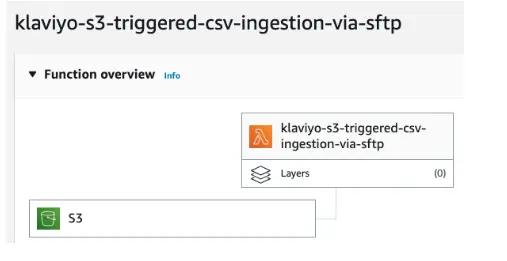
1. Add corresponding files into Lambda from GitHub.
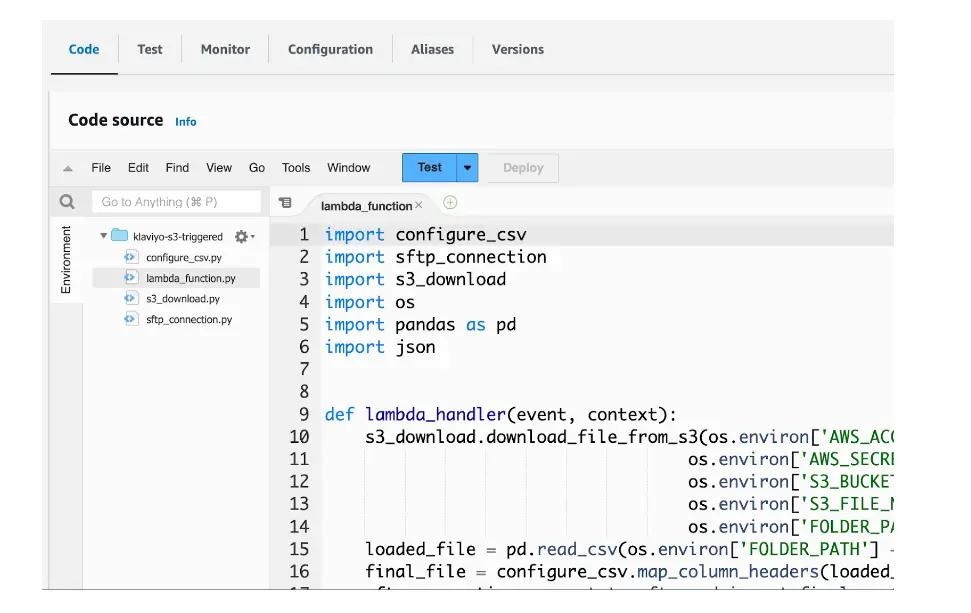
We’ll do a code deep dive in step 3.
#### **Step 2E. Configure AWS environment variables.**
1. Navigate to the “Configuration” tab and add the following resources into your Environment Variables with their corresponding values.
```json
{
"_key": "569d2ad3-718c-4dc4-bb67-3095d4041d1c",
"_type": "codeSnippet",
"code": "# AWS access and secret keys\nACCESS_KEY_ID\nSECRET_ACCESS_KEY\n\nS3_BUCKET_NAME\n\n# folder path to where you are saving your S3 file locally\nFOLDER_PATH\nExample: /Users/tyler.berman/Documents/SFTP/\n\nS3_FILE_NAME\nExample: unmapped_profiles.csv\n\nLOCAL_FILE_NAME\nExample: unmapped_profiles_local.csv\n\nMAPPED_FILE_NAME\nExample: mapped_profiles.csv\n\n# add your 6 digit List ID found in the URL of the subscriber list\nLIST_ID\nExample: ABC123\n\nPROFILES_PATH = /profiles/profiles.csv\n\n# folder path to where your SSH private key is stored\nPRIVATE_KEY_PATH\nExample: /Users/tyler.berman/.ssh/id_rsa\n\nHOST = sftp.klaviyo.com\n\n# add your assigned username found in the UI of Klaviyo's SFTP import tool\nUSERNAME\nExample: abc123_def456",
"language": "text",
"theme": "github-light"
}
```
#### **Step 3: Deploy your code**
Let’s review the code deployed in your AWS instance.
1. Programmatically add CSV file to S3:
```json
{
"_key": "1d5fef98-fba6-4cc9-bb8b-af71b6754296",
"_type": "codeSnippet",
"code": "import boto3\nimport os\n\n\nsession = boto3.Session(\n aws_access_key_id = os.environ['ACCESS_KEY_ID'],\n aws_secret_access_key = os.environ['SECRET_ACCESS_KEY']\n)\n\ns3 = session.resource('s3')\n\n#Define the bucket name and file name\nbucket_name = os.environ['S3_BUCKET_NAME']\n#The name you want to give to the file in S3\ns3_file_name = os.environ['S3_FILE_NAME'] \nlocal_file = os.environ['LOCAL_FILE_NAME']\n\ns3.meta.client.upload_file(Filename=local_file, Bucket=bucket_name,Key=s3_file_name)",
"language": "text",
"theme": "github-light"
}
```
1. Download S3 file:
```json
{
"_key": "cc60721e-c850-424d-a4b6-2fed1e34d35d",
"_type": "codeSnippet",
"code": "import boto3\n\n\ndef download_file_from_s3(aws_access_key_id, aws_secret_access_key, bucket_name, s3_file_name, downloaded_file):\n session = boto3.Session(\n aws_access_key_id=aws_access_key_id,\n aws_secret_access_key=aws_secret_access_key\n )\n\n s3 = session.resource('s3')\n \n s3.meta.client.download_file(Bucket=bucket_name, Key=s3_file_name, Filename=downloaded_file)",
"language": "text",
"theme": "github-light"
}
```
1. Prepare CSV file for ingestion:
```json
{
"_key": "3eacba55-60d7-447c-a973-ccaab6f8e862",
"_type": "codeSnippet",
"code": "import pandas as pd\nimport os\n\n\n#anticipate column mapping based on commonly used headers\ndef suggest_column_mapping(loaded_file):\n column_mapping = {\n 'Email': ['EmailAddress', 'person.email', 'Email', 'email', 'emailaddress', 'email address', 'Email Address', 'Emails'],\n 'PhoneNumber': ['Phone#', 'person.number', 'phone', 'numbers', 'phone number', 'Phone Number']\n }\n\n suggested_mapping = {}\n for required_header, old_columns in column_mapping.items():\n for column in old_columns:\n if column in loaded_file.columns:\n suggested_mapping[column] = required_header\n\n return suggested_mapping\n\n\n#map column headers of S3 file and add List ID column\ndef map_column_headers(loaded_file):\n mapped_file = loaded_file.rename(columns=suggest_column_mapping(loaded_file), inplace=False)\n mapped_file['List ID'] = os.environ['LIST_ID']\n\n final_file = os.environ['FOLDER_PATH'] + os.environ['MAPPED_FILE_NAME']\n mapped_file.to_csv(final_file, index=False)\n\n return final_file",
"language": "text",
"theme": "github-light"
}
```
1. Establish SFTP server connection:
```json
{
"_key": "376b7423-e678-47a9-a1ea-9031eb3448e2",
"_type": "codeSnippet",
"code": "import pysftp\nimport os\n\n\n#ingest S3 file via SFTP\ndef connect_to_sftp_and_import_final_csv(final_file):\n with pysftp.Connection(host=os.environ['HOST'],\n username=os.environ['USERNAME'],\n private_key=os.environ['PRIVATE_KEY_PATH']) as sftp:\n print(f\"Connected to {os.environ['HOST']}!\")\n try:\n sftp.put(final_file, os.environ['PROFILES_PATH'])\n print(f\"Imported {final_file}. Check your inbox for SFTP job details. View progress at https://www.klaviyo.com/sftp/set-up\")\n\n except Exception as err:\n raise Exception(err)\n\n # close connection\n pysftp.Connection.close(self=sftp)\n print(f\"Connection to {os.environ['HOST']} has been closed.\")",
"language": "text",
"theme": "github-light"
}
```
1. Put it all together in a lambda_handler function to ingest S3 file via SFTP:
```json
{
"_key": "a088cbc3-e75f-417e-b5c2-b99455fde8cb",
"_type": "codeSnippet",
"code": "import configure_csv\nimport sftp_connection\nimport s3_download\nimport os\nimport pandas as pd\nimport json\n\n\ndef lambda_handler(event, context):\ns3_download.download_file_from_s3(os.environ['ACCESS_KEY_ID'],\nos.environ['SECRET_ACCESS_KEY'],os.environ['S3_BUCKET_NAME'],\nos.environ['S3_FILE_NAME'],os.environ['FOLDER_PATH'] + os.environ['LOCAL_FILE_NAME'])\nloaded_file = pd.read_csv(os.environ['FOLDER_PATH'] + os.environ['LOCAL_FILE_NAME'])\n final_file = configure_csv.map_column_headers(loaded_file)\n sftp_connection.connect_to_sftp_and_import_final_csv(final_file)\n\n return {\n 'statusCode': 200,\n 'body': json.dumps('successfully ran lambda'),\n }",
"language": "text",
"theme": "github-light"
}
```
## **Impact**
Using Klaviyo’s SFTP tool makes data ingestion faster and more efficient. When coupled with the power of AWS’s S3 and Lambda services, you can boost its automation and scalability. With this configuration, your team will be able to manage data and execute ingestion with speed and accuracy, reducing the time and burden of updating profiles manually. Moreover, you can significantly improve data accuracy and mitigate the risk of errors during the ingestion process, ensuring the reliability and integrity of the data you’re using.
Overall, this solution optimizes the efficiency and effectiveness of leveraging relevant data in Klaviyo while streamlining operations and enhancing overall performance.
</pre> <div class="light klaviyoForm"> <div class="grid"> <div class="form klaviyo-form-WSHs39"></div> </div> </div> <script id="meta-post-schema" type="application/ld+json">{"@context":"https://schema.org","@type":"BlogPosting","mainEntityOfPage":{"@type":"WebPage","@id":"https://www.klaviyo.com/blog/solution-recipe-24-aws-s3-triggered-ingestion-via-klaviyos-sftp"},"headline":"AWS S3-Triggered Ingestion via Klaviyo’s SFTP - Klaviyo","description":"This solution recipe explains how to connect AWS S3 to Klaviyo’s SFTP to trigger profile ingestion when a new file is added to an S3 bucket.","image":["https://www.klaviyo.com"],"publisher":{"@type":"Organization","name":"Klaviyo","url":"https://www.klaviyo.com","logo":{"@type":"ImageObject","url":"https://www.klaviyo.com/static/klaviyo-social-share-image.jpg"}},"datePublished":"2023-08-25T21:56:04.000Z","dateModified":"2023-10-06T18:29:39.000Z","mentions":[],"author":[{"@type":"Person","name":"Nina Ephremidze","url":"https://www.klaviyo.com/blog/author/nina-ephremidze"},{"@type":"Person","name":"Tyler Berman","url":"https://www.klaviyo.com/blog/author/tyler-berman"}]}</script> </main> <astro-island uid="zKHM" prefix="r24" component-url="/blog/_astro/universal-footer.MoiaBMrG.js" component-export="UniversalFooter" renderer-url="/blog/_astro/client.IaDn9qiQ.js" props="{"slot":[0,"footer"],"backgroundColor":[0,"cotton"],"basePathType":[0,"path"],"copyrightMenuItems":[1,[[0,{"_key":[0,"17abcf69-b179-46c9-b396-e55650fc4c0d"],"_type":[0,"basicMenuItem"],"image":[0,null],"label":[0,"Site Map"],"url":[0,"https://www.klaviyo.com/sitemap"]}],[0,{"_key":[0,"32061d2c-7c51-4afc-9455-b72f5c780aa4"],"_type":[0,"basicMenuItem"],"image":[0,null],"label":[0,"Terms and Privacy"],"url":[0,"https://www.klaviyo.com/legal"]}],[0,{"_key":[0,"6769ee57-be59-4a85-b543-312886464262"],"_type":[0,"basicMenuItem"],"image":[0,null],"label":[0,"Security"],"url":[0,"https://www.klaviyo.com/security"]}],[0,{"_key":[0,"20505562-2618-40f9-8766-b236be64dec2"],"_type":[0,"basicMenuItem"],"image":[0,null],"label":[0,"Trust"],"url":[0,"https://www.klaviyo.com/trust"]}],[0,{"_key":[0,"78d332a4-7e5f-4902-8902-3b3d2d66aaec"],"_type":[0,"basicMenuItem"],"image":[0,null],"label":[0,"Intellectual Property Notices"],"url":[0,"https://www.klaviyo.com/legal/intellectual-property-notices"]}]]],"langCode":[0,"en-US"],"menuItems":[1,[[0,{"_key":[0,"97db08c0-b948-4bed-88f9-74d3f73b0e25"],"_type":[0,"menuColumn"],"childItems":[1,[[0,{"_key":[0,"939451e8-a827-47f6-b4ee-a4da7478ec65"],"_type":[0,"menuItem"],"featured":[0,true],"image":[0,null],"label":[0,"About Klaviyo"],"url":[0,"/about"]}],[0,{"_key":[0,"793c5035-2934-4709-a0ff-90c73159bd6b"],"_type":[0,"menuItem"],"featured":[0,true],"image":[0,null],"label":[0,"Newsroom"],"url":[0,"/newsroom"]}],[0,{"_key":[0,"9be65870-53e4-4a7c-9c61-e86bed953695"],"_type":[0,"menuItem"],"featured":[0,true],"image":[0,null],"label":[0,"Investor relations"],"url":[0,"https://investors.klaviyo.com/overview/default.aspx"]}],[0,{"_key":[0,"ef3cec4c-5d0c-476b-9097-dc1e771af64c"],"_type":[0,"menuItem"],"featured":[0,true],"image":[0,null],"label":[0,"Contact us"],"url":[0,"/contact-us"]}],[0,{"_key":[0,"8fbaf3c9-0f5c-4476-a464-2f37e02bc7a4"],"_type":[0,"menuItem"],"featured":[0,true],"image":[0,null],"label":[0,"Careers"],"url":[0,"/careers"]}]]],"eyebrow":[0,"Company"]}],[0,{"_key":[0,"5595fdff-449b-4e36-ae9b-9e57fe50e3cc"],"_type":[0,"menuColumn"],"childItems":[1,[[0,{"_key":[0,"7065e258-aaac-4ce7-8bb0-b7affc2ad23b"],"_type":[0,"menuItem"],"image":[0,null],"label":[0,"B2C CRM overview"],"url":[0,"/platform"]}],[0,{"_key":[0,"49129a55-0476-48e7-9e37-c7e1817394c5"],"_type":[0,"menuItem"],"badge":[0,{"color":[0,"poppy"],"text":[0,"NEW"]}],"image":[0,null],"label":[0,"Klaviyo AI (K:AI)"],"url":[0,"/solutions/ai"]}],[0,{"_key":[0,"b969e85d-4baf-44af-9b65-e17f45c45390"],"_type":[0,"menuItem"],"image":[0,null],"label":[0,"Klaviyo Marketing"],"url":[0,"/solutions/marketing-automation"]}],[0,{"_key":[0,"0cb52fda-3fb2-43bc-b94e-2a6af63eac04"],"_type":[0,"menuItem"],"badge":[0,{"color":[0,"poppy"],"text":[0,"NEW"]}],"image":[0,null],"label":[0,"Klaviyo Service"],"url":[0,"/solutions/customer-service"]}],[0,{"_key":[0,"4f374309-0982-495d-8010-fa775e53bc58"],"_type":[0,"menuItem"],"image":[0,null],"label":[0,"Klaviyo Analytics"],"url":[0,"/solutions/analytics"]}],[0,{"_key":[0,"a9788cff-08d6-4be5-b4cf-9736a467f966"],"_type":[0,"menuItem"],"image":[0,null],"label":[0,"Klaviyo Data Platform"],"url":[0,"/solutions/customer-data-platform"]}]]],"eyebrow":[0,"Platform"]}],[0,{"_key":[0,"7be78a3e-7e58-4e78-86b2-afb7490c76ad"],"_type":[0,"menuColumn"],"childItems":[1,[[0,{"_key":[0,"34705ba9-10bf-4160-98c2-c05776fc7363"],"_type":[0,"menuItem"],"badge":[0,{"color":[0,"poppy"],"text":[0,"NEW"]}],"image":[0,null],"label":[0,"Omnichannel marketing"],"url":[0,"https://www.klaviyo.com/solutions/omnichannel"]}],[0,{"_key":[0,"2d91cdc1-3241-4ff4-ac2c-465ffd03f148"],"_type":[0,"menuItem"],"image":[0,null],"label":[0,"Email marketing"],"url":[0,"/products/email-marketing"]}],[0,{"_key":[0,"13817015-4955-402a-be3b-f702ba24ce41"],"_type":[0,"menuItem"],"image":[0,null],"label":[0,"SMS marketing"],"url":[0,"/products/sms-marketing"]}],[0,{"_key":[0,"c8f1d0a8-ce2a-4c0c-ba7f-5f15ade32b36"],"_type":[0,"menuItem"],"badge":[0,{"color":[0,"poppy"],"text":[0,"NEW"]}],"image":[0,null],"label":[0,"RCS for Business"],"url":[0,"https://www.klaviyo.com/products/sms-marketing/rcs"]}],[0,{"_key":[0,"4699d8bf-065e-4555-a16c-488ff51b1b8b"],"_type":[0,"menuItem"],"image":[0,null],"label":[0,"Mobile app marketing"],"url":[0,"/products/mobile-app-marketing"]}],[0,{"_key":[0,"c0a3d156-125a-439d-b3b8-8e00fe383d5f"],"_type":[0,"menuItem"],"badge":[0,{"color":[0,"poppy"],"text":[0,"NEW"]}],"image":[0,null],"label":[0,"WhatsApp marketing"],"url":[0,"https://www.klaviyo.com/products/whatsapp"]}],[0,{"_key":[0,"ed277c7f-3191-44c2-983a-13ccb9eb13e4"],"_type":[0,"menuItem"],"badge":[0,{"color":[0,"poppy"],"text":[0,"NEW"]}],"image":[0,null],"label":[0,"Social marketing"],"url":[0,"/products/social"]}]]],"eyebrow":[0,"Channels"]}],[0,{"_key":[0,"e4823e01-b956-4102-ac13-0b105a8a3691"],"_type":[0,"menuColumn"],"childItems":[1,[[0,{"_key":[0,"15ad806a-5789-43ea-b214-c5de89b56bc5"],"_type":[0,"menuItem"],"badge":[0,{"color":[0,"poppy"],"text":[0,"New"]}],"image":[0,null],"label":[0,"Marketing Agent"],"url":[0,"/solutions/ai/marketing-agent"]}],[0,{"_key":[0,"82515920-58e3-4a8c-8067-26c249f7067b"],"_type":[0,"menuItem"],"badge":[0,{"color":[0,"poppy"],"text":[0,"NEW"]}],"image":[0,null],"label":[0,"Customer Agent"],"url":[0,"/solutions/ai/customer-agent"]}],[0,{"_key":[0,"76782dd2-dc87-4c95-a07a-90a406bf1e43"],"_type":[0,"menuItem"],"badge":[0,{"color":[0,"poppy"],"text":[0,"NEW"]}],"image":[0,null],"label":[0,"Customer Hub"],"url":[0,"/products/customer-experience-hub"]}],[0,{"_key":[0,"0e429aaa-34cd-48c5-b50f-fd566d737ef3"],"_type":[0,"menuItem"],"badge":[0,{"color":[0,"poppy"],"text":[0,"NEW"]}],"image":[0,null],"label":[0,"Helpdesk"],"url":[0,"/products/helpdesk"]}],[0,{"_key":[0,"754107e8-4dbb-4c8e-8623-3efc56763e37"],"_type":[0,"menuItem"],"image":[0,null],"label":[0,"Marketing Analytics"],"url":[0,"/products/marketing-analytics"]}],[0,{"_key":[0,"41dfbb70-d7ce-47b6-b261-4304cb421263"],"_type":[0,"menuItem"],"image":[0,null],"label":[0,"Advanced Klaviyo Data Platform"],"url":[0,"/products/advanced-cdp"]}],[0,{"_key":[0,"f084200f-a877-4b93-855f-7aeebaaa5840"],"_type":[0,"menuItem"],"image":[0,null],"label":[0,"Web forms"],"url":[0,"/features/web-forms"]}],[0,{"_key":[0,"4c940fa5-2671-4361-ab03-9f5319e562ca"],"_type":[0,"menuItem"],"image":[0,null],"label":[0,"Email templates"],"url":[0,"/features/templates"]}]]],"eyebrow":[0,"Top Products + Features"]}],[0,{"_key":[0,"fcb7d3a9-be70-436a-bf6c-7e067d03cce5"],"_type":[0,"menuColumn"],"childItems":[1,[[0,{"_key":[0,"a27ba300-1ec3-4656-8bc5-1aa3200aa78c"],"_type":[0,"menuItem"],"image":[0,null],"label":[0,"Enterprise"],"url":[0,"/enterprise"]}],[0,{"_key":[0,"d225e027-904f-465d-abfb-cb2719f71da0"],"_type":[0,"menuItem"],"image":[0,null],"label":[0,"Agency and tech partners"],"url":[0,"/partners"]}],[0,{"_key":[0,"6966fc09-c537-4701-b851-7ede3d29068b"],"_type":[0,"menuItem"],"image":[0,null],"label":[0,"Developers"],"url":[0,"https://developers.klaviyo.com/en"]}],[0,{"_key":[0,"3544c8b5-cb6a-4dc6-a253-f7284c35ba0e"],"_type":[0,"menuItem"],"image":[0,null],"label":[0,"Retail and ecommerce"],"url":[0,"/industry/retail"]}],[0,{"_key":[0,"d655bf29-0bce-43cd-823c-b82acac5b7ba"],"_type":[0,"menuItem"],"image":[0,null],"label":[0,"Restaurant marketing"],"url":[0,"/industry/restaurants"]}],[0,{"_key":[0,"cf0af53f-a8da-4afa-9c3e-0362285562e7"],"_type":[0,"menuItem"],"image":[0,null],"label":[0,"Wellness"],"url":[0,"/industry/wellness"]}]]],"eyebrow":[0,"Klaviyo for"]}],[0,{"_key":[0,"234a54cc-70e9-4b74-af9a-c8740b252b59"],"_type":[0,"menuColumn"],"childItems":[1,[[0,{"_key":[0,"12a80d13-39ae-41b8-b22b-4e368cfd7a9d"],"_type":[0,"menuItem"],"image":[0,null],"label":[0,"Klaviyo vs. Klaviyo alternatives"],"url":[0,"/compare"]}],[0,{"_key":[0,"aed2f48e-65b4-4b9d-98f4-4b26824f7397"],"_type":[0,"menuItem"],"image":[0,null],"label":[0,"Klaviyo vs. Mailchimp"],"url":[0,"/compare/klaviyo-vs-mailchimp"]}],[0,{"_key":[0,"9c8bd734-d821-4b9f-848a-297b63703e3b"],"_type":[0,"menuItem"],"image":[0,null],"label":[0,"Klaviyo vs. Postscript"],"url":[0,"/compare/klaviyo-vs-postscript"]}],[0,{"_key":[0,"63d4d539-3d11-45f5-8607-b5e1b0a3abee"],"_type":[0,"menuItem"],"image":[0,null],"label":[0,"Klaviyo vs. Attentive"],"url":[0,"/compare/klaviyo-vs-attentive"]}],[0,{"_key":[0,"10b5ef80-b8bf-4823-b835-6d22be20e7d8"],"_type":[0,"menuItem"],"image":[0,null],"label":[0,"Klaviyo vs. Salesforce"],"url":[0,"/compare/klaviyo-vs-salesforce-marketing-cloud"]}],[0,{"_key":[0,"79589906-cc05-409f-b5aa-a64e30b1aece"],"_type":[0,"menuItem"],"image":[0,null],"label":[0,"Klaviyo vs. Listrak"],"url":[0,"/compare/klaviyo-vs-listrak"]}]]],"eyebrow":[0,"Why Klaviyo"]}],[0,{"_key":[0,"7a59f32c-629d-47c3-bd88-bb8d1fe6a38f"],"_type":[0,"menuColumn"],"childItems":[1,[[0,{"_key":[0,"b835918c-0ded-4134-83ab-b8af991bda05"],"_type":[0,"menuItem"],"image":[0,null],"label":[0,"Marketing resources"],"url":[0,"/marketing-resources"]}],[0,{"_key":[0,"8d708df8-8b9f-4fdd-81ba-007d1b70caab"],"_type":[0,"menuItem"],"image":[0,null],"label":[0,"Marketing campaign calendar"],"url":[0,"/marketing-resources/marketing-campaign-calendar"]}],[0,{"_key":[0,"ca4f2800-3708-4268-92ad-749271611caa"],"_type":[0,"menuItem"],"image":[0,null],"label":[0,"Marketing glossary"],"url":[0,"/glossary"]}],[0,{"_key":[0,"a147f679-8833-4343-94d9-c1d77b65397a"],"_type":[0,"menuItem"],"image":[0,null],"label":[0,"Subject line generator"],"url":[0,"/tools/email-subject-line-generator"]}],[0,{"_key":[0,"dcc90778-c9c1-4498-b8e9-4a6c039945ab"],"_type":[0,"menuItem"],"image":[0,null],"label":[0,"ROI calculator"],"url":[0,"/tools/roi-calculator"]}],[0,{"_key":[0,"8d3f7c02-2db7-4fe5-920d-d9bf4ae46f31"],"_type":[0,"menuItem"],"image":[0,null],"label":[0,"Case studies"],"url":[0,"/customers"]}]]],"eyebrow":[0,"Tools + Resources"]}],[0,{"_key":[0,"5e91ab48-7b94-4c52-9afe-223ed8629852"],"_type":[0,"menuColumn"],"childItems":[1,[[0,{"_key":[0,"636ad567-2a32-4202-b666-190c418d3113"],"_type":[0,"menuItem"],"image":[0,null],"label":[0,"Portfolio"],"url":[0,"/features/portfolio"]}],[0,{"_key":[0,"ebba7a8f-02ad-4c7c-aa43-5f21c9ed2e19"],"_type":[0,"menuItem"],"image":[0,null],"label":[0,"Apps and Integrations"],"url":[0,"/platform-integrations"]}],[0,{"_key":[0,"94b73b1b-a168-4232-8174-b8353fdb1278"],"_type":[0,"menuItem"],"image":[0,null],"label":[0,"Features"],"url":[0,"/features"]}],[0,{"_key":[0,"e4acb72b-4e28-42dc-8297-7bafb45b80db"],"_type":[0,"menuItem"],"image":[0,null],"label":[0,"What's new"],"url":[0,"/whats-new"]}],[0,{"_key":[0,"9f892b6d-9321-4805-88cb-db10ef527640"],"_type":[0,"menuItem"],"image":[0,null],"label":[0,"Events"],"url":[0,"/events"]}],[0,{"_key":[0,"6c88346f-3391-44e6-bda6-aff354a9aa4e"],"_type":[0,"menuItem"],"image":[0,null],"label":[0,"Help Center"],"url":[0,"https://help.klaviyo.com/hc/en-us"]}],[0,{"_key":[0,"0169a509-1288-482e-baae-1fef728e0a4c"],"_type":[0,"menuItem"],"image":[0,null],"label":[0,"Academy"],"url":[0,"https://academy.klaviyo.com/en-us"]}],[0,{"_key":[0,"5bc79fa0-9651-4427-88ad-22d3db4a951a"],"_type":[0,"menuItem"],"image":[0,null],"label":[0,"Community"],"url":[0,"https://community.klaviyo.com/"]}]]],"eyebrow":[0,"Explore more"]}]]],"sites":[1,[[0,{"_createdAt":[0,"2025-12-17T21:33:47Z"],"_id":[0,"siteSettings-de-DE"],"_rev":[0,"YJdfQsb7RbX76Tb8OaItHV"],"_type":[0,"siteSettings"],"_updatedAt":[0,"2025-12-17T21:33:47Z"],"description":[0,"Klaviyo vereint Marketing und Kundenservice in einem KI-basierten B2C-CRM. Testen Sie unsere Omnichannel-Marketingsoftware, unterstützt von K:AI-Agents, um personalisierte Erlebnisse über E-Mail-Marketing, WhatsApp und weitere Kanäle bereitzustellen."],"generateSitemap":[0,true],"includeInHreflangTags":[0,true],"indexSite":[0,true],"localeOverride":[0,"de"],"separator":[0,"-"],"title":[0,"Klaviyo DE"],"isoCode":[0,"de"],"isoName":[0,"German"],"locale":[0,"de-DE"],"marketingSitePath":[0,"de"],"name":[0,"German (Germany)"],"nativeName":[0,"Deutsch (Deutschland)"]}],[0,{"_createdAt":[0,"2025-12-17T21:33:47Z"],"_id":[0,"siteSettings-en-AU"],"_rev":[0,"YJdfQsb7RbX76Tb8OaItHV"],"_type":[0,"siteSettings"],"_updatedAt":[0,"2025-12-17T21:33:47Z"],"description":[0,"Klaviyo unifies marketing and service with its AI-first B2C CRM. Try out our omnichannel marketing software, powered by K:AI agents to deliver personalised experiences across email marketing, WhatsApp, and more."],"generateSitemap":[0,true],"includeInHreflangTags":[0,true],"indexSite":[0,true],"separator":[0,"-"],"title":[0,"Klaviyo AU"],"isoCode":[0,"en"],"isoName":[0,"English"],"locale":[0,"en-AU"],"marketingSitePath":[0,"au"],"name":[0,"English (Australia)"],"nativeName":[0,"English (Australia)"]}],[0,{"_createdAt":[0,"2025-12-17T21:33:47Z"],"_id":[0,"siteSettings-en-GB"],"_rev":[0,"YJdfQsb7RbX76Tb8OaItHV"],"_type":[0,"siteSettings"],"_updatedAt":[0,"2025-12-17T21:33:47Z"],"description":[0,"Klaviyo unifies marketing and service with its AI-first B2C CRM. Try out omnichannel marketing software, powered by K:AI agents to deliver personalised experiences across email marketing, WhatsApp, and more."],"generateSitemap":[0,true],"includeInHreflangTags":[0,true],"indexSite":[0,true],"separator":[0,"-"],"title":[0,"Klaviyo UK"],"isoCode":[0,"en"],"isoName":[0,"English"],"locale":[0,"en-GB"],"marketingSitePath":[0,"uk"],"name":[0,"English (United Kingdom)"],"nativeName":[0,"English (United Kingdom)"]}],[0,{"_createdAt":[0,"2025-12-17T21:33:47Z"],"_id":[0,"siteSettings-en-SG"],"_rev":[0,"YJdfQsb7RbX76Tb8OaItHV"],"_type":[0,"siteSettings"],"_updatedAt":[0,"2025-12-17T21:33:47Z"],"description":[0,"Klaviyo unifies marketing and service with its AI-first B2C CRM. Try out our omnichannel marketing software, powered by K:AI agents to deliver personalised experiences across email marketing, WhatsApp, and more."],"generateSitemap":[0,true],"includeInHreflangTags":[0,true],"indexSite":[0,true],"separator":[0,"-"],"title":[0,"Klaviyo SG"],"isoCode":[0,"en"],"isoName":[0,"English"],"locale":[0,"en-SG"],"marketingSitePath":[0,"sg"],"name":[0,"English (Singapore)"],"nativeName":[0,"English (Singapore)"]}],[0,{"_createdAt":[0,"2025-12-17T21:33:47Z"],"_id":[0,"siteSettings-en-US"],"_rev":[0,"YJdfQsb7RbX76Tb8OaItHV"],"_type":[0,"siteSettings"],"_updatedAt":[0,"2025-12-17T21:33:47Z"],"description":[0,"Klaviyo unifies AI-powered email marketing and SMS to drive growth, retention, and measurable results. Build personalized, omnichannel experiences across WhatsApp, ecommerce, and more with K:AI Agents."],"generateSitemap":[0,true],"includeInHreflangTags":[0,true],"indexSite":[0,true],"separator":[0,"-"],"title":[0,"Klaviyo"],"isoCode":[0,"en"],"isoName":[0,"English"],"locale":[0,"en-US"],"marketingSitePath":[0,""],"name":[0,"English (United States)"],"nativeName":[0,"English (United States)"]}],[0,{"_createdAt":[0,"2025-12-17T21:33:47Z"],"_id":[0,"siteSettings-es-ES"],"_rev":[0,"YJdfQsb7RbX76Tb8OaItHV"],"_type":[0,"siteSettings"],"_updatedAt":[0,"2025-12-17T21:33:47Z"],"description":[0,"Klaviyo unifica el marketing y la atención al cliente con su CRM B2C basado en IA. Prueba el software de marketing omnicanal, impulsado por agentes K:AI para ofrecer experiencias personalizadas a través de email marketing, WhatsApp y más."],"generateSitemap":[0,true],"includeInHreflangTags":[0,true],"indexSite":[0,true],"separator":[0,"-"],"title":[0,"Klaviyo ES"],"isoCode":[0,"es"],"isoName":[0,"Spanish"],"locale":[0,"es-ES"],"marketingSitePath":[0,"es"],"name":[0,"Spanish (Spain)"],"nativeName":[0,"Español (España)"]}],[0,{"_createdAt":[0,"2025-12-17T21:33:47Z"],"_id":[0,"siteSettings-fr-FR"],"_rev":[0,"YJdfQsb7RbX76Tb8OaItHV"],"_type":[0,"siteSettings"],"_updatedAt":[0,"2025-12-17T21:33:47Z"],"description":[0,"Klaviyo unifie le marketing et le service client avec son CRM B2C axé sur l'IA. Essayez le logiciel de marketing omnicanal, optimisé par des agents K:AI pour offrir des expériences personnalisées via l'email marketing, WhatsApp et plus encore."],"generateSitemap":[0,true],"includeInHreflangTags":[0,true],"indexSite":[0,true],"separator":[0,"-"],"title":[0,"Klaviyo FR"],"isoCode":[0,"fr"],"isoName":[0,"French"],"locale":[0,"fr-FR"],"marketingSitePath":[0,"fr"],"name":[0,"French (France)"],"nativeName":[0,"Français (France)"]}],[0,{"_createdAt":[0,"2025-12-17T21:33:47Z"],"_id":[0,"siteSettings-it-IT"],"_rev":[0,"YJdfQsb7RbX76Tb8OaItHV"],"_type":[0,"siteSettings"],"_updatedAt":[0,"2025-12-17T21:33:47Z"],"description":[0,"Klaviyo unifica marketing e assistenza clienti con il suo CRM B2C basato sull'IA. Prova il software di marketing omnichannel, potenziato da agenti K:AI per offrire esperienze personalizzate su email marketing, WhatsApp e altro ancora."],"generateSitemap":[0,true],"includeInHreflangTags":[0,true],"indexSite":[0,true],"separator":[0,"-"],"title":[0,"Klaviyo IT"],"isoCode":[0,"it"],"isoName":[0,"Italian"],"locale":[0,"it-IT"],"marketingSitePath":[0,"it"],"name":[0,"Italian (Italy)"],"nativeName":[0,"Italiano (Italia)"]}]]],"translations":[1,[]]}" ssr client="load" before-hydration-url="/blog/_astro/astro_scripts/before-hydration.js.BWsVurST.js" opts="{"name":"ReactFooter","value":true}" await-children><footer class="_footer_17ejh_1 _cotton_17ejh_23" data-navigation-style="default" slot="footer"><div class="grid _grid_17ejh_31"><div class="_beFooter_17ejh_45"><div class="be-ix-link-block"></div></div><nav class="_footerNav_17ejh_40"><ul class="_menuContainer_17ejh_49 _desktopList_17ejh_53"><li class="_menuColumnListItems_17ejh_72"><div class="_menuColumnListItem_17ejh_72"><details class="_dropdown_hz1ov_1" open=""><summary class="_menuTitle_hz1ov_1"><span class="_label_hz1ov_1">Company</span></summary><ul class="content _menuList_hz1ov_50"><li class="_menuListItem_hz1ov_60"><a class="_universalMenuItem_s73z6_1 _featured_s73z6_33 _cotton_s73z6_38" href="/about" _type="menuItem"><div><div class="_iconAndLabelContainer_s73z6_168"><div>About Klaviyo</div></div></div></a></li><li class="_menuListItem_hz1ov_60"><a class="_universalMenuItem_s73z6_1 _featured_s73z6_33 _cotton_s73z6_38" href="/newsroom" _type="menuItem"><div><div class="_iconAndLabelContainer_s73z6_168"><div>Newsroom</div></div></div></a></li><li class="_menuListItem_hz1ov_60"><a class="_universalMenuItem_s73z6_1 _featured_s73z6_33 _cotton_s73z6_38" href="https://investors.klaviyo.com/overview/default.aspx" _type="menuItem"><div><div class="_iconAndLabelContainer_s73z6_168"><div>Investor relations</div></div></div></a></li><li class="_menuListItem_hz1ov_60"><a class="_universalMenuItem_s73z6_1 _featured_s73z6_33 _cotton_s73z6_38" href="/contact-us" _type="menuItem"><div><div class="_iconAndLabelContainer_s73z6_168"><div>Contact us</div></div></div></a></li><li class="_menuListItem_hz1ov_60"><a class="_universalMenuItem_s73z6_1 _featured_s73z6_33 _cotton_s73z6_38" href="/careers" _type="menuItem"><div><div class="_iconAndLabelContainer_s73z6_168"><div>Careers</div></div></div></a></li></ul></details></div><div class="_menuColumnListItem_17ejh_72"><details class="_dropdown_hz1ov_1" open=""><summary class="_menuTitle_hz1ov_1"><span class="_label_hz1ov_1">Klaviyo for</span></summary><ul class="content _menuList_hz1ov_50"><li class="_menuListItem_hz1ov_60"><a class="_universalMenuItem_s73z6_1 _cotton_s73z6_38" href="/enterprise" _type="menuItem"><div><div class="_iconAndLabelContainer_s73z6_168"><div>Enterprise</div></div></div></a></li><li class="_menuListItem_hz1ov_60"><a class="_universalMenuItem_s73z6_1 _cotton_s73z6_38" href="/partners" _type="menuItem"><div><div class="_iconAndLabelContainer_s73z6_168"><div>Agency and tech partners</div></div></div></a></li><li class="_menuListItem_hz1ov_60"><a class="_universalMenuItem_s73z6_1 _cotton_s73z6_38" href="https://developers.klaviyo.com/en" _type="menuItem"><div><div class="_iconAndLabelContainer_s73z6_168"><div>Developers</div></div></div></a></li><li class="_menuListItem_hz1ov_60"><a class="_universalMenuItem_s73z6_1 _cotton_s73z6_38" href="/industry/retail" _type="menuItem"><div><div class="_iconAndLabelContainer_s73z6_168"><div>Retail and ecommerce</div></div></div></a></li><li class="_menuListItem_hz1ov_60"><a class="_universalMenuItem_s73z6_1 _cotton_s73z6_38" href="/industry/restaurants" _type="menuItem"><div><div class="_iconAndLabelContainer_s73z6_168"><div>Restaurant marketing</div></div></div></a></li><li class="_menuListItem_hz1ov_60"><a class="_universalMenuItem_s73z6_1 _cotton_s73z6_38" href="/industry/wellness" _type="menuItem"><div><div class="_iconAndLabelContainer_s73z6_168"><div>Wellness</div></div></div></a></li></ul></details></div></li><li class="_menuColumnListItems_17ejh_72"><div class="_menuColumnListItem_17ejh_72"><details class="_dropdown_hz1ov_1" open=""><summary class="_menuTitle_hz1ov_1"><span class="_label_hz1ov_1">Platform</span></summary><ul class="content _menuList_hz1ov_50"><li class="_menuListItem_hz1ov_60"><a class="_universalMenuItem_s73z6_1 _cotton_s73z6_38" href="/platform" _type="menuItem"><div><div class="_iconAndLabelContainer_s73z6_168"><div>B2C CRM overview</div></div></div></a></li><li class="_menuListItem_hz1ov_60"><a class="_universalMenuItem_s73z6_1 _cotton_s73z6_38" href="/solutions/ai" _type="menuItem"><div><div class="_iconAndLabelContainer_s73z6_168"><div>Klaviyo AI (K:AI)</div><span class="_badge_lflca_1" style="--badge-background-color:var(--color-poppy-shade);--badge-text-color:var(--color-white)">NEW</span></div></div></a></li><li class="_menuListItem_hz1ov_60"><a class="_universalMenuItem_s73z6_1 _cotton_s73z6_38" href="/solutions/marketing-automation" _type="menuItem"><div><div class="_iconAndLabelContainer_s73z6_168"><div>Klaviyo Marketing</div></div></div></a></li><li class="_menuListItem_hz1ov_60"><a class="_universalMenuItem_s73z6_1 _cotton_s73z6_38" href="/solutions/customer-service" _type="menuItem"><div><div class="_iconAndLabelContainer_s73z6_168"><div>Klaviyo Service</div><span class="_badge_lflca_1" style="--badge-background-color:var(--color-poppy-shade);--badge-text-color:var(--color-white)">NEW</span></div></div></a></li><li class="_menuListItem_hz1ov_60"><a class="_universalMenuItem_s73z6_1 _cotton_s73z6_38" href="/solutions/analytics" _type="menuItem"><div><div class="_iconAndLabelContainer_s73z6_168"><div>Klaviyo Analytics</div></div></div></a></li><li class="_menuListItem_hz1ov_60"><a class="_universalMenuItem_s73z6_1 _cotton_s73z6_38" href="/solutions/customer-data-platform" _type="menuItem"><div><div class="_iconAndLabelContainer_s73z6_168"><div>Klaviyo Data Platform</div></div></div></a></li></ul></details></div><div class="_menuColumnListItem_17ejh_72"><details class="_dropdown_hz1ov_1" open=""><summary class="_menuTitle_hz1ov_1"><span class="_label_hz1ov_1">Why Klaviyo</span></summary><ul class="content _menuList_hz1ov_50"><li class="_menuListItem_hz1ov_60"><a class="_universalMenuItem_s73z6_1 _cotton_s73z6_38" href="/compare" _type="menuItem"><div><div class="_iconAndLabelContainer_s73z6_168"><div>Klaviyo vs. Klaviyo alternatives</div></div></div></a></li><li class="_menuListItem_hz1ov_60"><a class="_universalMenuItem_s73z6_1 _cotton_s73z6_38" href="/compare/klaviyo-vs-mailchimp" _type="menuItem"><div><div class="_iconAndLabelContainer_s73z6_168"><div>Klaviyo vs. Mailchimp</div></div></div></a></li><li class="_menuListItem_hz1ov_60"><a class="_universalMenuItem_s73z6_1 _cotton_s73z6_38" href="/compare/klaviyo-vs-postscript" _type="menuItem"><div><div class="_iconAndLabelContainer_s73z6_168"><div>Klaviyo vs. Postscript</div></div></div></a></li><li class="_menuListItem_hz1ov_60"><a class="_universalMenuItem_s73z6_1 _cotton_s73z6_38" href="/compare/klaviyo-vs-attentive" _type="menuItem"><div><div class="_iconAndLabelContainer_s73z6_168"><div>Klaviyo vs. Attentive</div></div></div></a></li><li class="_menuListItem_hz1ov_60"><a class="_universalMenuItem_s73z6_1 _cotton_s73z6_38" href="/compare/klaviyo-vs-salesforce-marketing-cloud" _type="menuItem"><div><div class="_iconAndLabelContainer_s73z6_168"><div>Klaviyo vs. Salesforce</div></div></div></a></li><li class="_menuListItem_hz1ov_60"><a class="_universalMenuItem_s73z6_1 _cotton_s73z6_38" href="/compare/klaviyo-vs-listrak" _type="menuItem"><div><div class="_iconAndLabelContainer_s73z6_168"><div>Klaviyo vs. Listrak</div></div></div></a></li></ul></details></div></li><li class="_menuColumnListItems_17ejh_72"><div class="_menuColumnListItem_17ejh_72"><details class="_dropdown_hz1ov_1" open=""><summary class="_menuTitle_hz1ov_1"><span class="_label_hz1ov_1">Channels</span></summary><ul class="content _menuList_hz1ov_50"><li class="_menuListItem_hz1ov_60"><a class="_universalMenuItem_s73z6_1 _cotton_s73z6_38" href="https://www.klaviyo.com/solutions/omnichannel" _type="menuItem"><div><div class="_iconAndLabelContainer_s73z6_168"><div>Omnichannel marketing</div><span class="_badge_lflca_1" style="--badge-background-color:var(--color-poppy-shade);--badge-text-color:var(--color-white)">NEW</span></div></div></a></li><li class="_menuListItem_hz1ov_60"><a class="_universalMenuItem_s73z6_1 _cotton_s73z6_38" href="/products/email-marketing" _type="menuItem"><div><div class="_iconAndLabelContainer_s73z6_168"><div>Email marketing</div></div></div></a></li><li class="_menuListItem_hz1ov_60"><a class="_universalMenuItem_s73z6_1 _cotton_s73z6_38" href="/products/sms-marketing" _type="menuItem"><div><div class="_iconAndLabelContainer_s73z6_168"><div>SMS marketing</div></div></div></a></li><li class="_menuListItem_hz1ov_60"><a class="_universalMenuItem_s73z6_1 _cotton_s73z6_38" href="https://www.klaviyo.com/products/sms-marketing/rcs" _type="menuItem"><div><div class="_iconAndLabelContainer_s73z6_168"><div>RCS for Business</div><span class="_badge_lflca_1" style="--badge-background-color:var(--color-poppy-shade);--badge-text-color:var(--color-white)">NEW</span></div></div></a></li><li class="_menuListItem_hz1ov_60"><a class="_universalMenuItem_s73z6_1 _cotton_s73z6_38" href="/products/mobile-app-marketing" _type="menuItem"><div><div class="_iconAndLabelContainer_s73z6_168"><div>Mobile app marketing</div></div></div></a></li><li class="_menuListItem_hz1ov_60"><a class="_universalMenuItem_s73z6_1 _cotton_s73z6_38" href="https://www.klaviyo.com/products/whatsapp" _type="menuItem"><div><div class="_iconAndLabelContainer_s73z6_168"><div>WhatsApp marketing</div><span class="_badge_lflca_1" style="--badge-background-color:var(--color-poppy-shade);--badge-text-color:var(--color-white)">NEW</span></div></div></a></li><li class="_menuListItem_hz1ov_60"><a class="_universalMenuItem_s73z6_1 _cotton_s73z6_38" href="/products/social" _type="menuItem"><div><div class="_iconAndLabelContainer_s73z6_168"><div>Social marketing</div><span class="_badge_lflca_1" style="--badge-background-color:var(--color-poppy-shade);--badge-text-color:var(--color-white)">NEW</span></div></div></a></li></ul></details></div><div class="_menuColumnListItem_17ejh_72"><details class="_dropdown_hz1ov_1" open=""><summary class="_menuTitle_hz1ov_1"><span class="_label_hz1ov_1">Tools + Resources</span></summary><ul class="content _menuList_hz1ov_50"><li class="_menuListItem_hz1ov_60"><a class="_universalMenuItem_s73z6_1 _cotton_s73z6_38" href="/marketing-resources" _type="menuItem"><div><div class="_iconAndLabelContainer_s73z6_168"><div>Marketing resources</div></div></div></a></li><li class="_menuListItem_hz1ov_60"><a class="_universalMenuItem_s73z6_1 _cotton_s73z6_38" href="/marketing-resources/marketing-campaign-calendar" _type="menuItem"><div><div class="_iconAndLabelContainer_s73z6_168"><div>Marketing campaign calendar</div></div></div></a></li><li class="_menuListItem_hz1ov_60"><a class="_universalMenuItem_s73z6_1 _cotton_s73z6_38" href="/glossary" _type="menuItem"><div><div class="_iconAndLabelContainer_s73z6_168"><div>Marketing glossary</div></div></div></a></li><li class="_menuListItem_hz1ov_60"><a class="_universalMenuItem_s73z6_1 _cotton_s73z6_38" href="/tools/email-subject-line-generator" _type="menuItem"><div><div class="_iconAndLabelContainer_s73z6_168"><div>Subject line generator</div></div></div></a></li><li class="_menuListItem_hz1ov_60"><a class="_universalMenuItem_s73z6_1 _cotton_s73z6_38" href="/tools/roi-calculator" _type="menuItem"><div><div class="_iconAndLabelContainer_s73z6_168"><div>ROI calculator</div></div></div></a></li><li class="_menuListItem_hz1ov_60"><a class="_universalMenuItem_s73z6_1 _cotton_s73z6_38" href="/customers" _type="menuItem"><div><div class="_iconAndLabelContainer_s73z6_168"><div>Case studies</div></div></div></a></li></ul></details></div></li><li class="_menuColumnListItems_17ejh_72"><div class="_menuColumnListItem_17ejh_72"><details class="_dropdown_hz1ov_1" open=""><summary class="_menuTitle_hz1ov_1"><span class="_label_hz1ov_1">Top Products + Features</span></summary><ul class="content _menuList_hz1ov_50"><li class="_menuListItem_hz1ov_60"><a class="_universalMenuItem_s73z6_1 _cotton_s73z6_38" href="/solutions/ai/marketing-agent" _type="menuItem"><div><div class="_iconAndLabelContainer_s73z6_168"><div>Marketing Agent</div><span class="_badge_lflca_1" style="--badge-background-color:var(--color-poppy-shade);--badge-text-color:var(--color-white)">New</span></div></div></a></li><li class="_menuListItem_hz1ov_60"><a class="_universalMenuItem_s73z6_1 _cotton_s73z6_38" href="/solutions/ai/customer-agent" _type="menuItem"><div><div class="_iconAndLabelContainer_s73z6_168"><div>Customer Agent</div><span class="_badge_lflca_1" style="--badge-background-color:var(--color-poppy-shade);--badge-text-color:var(--color-white)">NEW</span></div></div></a></li><li class="_menuListItem_hz1ov_60"><a class="_universalMenuItem_s73z6_1 _cotton_s73z6_38" href="/products/customer-experience-hub" _type="menuItem"><div><div class="_iconAndLabelContainer_s73z6_168"><div>Customer Hub</div><span class="_badge_lflca_1" style="--badge-background-color:var(--color-poppy-shade);--badge-text-color:var(--color-white)">NEW</span></div></div></a></li><li class="_menuListItem_hz1ov_60"><a class="_universalMenuItem_s73z6_1 _cotton_s73z6_38" href="/products/helpdesk" _type="menuItem"><div><div class="_iconAndLabelContainer_s73z6_168"><div>Helpdesk</div><span class="_badge_lflca_1" style="--badge-background-color:var(--color-poppy-shade);--badge-text-color:var(--color-white)">NEW</span></div></div></a></li><li class="_menuListItem_hz1ov_60"><a class="_universalMenuItem_s73z6_1 _cotton_s73z6_38" href="/products/marketing-analytics" _type="menuItem"><div><div class="_iconAndLabelContainer_s73z6_168"><div>Marketing Analytics</div></div></div></a></li><li class="_menuListItem_hz1ov_60"><a class="_universalMenuItem_s73z6_1 _cotton_s73z6_38" href="/products/advanced-cdp" _type="menuItem"><div><div class="_iconAndLabelContainer_s73z6_168"><div>Advanced Klaviyo Data Platform</div></div></div></a></li><li class="_menuListItem_hz1ov_60"><a class="_universalMenuItem_s73z6_1 _cotton_s73z6_38" href="/features/web-forms" _type="menuItem"><div><div class="_iconAndLabelContainer_s73z6_168"><div>Web forms</div></div></div></a></li><li class="_menuListItem_hz1ov_60"><a class="_universalMenuItem_s73z6_1 _cotton_s73z6_38" href="/features/templates" _type="menuItem"><div><div class="_iconAndLabelContainer_s73z6_168"><div>Email templates</div></div></div></a></li></ul></details></div><div class="_menuColumnListItem_17ejh_72"><details class="_dropdown_hz1ov_1" open=""><summary class="_menuTitle_hz1ov_1"><span class="_label_hz1ov_1">Explore more</span></summary><ul class="content _menuList_hz1ov_50"><li class="_menuListItem_hz1ov_60"><a class="_universalMenuItem_s73z6_1 _cotton_s73z6_38" href="/features/portfolio" _type="menuItem"><div><div class="_iconAndLabelContainer_s73z6_168"><div>Portfolio</div></div></div></a></li><li class="_menuListItem_hz1ov_60"><a class="_universalMenuItem_s73z6_1 _cotton_s73z6_38" href="/platform-integrations" _type="menuItem"><div><div class="_iconAndLabelContainer_s73z6_168"><div>Apps and Integrations</div></div></div></a></li><li class="_menuListItem_hz1ov_60"><a class="_universalMenuItem_s73z6_1 _cotton_s73z6_38" href="/features" _type="menuItem"><div><div class="_iconAndLabelContainer_s73z6_168"><div>Features</div></div></div></a></li><li class="_menuListItem_hz1ov_60"><a class="_universalMenuItem_s73z6_1 _cotton_s73z6_38" href="/whats-new" _type="menuItem"><div><div class="_iconAndLabelContainer_s73z6_168"><div>What's new</div></div></div></a></li><li class="_menuListItem_hz1ov_60"><a class="_universalMenuItem_s73z6_1 _cotton_s73z6_38" href="/events" _type="menuItem"><div><div class="_iconAndLabelContainer_s73z6_168"><div>Events</div></div></div></a></li><li class="_menuListItem_hz1ov_60"><a class="_universalMenuItem_s73z6_1 _cotton_s73z6_38" href="https://help.klaviyo.com/hc/en-us" _type="menuItem"><div><div class="_iconAndLabelContainer_s73z6_168"><div>Help Center</div></div></div></a></li><li class="_menuListItem_hz1ov_60"><a class="_universalMenuItem_s73z6_1 _cotton_s73z6_38" href="https://academy.klaviyo.com/en-us" _type="menuItem"><div><div class="_iconAndLabelContainer_s73z6_168"><div>Academy</div></div></div></a></li><li class="_menuListItem_hz1ov_60"><a class="_universalMenuItem_s73z6_1 _cotton_s73z6_38" href="https://community.klaviyo.com/" _type="menuItem"><div><div class="_iconAndLabelContainer_s73z6_168"><div>Community</div></div></div></a></li></ul></details></div></li></ul><ul class="_menuContainer_17ejh_49 _mobileList_17ejh_63"><li class="_menuColumnListItem_17ejh_72"><details class="_dropdown_hz1ov_1"><summary class="_menuTitle_hz1ov_1"><span class="_label_hz1ov_1">Company</span></summary><ul class="content _menuList_hz1ov_50"><li class="_menuListItem_hz1ov_60"><a class="_universalMenuItem_s73z6_1 _featured_s73z6_33 _cotton_s73z6_38" href="/about" _type="menuItem"><div><div class="_iconAndLabelContainer_s73z6_168"><div>About Klaviyo</div></div></div></a></li><li class="_menuListItem_hz1ov_60"><a class="_universalMenuItem_s73z6_1 _featured_s73z6_33 _cotton_s73z6_38" href="/newsroom" _type="menuItem"><div><div class="_iconAndLabelContainer_s73z6_168"><div>Newsroom</div></div></div></a></li><li class="_menuListItem_hz1ov_60"><a class="_universalMenuItem_s73z6_1 _featured_s73z6_33 _cotton_s73z6_38" href="https://investors.klaviyo.com/overview/default.aspx" _type="menuItem"><div><div class="_iconAndLabelContainer_s73z6_168"><div>Investor relations</div></div></div></a></li><li class="_menuListItem_hz1ov_60"><a class="_universalMenuItem_s73z6_1 _featured_s73z6_33 _cotton_s73z6_38" href="/contact-us" _type="menuItem"><div><div class="_iconAndLabelContainer_s73z6_168"><div>Contact us</div></div></div></a></li><li class="_menuListItem_hz1ov_60"><a class="_universalMenuItem_s73z6_1 _featured_s73z6_33 _cotton_s73z6_38" href="/careers" _type="menuItem"><div><div class="_iconAndLabelContainer_s73z6_168"><div>Careers</div></div></div></a></li></ul></details></li><li class="_menuColumnListItem_17ejh_72"><details class="_dropdown_hz1ov_1"><summary class="_menuTitle_hz1ov_1"><span class="_label_hz1ov_1">Platform</span></summary><ul class="content _menuList_hz1ov_50"><li class="_menuListItem_hz1ov_60"><a class="_universalMenuItem_s73z6_1 _cotton_s73z6_38" href="/platform" _type="menuItem"><div><div class="_iconAndLabelContainer_s73z6_168"><div>B2C CRM overview</div></div></div></a></li><li class="_menuListItem_hz1ov_60"><a class="_universalMenuItem_s73z6_1 _cotton_s73z6_38" href="/solutions/ai" _type="menuItem"><div><div class="_iconAndLabelContainer_s73z6_168"><div>Klaviyo AI (K:AI)</div><span class="_badge_lflca_1" style="--badge-background-color:var(--color-poppy-shade);--badge-text-color:var(--color-white)">NEW</span></div></div></a></li><li class="_menuListItem_hz1ov_60"><a class="_universalMenuItem_s73z6_1 _cotton_s73z6_38" href="/solutions/marketing-automation" _type="menuItem"><div><div class="_iconAndLabelContainer_s73z6_168"><div>Klaviyo Marketing</div></div></div></a></li><li class="_menuListItem_hz1ov_60"><a class="_universalMenuItem_s73z6_1 _cotton_s73z6_38" href="/solutions/customer-service" _type="menuItem"><div><div class="_iconAndLabelContainer_s73z6_168"><div>Klaviyo Service</div><span class="_badge_lflca_1" style="--badge-background-color:var(--color-poppy-shade);--badge-text-color:var(--color-white)">NEW</span></div></div></a></li><li class="_menuListItem_hz1ov_60"><a class="_universalMenuItem_s73z6_1 _cotton_s73z6_38" href="/solutions/analytics" _type="menuItem"><div><div class="_iconAndLabelContainer_s73z6_168"><div>Klaviyo Analytics</div></div></div></a></li><li class="_menuListItem_hz1ov_60"><a class="_universalMenuItem_s73z6_1 _cotton_s73z6_38" href="/solutions/customer-data-platform" _type="menuItem"><div><div class="_iconAndLabelContainer_s73z6_168"><div>Klaviyo Data Platform</div></div></div></a></li></ul></details></li><li class="_menuColumnListItem_17ejh_72"><details class="_dropdown_hz1ov_1"><summary class="_menuTitle_hz1ov_1"><span class="_label_hz1ov_1">Channels</span></summary><ul class="content _menuList_hz1ov_50"><li class="_menuListItem_hz1ov_60"><a class="_universalMenuItem_s73z6_1 _cotton_s73z6_38" href="https://www.klaviyo.com/solutions/omnichannel" _type="menuItem"><div><div class="_iconAndLabelContainer_s73z6_168"><div>Omnichannel marketing</div><span class="_badge_lflca_1" style="--badge-background-color:var(--color-poppy-shade);--badge-text-color:var(--color-white)">NEW</span></div></div></a></li><li class="_menuListItem_hz1ov_60"><a class="_universalMenuItem_s73z6_1 _cotton_s73z6_38" href="/products/email-marketing" _type="menuItem"><div><div class="_iconAndLabelContainer_s73z6_168"><div>Email marketing</div></div></div></a></li><li class="_menuListItem_hz1ov_60"><a class="_universalMenuItem_s73z6_1 _cotton_s73z6_38" href="/products/sms-marketing" _type="menuItem"><div><div class="_iconAndLabelContainer_s73z6_168"><div>SMS marketing</div></div></div></a></li><li class="_menuListItem_hz1ov_60"><a class="_universalMenuItem_s73z6_1 _cotton_s73z6_38" href="https://www.klaviyo.com/products/sms-marketing/rcs" _type="menuItem"><div><div class="_iconAndLabelContainer_s73z6_168"><div>RCS for Business</div><span class="_badge_lflca_1" style="--badge-background-color:var(--color-poppy-shade);--badge-text-color:var(--color-white)">NEW</span></div></div></a></li><li class="_menuListItem_hz1ov_60"><a class="_universalMenuItem_s73z6_1 _cotton_s73z6_38" href="/products/mobile-app-marketing" _type="menuItem"><div><div class="_iconAndLabelContainer_s73z6_168"><div>Mobile app marketing</div></div></div></a></li><li class="_menuListItem_hz1ov_60"><a class="_universalMenuItem_s73z6_1 _cotton_s73z6_38" href="https://www.klaviyo.com/products/whatsapp" _type="menuItem"><div><div class="_iconAndLabelContainer_s73z6_168"><div>WhatsApp marketing</div><span class="_badge_lflca_1" style="--badge-background-color:var(--color-poppy-shade);--badge-text-color:var(--color-white)">NEW</span></div></div></a></li><li class="_menuListItem_hz1ov_60"><a class="_universalMenuItem_s73z6_1 _cotton_s73z6_38" href="/products/social" _type="menuItem"><div><div class="_iconAndLabelContainer_s73z6_168"><div>Social marketing</div><span class="_badge_lflca_1" style="--badge-background-color:var(--color-poppy-shade);--badge-text-color:var(--color-white)">NEW</span></div></div></a></li></ul></details></li><li class="_menuColumnListItem_17ejh_72"><details class="_dropdown_hz1ov_1"><summary class="_menuTitle_hz1ov_1"><span class="_label_hz1ov_1">Top Products + Features</span></summary><ul class="content _menuList_hz1ov_50"><li class="_menuListItem_hz1ov_60"><a class="_universalMenuItem_s73z6_1 _cotton_s73z6_38" href="/solutions/ai/marketing-agent" _type="menuItem"><div><div class="_iconAndLabelContainer_s73z6_168"><div>Marketing Agent</div><span class="_badge_lflca_1" style="--badge-background-color:var(--color-poppy-shade);--badge-text-color:var(--color-white)">New</span></div></div></a></li><li class="_menuListItem_hz1ov_60"><a class="_universalMenuItem_s73z6_1 _cotton_s73z6_38" href="/solutions/ai/customer-agent" _type="menuItem"><div><div class="_iconAndLabelContainer_s73z6_168"><div>Customer Agent</div><span class="_badge_lflca_1" style="--badge-background-color:var(--color-poppy-shade);--badge-text-color:var(--color-white)">NEW</span></div></div></a></li><li class="_menuListItem_hz1ov_60"><a class="_universalMenuItem_s73z6_1 _cotton_s73z6_38" href="/products/customer-experience-hub" _type="menuItem"><div><div class="_iconAndLabelContainer_s73z6_168"><div>Customer Hub</div><span class="_badge_lflca_1" style="--badge-background-color:var(--color-poppy-shade);--badge-text-color:var(--color-white)">NEW</span></div></div></a></li><li class="_menuListItem_hz1ov_60"><a class="_universalMenuItem_s73z6_1 _cotton_s73z6_38" href="/products/helpdesk" _type="menuItem"><div><div class="_iconAndLabelContainer_s73z6_168"><div>Helpdesk</div><span class="_badge_lflca_1" style="--badge-background-color:var(--color-poppy-shade);--badge-text-color:var(--color-white)">NEW</span></div></div></a></li><li class="_menuListItem_hz1ov_60"><a class="_universalMenuItem_s73z6_1 _cotton_s73z6_38" href="/products/marketing-analytics" _type="menuItem"><div><div class="_iconAndLabelContainer_s73z6_168"><div>Marketing Analytics</div></div></div></a></li><li class="_menuListItem_hz1ov_60"><a class="_universalMenuItem_s73z6_1 _cotton_s73z6_38" href="/products/advanced-cdp" _type="menuItem"><div><div class="_iconAndLabelContainer_s73z6_168"><div>Advanced Klaviyo Data Platform</div></div></div></a></li><li class="_menuListItem_hz1ov_60"><a class="_universalMenuItem_s73z6_1 _cotton_s73z6_38" href="/features/web-forms" _type="menuItem"><div><div class="_iconAndLabelContainer_s73z6_168"><div>Web forms</div></div></div></a></li><li class="_menuListItem_hz1ov_60"><a class="_universalMenuItem_s73z6_1 _cotton_s73z6_38" href="/features/templates" _type="menuItem"><div><div class="_iconAndLabelContainer_s73z6_168"><div>Email templates</div></div></div></a></li></ul></details></li><li class="_menuColumnListItem_17ejh_72"><details class="_dropdown_hz1ov_1"><summary class="_menuTitle_hz1ov_1"><span class="_label_hz1ov_1">Klaviyo for</span></summary><ul class="content _menuList_hz1ov_50"><li class="_menuListItem_hz1ov_60"><a class="_universalMenuItem_s73z6_1 _cotton_s73z6_38" href="/enterprise" _type="menuItem"><div><div class="_iconAndLabelContainer_s73z6_168"><div>Enterprise</div></div></div></a></li><li class="_menuListItem_hz1ov_60"><a class="_universalMenuItem_s73z6_1 _cotton_s73z6_38" href="/partners" _type="menuItem"><div><div class="_iconAndLabelContainer_s73z6_168"><div>Agency and tech partners</div></div></div></a></li><li class="_menuListItem_hz1ov_60"><a class="_universalMenuItem_s73z6_1 _cotton_s73z6_38" href="https://developers.klaviyo.com/en" _type="menuItem"><div><div class="_iconAndLabelContainer_s73z6_168"><div>Developers</div></div></div></a></li><li class="_menuListItem_hz1ov_60"><a class="_universalMenuItem_s73z6_1 _cotton_s73z6_38" href="/industry/retail" _type="menuItem"><div><div class="_iconAndLabelContainer_s73z6_168"><div>Retail and ecommerce</div></div></div></a></li><li class="_menuListItem_hz1ov_60"><a class="_universalMenuItem_s73z6_1 _cotton_s73z6_38" href="/industry/restaurants" _type="menuItem"><div><div class="_iconAndLabelContainer_s73z6_168"><div>Restaurant marketing</div></div></div></a></li><li class="_menuListItem_hz1ov_60"><a class="_universalMenuItem_s73z6_1 _cotton_s73z6_38" href="/industry/wellness" _type="menuItem"><div><div class="_iconAndLabelContainer_s73z6_168"><div>Wellness</div></div></div></a></li></ul></details></li><li class="_menuColumnListItem_17ejh_72"><details class="_dropdown_hz1ov_1"><summary class="_menuTitle_hz1ov_1"><span class="_label_hz1ov_1">Why Klaviyo</span></summary><ul class="content _menuList_hz1ov_50"><li class="_menuListItem_hz1ov_60"><a class="_universalMenuItem_s73z6_1 _cotton_s73z6_38" href="/compare" _type="menuItem"><div><div class="_iconAndLabelContainer_s73z6_168"><div>Klaviyo vs. Klaviyo alternatives</div></div></div></a></li><li class="_menuListItem_hz1ov_60"><a class="_universalMenuItem_s73z6_1 _cotton_s73z6_38" href="/compare/klaviyo-vs-mailchimp" _type="menuItem"><div><div class="_iconAndLabelContainer_s73z6_168"><div>Klaviyo vs. Mailchimp</div></div></div></a></li><li class="_menuListItem_hz1ov_60"><a class="_universalMenuItem_s73z6_1 _cotton_s73z6_38" href="/compare/klaviyo-vs-postscript" _type="menuItem"><div><div class="_iconAndLabelContainer_s73z6_168"><div>Klaviyo vs. Postscript</div></div></div></a></li><li class="_menuListItem_hz1ov_60"><a class="_universalMenuItem_s73z6_1 _cotton_s73z6_38" href="/compare/klaviyo-vs-attentive" _type="menuItem"><div><div class="_iconAndLabelContainer_s73z6_168"><div>Klaviyo vs. Attentive</div></div></div></a></li><li class="_menuListItem_hz1ov_60"><a class="_universalMenuItem_s73z6_1 _cotton_s73z6_38" href="/compare/klaviyo-vs-salesforce-marketing-cloud" _type="menuItem"><div><div class="_iconAndLabelContainer_s73z6_168"><div>Klaviyo vs. Salesforce</div></div></div></a></li><li class="_menuListItem_hz1ov_60"><a class="_universalMenuItem_s73z6_1 _cotton_s73z6_38" href="/compare/klaviyo-vs-listrak" _type="menuItem"><div><div class="_iconAndLabelContainer_s73z6_168"><div>Klaviyo vs. Listrak</div></div></div></a></li></ul></details></li><li class="_menuColumnListItem_17ejh_72"><details class="_dropdown_hz1ov_1"><summary class="_menuTitle_hz1ov_1"><span class="_label_hz1ov_1">Tools + Resources</span></summary><ul class="content _menuList_hz1ov_50"><li class="_menuListItem_hz1ov_60"><a class="_universalMenuItem_s73z6_1 _cotton_s73z6_38" href="/marketing-resources" _type="menuItem"><div><div class="_iconAndLabelContainer_s73z6_168"><div>Marketing resources</div></div></div></a></li><li class="_menuListItem_hz1ov_60"><a class="_universalMenuItem_s73z6_1 _cotton_s73z6_38" href="/marketing-resources/marketing-campaign-calendar" _type="menuItem"><div><div class="_iconAndLabelContainer_s73z6_168"><div>Marketing campaign calendar</div></div></div></a></li><li class="_menuListItem_hz1ov_60"><a class="_universalMenuItem_s73z6_1 _cotton_s73z6_38" href="/glossary" _type="menuItem"><div><div class="_iconAndLabelContainer_s73z6_168"><div>Marketing glossary</div></div></div></a></li><li class="_menuListItem_hz1ov_60"><a class="_universalMenuItem_s73z6_1 _cotton_s73z6_38" href="/tools/email-subject-line-generator" _type="menuItem"><div><div class="_iconAndLabelContainer_s73z6_168"><div>Subject line generator</div></div></div></a></li><li class="_menuListItem_hz1ov_60"><a class="_universalMenuItem_s73z6_1 _cotton_s73z6_38" href="/tools/roi-calculator" _type="menuItem"><div><div class="_iconAndLabelContainer_s73z6_168"><div>ROI calculator</div></div></div></a></li><li class="_menuListItem_hz1ov_60"><a class="_universalMenuItem_s73z6_1 _cotton_s73z6_38" href="/customers" _type="menuItem"><div><div class="_iconAndLabelContainer_s73z6_168"><div>Case studies</div></div></div></a></li></ul></details></li><li class="_menuColumnListItem_17ejh_72"><details class="_dropdown_hz1ov_1"><summary class="_menuTitle_hz1ov_1"><span class="_label_hz1ov_1">Explore more</span></summary><ul class="content _menuList_hz1ov_50"><li class="_menuListItem_hz1ov_60"><a class="_universalMenuItem_s73z6_1 _cotton_s73z6_38" href="/features/portfolio" _type="menuItem"><div><div class="_iconAndLabelContainer_s73z6_168"><div>Portfolio</div></div></div></a></li><li class="_menuListItem_hz1ov_60"><a class="_universalMenuItem_s73z6_1 _cotton_s73z6_38" href="/platform-integrations" _type="menuItem"><div><div class="_iconAndLabelContainer_s73z6_168"><div>Apps and Integrations</div></div></div></a></li><li class="_menuListItem_hz1ov_60"><a class="_universalMenuItem_s73z6_1 _cotton_s73z6_38" href="/features" _type="menuItem"><div><div class="_iconAndLabelContainer_s73z6_168"><div>Features</div></div></div></a></li><li class="_menuListItem_hz1ov_60"><a class="_universalMenuItem_s73z6_1 _cotton_s73z6_38" href="/whats-new" _type="menuItem"><div><div class="_iconAndLabelContainer_s73z6_168"><div>What's new</div></div></div></a></li><li class="_menuListItem_hz1ov_60"><a class="_universalMenuItem_s73z6_1 _cotton_s73z6_38" href="/events" _type="menuItem"><div><div class="_iconAndLabelContainer_s73z6_168"><div>Events</div></div></div></a></li><li class="_menuListItem_hz1ov_60"><a class="_universalMenuItem_s73z6_1 _cotton_s73z6_38" href="https://help.klaviyo.com/hc/en-us" _type="menuItem"><div><div class="_iconAndLabelContainer_s73z6_168"><div>Help Center</div></div></div></a></li><li class="_menuListItem_hz1ov_60"><a class="_universalMenuItem_s73z6_1 _cotton_s73z6_38" href="https://academy.klaviyo.com/en-us" _type="menuItem"><div><div class="_iconAndLabelContainer_s73z6_168"><div>Academy</div></div></div></a></li><li class="_menuListItem_hz1ov_60"><a class="_universalMenuItem_s73z6_1 _cotton_s73z6_38" href="https://community.klaviyo.com/" _type="menuItem"><div><div class="_iconAndLabelContainer_s73z6_168"><div>Community</div></div></div></a></li></ul></details></li></ul></nav><div class="_languageSelector_17ejh_19"><div class="_languageSelector_18hva_25 _cotton_18hva_61"><button class="_currentLanguage_18hva_65 _universalMenuItem_s73z6_1"><svg xmlns="http://www.w3.org/2000/svg" viewBox="0 0 16 16" color="currentColor" style="height:1.6rem"><path fill="currentColor" fill-rule="evenodd" d="M1.655 7.375h1.97c.08-1.772.498-3.388 1.155-4.62q.105-.195.22-.381a6.38 6.38 0 0 0-3.345 5.001m6.281-7a7.625 7.625 0 0 0 .038 15.25H8A7.625 7.625 0 1 0 7.936.375m-.561 1.38c-.514.224-1.038.739-1.492 1.59-.549 1.027-.927 2.435-1.006 4.03h2.498zm0 6.87H4.877c.08 1.595.457 3.003 1.006 4.03.454.851.978 1.366 1.492 1.59zM5 13.626a7 7 0 0 1-.22-.382c-.657-1.23-1.074-2.847-1.154-4.619h-1.97A6.38 6.38 0 0 0 5 13.626m5.923.04a6.38 6.38 0 0 0 3.422-5.041h-2.023c-.08 1.772-.497 3.388-1.154 4.62a7 7 0 0 1-.245.422m.148-5.041H8.625v5.596c.498-.235 1.002-.744 1.44-1.566.549-1.027.927-2.435 1.006-4.03m0-1.25H8.625V1.779c.498.235 1.002.744 1.44 1.566.549 1.027.927 2.435 1.006 4.03m1.251 0c-.08-1.772-.497-3.388-1.154-4.62a7 7 0 0 0-.245-.422 6.38 6.38 0 0 1 3.422 5.042z" clip-rule="evenodd"></path></svg><span class="_currentLanguageName_18hva_81">United States<!-- --> - <span class="_languageCountry_18hva_117 _cotton_18hva_61">EN</span></span><svg xmlns="http://www.w3.org/2000/svg" viewBox="0 0 9 5" color="currentColor" style="height:0.3rem" class="_chevron_18hva_52"><path fill="currentColor" d="M.88 0 4.5 3.101 8.12 0 9 .914 4.5 5 0 .914z"></path></svg></button><nav class="_languageMenu_18hva_1"><ul class="_languageList_18hva_91"><li class="_listItem_18hva_100"><a class="_link_18hva_46 _cotton_18hva_61 _universalMenuItem_s73z6_1" href="/" aria-current="true" hrefLang="en-us" lang="en-us"><span>United States<!-- --> - <span class="_languageCountry_18hva_117">EN</span></span><svg xmlns="http://www.w3.org/2000/svg" data-name="Layer 1" viewBox="0 0 16 16" color="currentColor" style="height:1.4rem" aria-label="(current language)"><path fill="currentColor" d="M14.47 3.53c.26.26.26.68 0 .94l-8.51 8.51-4.47-5.21A.666.666 0 1 1 2.5 6.9l3.53 4.12 7.49-7.49c.26-.26.68-.26.94 0z"></path><path fill="currentColor" d="M5.93 13.72 1.11 8.1a1.2 1.2 0 0 1-.28-.85c.02-.31.17-.59.4-.79.49-.42 1.23-.36 1.64.12l3.18 3.71 7.11-7.11c.4-.4 1.02-.45 1.47-.15h.03l.16.15c.22.22.34.51.34.82s-.12.6-.34.82z"></path></svg></a></li><li class="_listItem_18hva_100"><a class="_link_18hva_46 _cotton_18hva_61 _universalMenuItem_s73z6_1" href="/de/" hrefLang="de" lang="de"><span>Deutschland<!-- --> - <span class="_languageCountry_18hva_117">DE</span></span></a></li><li class="_listItem_18hva_100"><a class="_link_18hva_46 _cotton_18hva_61 _universalMenuItem_s73z6_1" href="/au/" hrefLang="en-au" lang="en-au"><span>Australia<!-- --> - <span class="_languageCountry_18hva_117">EN</span></span></a></li><li class="_listItem_18hva_100"><a class="_link_18hva_46 _cotton_18hva_61 _universalMenuItem_s73z6_1" href="/uk/" hrefLang="en-gb" lang="en-gb"><span>United Kingdom<!-- --> - <span class="_languageCountry_18hva_117">EN</span></span></a></li><li class="_listItem_18hva_100"><a class="_link_18hva_46 _cotton_18hva_61 _universalMenuItem_s73z6_1" href="/sg/" hrefLang="en-sg" lang="en-sg"><span>Singapore<!-- --> - <span class="_languageCountry_18hva_117">EN</span></span></a></li><li class="_listItem_18hva_100"><a class="_link_18hva_46 _cotton_18hva_61 _universalMenuItem_s73z6_1" href="/es/" hrefLang="es-es" lang="es-es"><span>España<!-- --> - <span class="_languageCountry_18hva_117">ES</span></span></a></li><li class="_listItem_18hva_100"><a class="_link_18hva_46 _cotton_18hva_61 _universalMenuItem_s73z6_1" href="/fr/" hrefLang="fr-fr" lang="fr-fr"><span>France<!-- --> - <span class="_languageCountry_18hva_117">FR</span></span></a></li><li class="_listItem_18hva_100"><a class="_link_18hva_46 _cotton_18hva_61 _universalMenuItem_s73z6_1" href="/it/" hrefLang="it-it" lang="it-it"><span>Italia<!-- --> - <span class="_languageCountry_18hva_117">IT</span></span></a></li></ul></nav></div></div><div class="_logo_17ejh_114"><svg xmlns="http://www.w3.org/2000/svg" fill="none" viewBox="0 0 7340 2186" color="currentColor" style="height:auto"><path fill="currentColor" d="M4029.53 291.505c-.01-38.964 15.28-76.382 42.6-104.238s64.49-43.935 103.56-44.791c39.67.445 77.59 16.368 105.63 44.358s43.97 65.82 44.38 105.383c-.97 38.965-17.23 75.997-45.27 103.142-28.05 27.145-65.66 42.239-104.74 42.04-38.72-.225-75.79-15.672-103.15-42.988-27.37-27.316-42.82-64.295-43.01-102.906m1165.26 315.867c70.57 0 117.01 39.608 117.01 125.52 0 48.442-19.86 129.795-61.87 244.345-57.14 154.013-117.01 330.113-181.01 530.293-28.58-96.74-83.87-250.9-152.16-427.43l-58.58-162.418c-33.15-90.186-50.86-160.569-50.86-206.873 0-63.829 31-99.733 90.58-105.574V576.74h-501.62v28.495c68.44 6.553 123.58 70.382 196.45 264.148l317.74 838.467c42.01 109.99 37.58 209.01-13.14 299.2-37.58 79.21-88.3 118.82-150.16 118.82-77.15 0-117.01-33.05-117.01-101.3 0-26.36 50.86-79.21 50.86-129.79 0-70.39-55.15-103.44-117.01-103.44-85.72 0-142.87 59.41-142.87 149.6 2.14 132.07 114.3 244.34 264.88 244.34 77.15 6.56 139.01-33.05 180.88-68.24 26.57-19.81 59.57-88.05 77.29-120.96a498 498 0 0 0 33.15-81.5c15.43-37.47 24.28-68.25 30.86-88.05 6.57-19.8 19.85-52.86 35.28-103.44l35.29-112.27c95.01-294.92 185.74-552.37 271.46-770.217 50.86-125.378 116.44-199.465 149.58-215.564a194.3 194.3 0 0 1 57.15-19.804V576.74h-361.75zM1710.88 1648.44c-64.01-10.97-119.16-68.25-119.16-189.35V0l-364.17 79.217v30.774c61.72-6.553 123.58 48.442 123.58 165.129v1183.97c0 113.98-61.86 180.51-123.58 189.35-6 .99-11.86 1.71-17.43 2.13a195 195 0 0 1-92.16-16.24c-52.63-24.52-96.14-65.01-124.293-115.69l-168.588-268.85c-35.428-56.5-88.218-100.06-150.5-124.19a310.65 310.65 0 0 0-195.104-9.73l189.732-209.158C812.792 748.279 945.091 646.98 1070.96 605.235V576.74H653.777v28.495c108.153 41.745 101.581 134.211-22.002 279.536L364.749 1195.08V0L.572 79.218v30.774c61.863 0 123.583 61.692 123.583 169.546V1459.09c0 129.93-59.577 180.51-123.583 189.35v28.49h483.332v-28.49c-79.436-10.97-119.155-72.67-119.155-189.35v-217.85l103.725-113.98 251.595 411.47c59.577 99.73 114.297 138.63 203.02 138.63h839.221v-22.51s-23.43-2.14-51.43-6.41m1120.39 3.42v28.49s-247.74 89.19-322.6-61.83a303.7 303.7 0 0 1-31.29-128.23c-68.43 140.76-218.45 215.71-359.75 215.71-178.73 0-306.74-83.64-306.74-266.29.11-45.96 13.94-90.84 39.72-128.94 53-79.22 114.29-120.96 229.59-164.99 57.15-22.08 105.87-37.47 142.87-48.44s85.72-22.08 142.87-33.05l110.3-26.36V905.287c0-220.124-94.87-319.144-227.31-319.144-103.72 0-163.3 68.246-163.3 147.462 0 44.025 30.86 107.853 30.86 154.015 0 61.692-55.15 105.717-132.44 105.717-72.72 0-116.87-59.412-116.87-138.629 0-81.495 39.72-151.878 121.3-213.712 78.26-60.569 174.67-93.136 273.74-92.466 309.74 0 445.18 146.606 449.9 468.46v491.25c1.71 32.06 10.71 160.86 119.15 143.62m-353.89-581.59c-13.29 6.7-44.15 17.67-94.87 37.47l-101.58 37.48c-25.43 11.68-44.14 21.94-81.58 41.74a268.8 268.8 0 0 0-77.29 55c-37.36 42.11-59.14 95.7-61.72 151.87 0 129.94 70.58 200.32 178.73 200.32 55.15 0 108.16-22.08 158.87-63.82 53.01-41.89 79.44-101.3 79.44-173.82zm4086.11 56.99a569.7 569.7 0 0 1-41.53 221.68 570.9 570.9 0 0 1-124.34 188.37 543 543 0 0 1-179.75 125.31 544.3 544.3 0 0 1-214.79 44.18 544.3 544.3 0 0 1-214.8-44.18 542.8 542.8 0 0 1-179.74-125.31c-106.74-109.85-165.51-257.39-163.45-410.33a568.6 568.6 0 0 1 40.83-220.229 569.7 569.7 0 0 1 122.76-187.536c50.33-54.224 111.36-97.487 179.26-127.075a538.9 538.9 0 0 1 215.28-44.861 538.9 538.9 0 0 1 215.28 44.861c67.9 29.588 128.93 72.851 179.26 127.075a561.9 561.9 0 0 1 124.61 187.021 560.65 560.65 0 0 1 41.26 220.744zm-360.75-389.809c-43.72-85.485-101.3-134.923-168.45-148.458-136.58-27.356-257.16 112.555-302.17 335.101a1049 1049 0 0 0-14.28 303.046 835.9 835.9 0 0 0 83.29 291.07c43.72 85.49 101.29 135.07 168.44 148.46 136.59 27.5 260.74-118.54 306.03-343.22 38.44-188.07 19.29-416.738-72.86-585.999M4303.7 1459.09V576.597h-776.79v26.501c103.72 15.387 153.02 93.463 105.87 219.981-242.88 658.091-227.31 628.601-242.88 681.311-15.43-50.57-50.72-175.1-108.16-331.39-57.43-156.3-95.15-259.592-109.44-305.896-59.57-182.653-39.71-250.899 57.15-261.869V576.74h-503.76v28.495c75.15 15.387 141.3 101.299 196.45 255.315l77.29 200.32c84.87 216.28 184.59 515.05 218.02 616.2h167.3c53.87-156.72 269.89-781.614 298.75-845.158 31.14-72.377 66.58-127.23 106.15-165.128 40.37-38.764 93.85-61.03 149.87-62.404 0 0 121.3-5.272 121.3 116.829v737.881c0 123.38-59.58 180.51-121.3 189.35v28.49h481.05v-28.49c-64.01-8.84-116.87-65.97-116.87-189.35M6740.42 1500.99c-19.08-19.1-45.04-29.56-73.02-29.56-27.99 0-53.94 10.46-73.02 29.56-19.15 19.03-29.65 44.91-29.65 72.82s10.5 53.79 29.65 72.82c19.14 19.03 45.03 29.56 73.02 29.56 27.98 0 53.94-10.47 73.02-29.5 19.15-18.59 29.64-44.47 29.64-72.88 0-28.42-10.49-53.79-29.64-72.82m-73.02 155.47c-22.46 0-42.62-8.31-58.27-23.91-14.94-15.8-23.21-36.67-23.21-58.74 0-22.08 8.2-42.88 23.15-58.68 15.71-15.66 35.94-23.97 58.33-23.97s42.62 8.31 58.33 23.91c14.94 15.79 23.21 36.66 23.21 58.74 0 22.07-8.2 42.88-23.15 58.67-15.71 15.67-35.88 23.98-58.33 23.98z"></path><path fill="currentColor" d="M6709.56 1554.02c0-18.96-13.74-29.56-36.76-29.56h-44.27v95.4h22.13v-34.44h15.52l22.58 34.44h24.81l-26.14-39.32c14.18-4.89 22.13-14.15 22.13-26.52m-39.88 14.59h-19.02v-26.51h19.02c10.62 0 16.79 4.88 16.79 13.25 0 8.82-5.72 13.26-16.79 13.26M6494.92 0h844.37L7172.7 288.37l166.59 288.227h-844.37z"></path></svg><div class="_tagline_17ejh_123">The B2C CRM</div></div><div class="_social_17ejh_143"><a class="_socialLink_17ejh_161 _universalMenuItem_s73z6_1 _cotton_s73z6_38" href="https://www.facebook.com/Klaviyo/" rel="noopener"><svg xmlns="http://www.w3.org/2000/svg" fill="none" viewBox="0 0 10 16" color="currentColor" style="height:1.6rem"><path fill="currentColor" fill-rule="evenodd" d="M2.843 15.995V8.769H0V6.192h2.844V3.813C2.844 1.415 4.404 0 6.764 0c1.129 0 2.05.111 2.335.144v2.694l-1.9-.001c-1.282 0-1.522.579-1.522 1.389v1.966h3.286L8.5 8.769H5.677v7.226z" clip-rule="evenodd"></path></svg><span class="_socialIconText_17ejh_170">Facebook</span></a><a class="_socialLink_17ejh_161 _universalMenuItem_s73z6_1 _cotton_s73z6_38" href="https://twitter.com/klaviyo/" rel="noopener"><svg xmlns="http://www.w3.org/2000/svg" viewBox="0 0 32 32" color="currentColor" style="height:1.6rem"><path fill="currentColor" d="M19 13.5 30.6 0h-2.8l-10 11.8L9.7 0H.3l12.2 17.8L.3 32h2.8l10.7-12.4L22.3 32h9.3zm-3.8 4.4L14 16.2 4.1 2.1h4.2l8 11.4 1.2 1.8L27.9 30h-4.2z"></path></svg><span class="_socialIconText_17ejh_170">Twitter</span></a><a class="_socialLink_17ejh_161 _universalMenuItem_s73z6_1 _cotton_s73z6_38" href="https://www.linkedin.com/company/klaviyo/" rel="noopener"><svg xmlns="http://www.w3.org/2000/svg" fill="none" viewBox="0 0 16 16" color="currentColor" style="height:1.6rem"><path fill="currentColor" fill-rule="evenodd" d="M11.975 15.189v-4.933c0-1.178-.023-2.691-1.595-2.691-1.597 0-1.84 1.282-1.84 2.604v5.02H5.472V5.044h2.944v1.385h.041c.41-.796 1.411-1.639 2.904-1.639 3.105 0 3.678 2.101 3.678 4.834v5.565zM2.013 3.657c-.984 0-1.778-.819-1.778-1.83C.235.819 1.03 0 2.013 0c.981 0 1.778.819 1.778 1.827 0 1.011-.797 1.83-1.778 1.83m1.535 11.532H.478V5.044h3.07z" clip-rule="evenodd"></path></svg><span class="_socialIconText_17ejh_170">LinkedIn</span></a><a class="_socialLink_17ejh_161 _universalMenuItem_s73z6_1 _cotton_s73z6_38" href="https://www.instagram.com/klaviyo/" rel="noopener"><svg xmlns="http://www.w3.org/2000/svg" fill="none" viewBox="0 0 19 18" color="currentColor" style="height:1.6rem"><path fill="currentColor" fill-rule="evenodd" d="M17.985 12.711c-.044.957-.196 1.612-.418 2.184a4.4 4.4 0 0 1-1.038 1.594 4.4 4.4 0 0 1-1.595 1.038c-.572.223-1.227.375-2.184.419-.96.044-1.267.054-3.71.054-2.445 0-2.752-.01-3.712-.054-.957-.044-1.612-.196-2.184-.419a4.4 4.4 0 0 1-1.595-1.038c-.5-.5-.807-1.002-1.037-1.594-.223-.572-.375-1.227-.419-2.184C.05 11.751.04 11.445.04 9S.05 6.249.093 5.289c.044-.958.196-1.612.42-2.184a4.4 4.4 0 0 1 1.036-1.594A4.4 4.4 0 0 1 3.144.472C3.716.25 4.371.098 5.328.054 6.288.01 6.595 0 9.04 0s2.751.01 3.711.054c.957.044 1.612.196 2.184.418.592.23 1.094.538 1.595 1.039s.808 1.002 1.038 1.594c.222.572.374 1.226.418 2.184.044.96.054 1.267.054 3.711s-.01 2.751-.054 3.711m-1.62-7.348c-.04-.878-.187-1.354-.31-1.671a2.8 2.8 0 0 0-.673-1.035 2.8 2.8 0 0 0-1.035-.673c-.317-.123-.794-.27-1.67-.31-.95-.044-1.235-.052-3.638-.052s-2.688.008-3.637.052c-.877.04-1.354.187-1.67.31-.42.163-.72.358-1.036.673a2.8 2.8 0 0 0-.673 1.035c-.123.317-.27.793-.31 1.671C1.67 6.312 1.66 6.597 1.66 9s.01 2.688.053 3.637c.04.877.187 1.354.31 1.671.164.42.358.72.673 1.035s.615.51 1.035.673c.317.123.794.27 1.671.31.95.043 1.234.052 3.637.052s2.688-.009 3.637-.052c.877-.04 1.354-.187 1.671-.31.42-.163.72-.358 1.035-.673s.51-.615.673-1.035c.123-.317.27-.794.31-1.671.043-.949.053-1.234.053-3.637s-.01-2.688-.053-3.637m-2.522-.088a1.08 1.08 0 1 1 0-2.16 1.08 1.08 0 0 1 0 2.16M9.04 13.621a4.621 4.621 0 1 1 0-9.243 4.621 4.621 0 0 1 0 9.243M9.04 6a3 3 0 1 0 0 6 3 3 0 0 0 0-6" clip-rule="evenodd"></path></svg><span class="_socialIconText_17ejh_170">Instagram</span></a></div><div class="_legal_17ejh_180 _cotton_17ejh_23"><div>Copyright © 2026 Klaviyo. All rights reserved.</div><nav class="_legalNavigation_17ejh_207"><a class="_legalLink_17ejh_218 _universalMenuItem_s73z6_1 _cotton_s73z6_38" href="https://www.klaviyo.com/sitemap"><div><div class="_iconAndLabelContainer_s73z6_168"><div>Site Map</div></div></div></a><a class="_legalLink_17ejh_218 _universalMenuItem_s73z6_1 _cotton_s73z6_38" href="https://www.klaviyo.com/legal"><div><div class="_iconAndLabelContainer_s73z6_168"><div>Terms and Privacy</div></div></div></a><a class="_legalLink_17ejh_218 _universalMenuItem_s73z6_1 _cotton_s73z6_38" href="https://www.klaviyo.com/security"><div><div class="_iconAndLabelContainer_s73z6_168"><div>Security</div></div></div></a><a class="_legalLink_17ejh_218 _universalMenuItem_s73z6_1 _cotton_s73z6_38" href="https://www.klaviyo.com/trust"><div><div class="_iconAndLabelContainer_s73z6_168"><div>Trust</div></div></div></a><a class="_legalLink_17ejh_218 _universalMenuItem_s73z6_1 _cotton_s73z6_38" href="https://www.klaviyo.com/legal/intellectual-property-notices"><div><div class="_iconAndLabelContainer_s73z6_168"><div>Intellectual Property Notices</div></div></div></a></nav></div></div></footer><!--astro:end--></astro-island> <div id="portal"></div> <noscript id="klaviyo-google-tag-manager-noscript"> <iframe src="https://www.googletagmanager.com/gtm.js/ns.html?id=GTM-M28G2G" height="0" width="0" style="display: none; visibility: hidden;" aria-hidden="true"></iframe> </noscript> </body></html>